Article
Set Webflow's Primary Language to French Without Losing SEO
Webflow8 min read

James BrunettoCo-fondateur & CEO
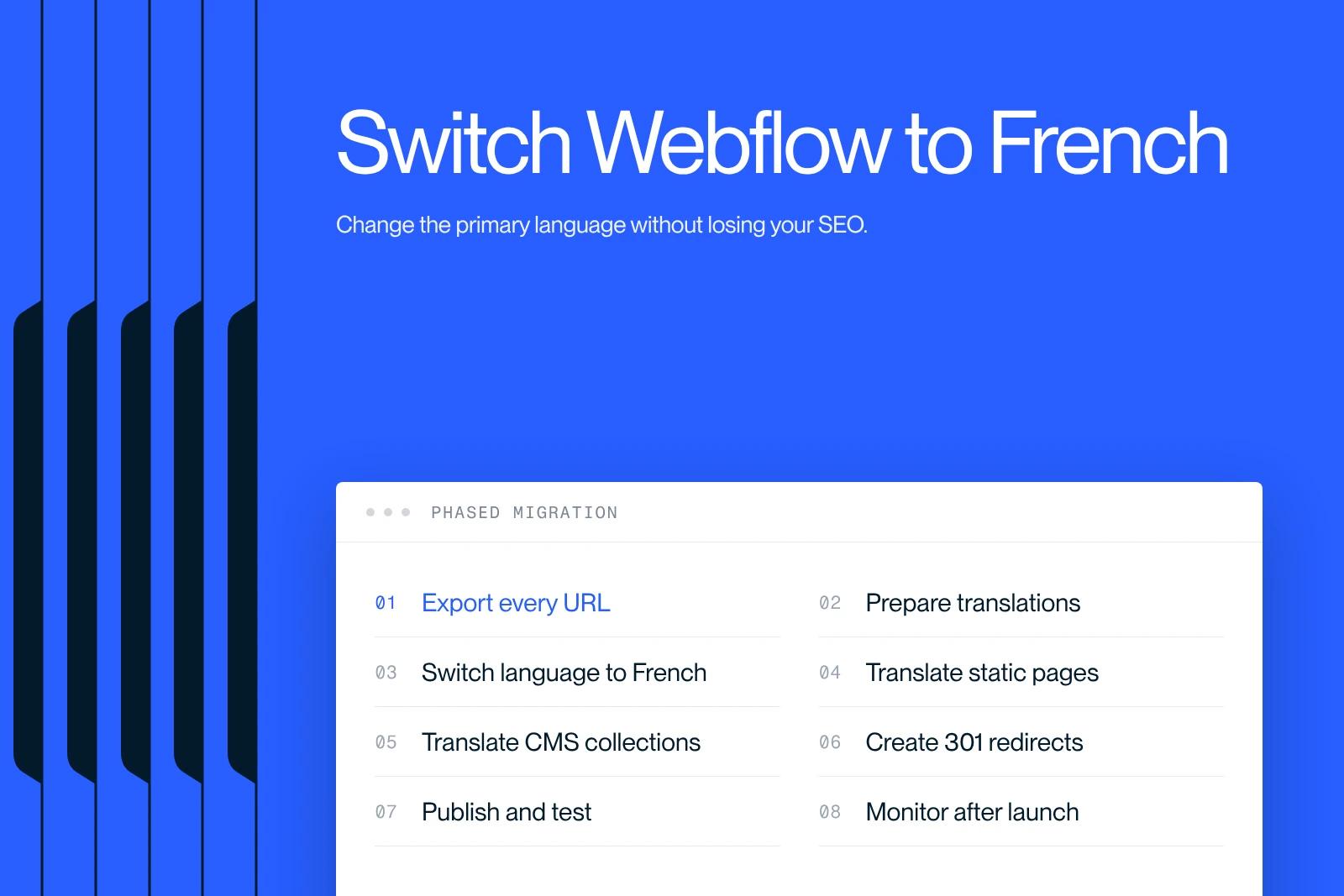
Goal: translate an entire Webflow site from English to French, without losing SEO or creating 404 errors.
Read this before you start: do not skip any steps. Each phase prepares the next one. If in doubt, stop and ask before publishing.
Explore this post with…
Want to set the Webflow primary language to French for your website without losing your search rankings?
Setting the Webflow primary language to French takes careful planning to protect your SEO visibility. A poorly executed switch to French can cause 404 errors and a drop in traffic. But by following the detailed guide from our Webflow agency for setting the Webflow primary language to French, you will complete your language switch safely.
Before you change your Webflow primary language to French: overview
Why? Before you start your Webflow migration to switch your site to French, you need a complete list of every existing page.
Phase 1: how to export every URL for your Webflow migration to French
Why? Before touching anything, you need a complete list of every existing page. This file will be the basis for creating the redirects.
Step 1.1: export with Screaming Frog (main method)
- Download Screaming Frog SEO Spider → screamingfrog.co.uk (free up to 500 URLs)
- Open the software and enter the site URL in the bar at the top
- Click Start
- Wait for the crawl to finish
- In the top tab, select Internal
- In the filter on the right, choose HTML (to get only pages, not images)
- Click Export → CSV
- Save the file as urls-english.csv
Step 1.2: export from Google Search Console (as a complement)
- Go to search.google.com/search-console
- Select the site property
- Left menu → Indexing > Pages
- Click Export at the top right → CSV
- Save as urls-search-console.csv
Step 1.3: export the Webflow collections
For each CMS Collection (blog, case studies, etc.):
- In Webflow, go to CMS
- Click the collection in question
- Click Export at the top right
- Save each file with a clear name (e.g. collection-blog.csv)
Step 1.4: create the mapping file
Open a spreadsheet (Excel, Google Sheets) and create a file with these columns:
Tip: Copy and paste all the URLs from the Screaming Frog file into the first column, then fill in the "New URL" column as you go.
Phase 2: prepare the translations before setting French as your Webflow primary language
Why? Having every translation ready before touching the site avoids leaving half-translated pages live.
Step 2.1: inventory the content to translate
List everything that needs to be translated:
Static pages
- [ ] Homepage
- [ ] About
- [ ] Services / Offers
- [ ] Contact
- [ ] Legal notice / Terms of sale / Privacy policy
- [ ] 404 page
Global elements
- [ ] Main navigation (navbar)
- [ ] Footer (links, text, copyright)
- [ ] CTA buttons (e.g. "Get started" → "Commencer")
- [ ] Banners and pop-ups
CMS Collections
- [ ] Blog posts
- [ ] Case studies / Projects
- [ ] Testimonials
- [ ] FAQ
Forms
- [ ] Field labels
- [ ] Placeholder text (e.g. "Your email" → "Votre email")
- [ ] Confirmation messages (e.g. "Thank you!" → "Merci !")
- [ ] Error messages
Media
- [ ] Image alt text
- [ ] Text on images / infographics
- [ ] Video subtitles, if applicable
Automated emails
- [ ] Form confirmation email
- [ ] Internal notifications
Step 2.2: organize the translations
Create a Google Sheets or Notion file with these columns:
Phase 3: set French as the Webflow primary language for your site
Prerequisite: Be on the Webflow Advanced plan with Localization enabled.
Step 3.1: make French the primary language
- In Webflow, go to Settings (gear icon)
- Click Localization
- Click Add locale
- Select French (FR)
- Set it as the Primary locale
- Keep English as a secondary locale if needed
Step 3.2: check the publishing settings
- In Settings > Publishing
- Check that the main domain points to the French version
- Check the URL structure (e.g. /en/ for English if you keep it)
Phase 4: translate the static pages
Important: Work page by page. Do not publish before you have finished the whole page AND created the matching redirect.
Step 4.1: change the slugs
For each static page:
- Open the page in the Designer
- Go to Page Settings (gear icon at the top right)
- Change the Slug (e.g. about → a-propos)
- ✅ Webflow automatically creates a 301 redirect for static pages
- Change all the text on the page to French
- Update the SEO Title and the Meta Description in French
- Update the Open Graph Title / Description
- Tick the "Status: Translated" box in your mapping file
Step 4.2: rules for French slugs
- Use hyphens, not underscores _
- Do not use accents in slugs (e.g. a-propos, not à-propos)
- Keep slugs short and readable
- Examples:
- about → a-propos
- our-services → nos-services
- contact-us → contact
- privacy-policy → politique-de-confidentialite
Phase 5: translate the CMS Collections
Warning: Unlike static pages, redirects for collections are manual. This is the riskiest step for 404 errors.
Step 5.1: change the slugs of collection items
For each article / collection item:
- Open the item in the CMS
- Change the Slug to French
- Change all text fields to French
- Update the SEO Title and the Meta Description
- Save (do not publish yet)
- Write down the old and the new URL in the mapping file
Step 5.2: change the slug of the collection itself
- In the CMS, click the collection settings
- Change the Collection Slug (e.g. blog stays blog, or case-studies → etudes-de-cas)
- Update the mapping file accordingly
Phase 6: create the 301 redirects for your Webflow migration to French
This is the most critical step. Do it before any publishing to avoid 404 errors.
Step 6.1: add the redirects in Webflow
- In Webflow, go to Settings > Publishing > 301 Redirects
- For each row of the mapping file where the URL has changed:
- In Old URL: enter the old URL (e.g. /blog/our-story)
- In New URL: enter the new URL (e.g. /blog/notre-histoire)
- Click Add Redirect
- Repeat for every changed URL
Step 6.2: check the redirects
Before publishing, check that each redirect is entered correctly:
- No typos
- URLs start with /
- The old URL matches exactly what was live
Step 6.3: special cases
- Internal links in the content: Search the CMS and the Designer for every link pointing to the old URLs and update them
- Links in the navbar and footer: Update them manually in the global components
Phase 7: commonly forgotten elements
Checklist to tick off before publishing.
Global elements
- [ ] Navbar: all links and text translated
- [ ] Footer: text, links, legal notice
- [ ] CTA buttons on every page
- [ ] Banners / pop-ups / announcement bars
SEO
- [ ] SEO Title translated on every page
- [ ] Meta Description translated on every page
- [ ] Open Graph Title and Description (social sharing)
- [ ] Alt text of the main images
Forms
- [ ] Labels of every field
- [ ] Placeholder text
- [ ] Confirmation messages
- [ ] Error messages
- [ ] Notification emails (client side and internal)
System pages
- [ ] 404 page translated
- [ ] Password page (if the site is protected)
Tracking & Analytics
- [ ] Check that Google Analytics events still fire
- [ ] Check that Google Tag Manager works
- [ ] Check conversions in Google Ads, if applicable
- [ ] Let @James Brunetto know so he can update the URLs in active campaigns
Phase 8: publish and test
Never publish before completing phases 1 to 7.
Step 8.1: publish the site
- Check one last time that all the 301 redirects are in place
- Publish the site from Webflow
- Clear the cache if you use a CDN (Cloudflare, etc.)
Step 8.2: test every page
For each old URL in the mapping file:
- Enter the old URL in the browser
- Check that it redirects to the new URL (and not to a 404 error)
- Tick "Tested ✅" in the mapping file
Step 8.3: test the forms
- Fill in and submit every form on the site
- Check that the confirmation email arrives in French
- Check that the internal notification works
Step 8.4: check on mobile
- Test navigation on a smartphone
- Check that text does not overflow with the new French words (often longer than in English)
Phase 9: after publishing
SEO: within 48 hours
- Go to Google Search Console
- Go to Sitemaps
- Submit the new sitemap: https://yoursite.com/sitemap.xml
- Request indexing of the main pages through URL Inspection > Request Indexing
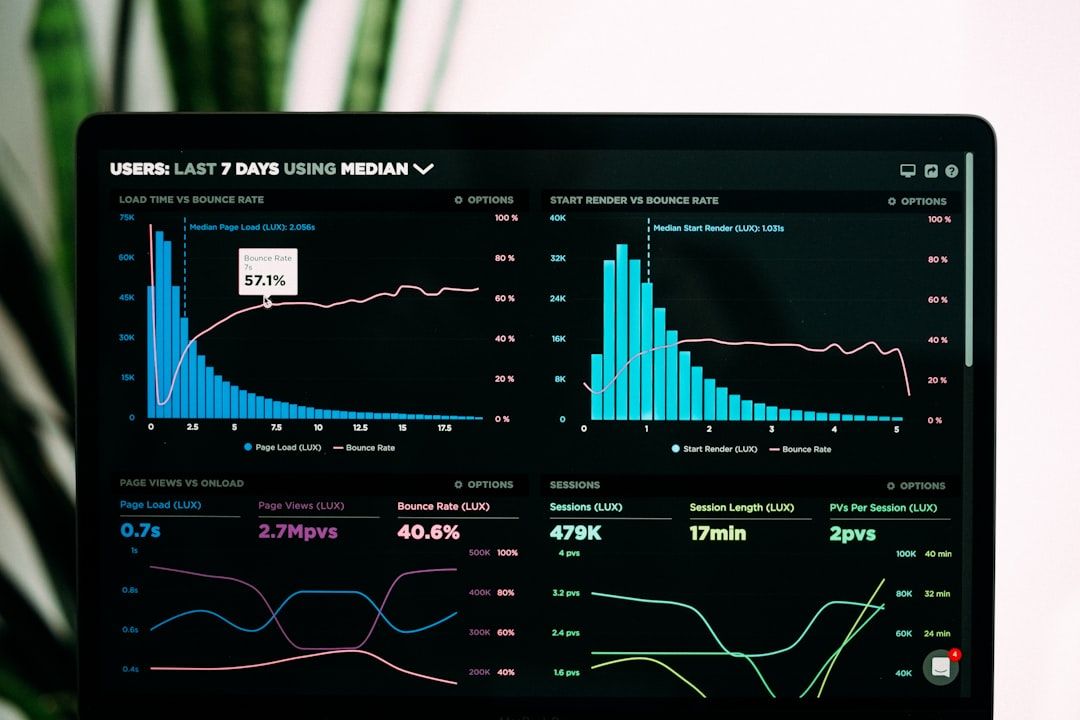
Note: A temporary drop in organic traffic is normal for 2 to 4 weeks, while Google reindexes every page. This is expected.
External links to update
- [ ] Google Business Profile
- [ ] Company LinkedIn page
- [ ] Other social networks (Instagram, Facebook, etc.)
- [ ] Team email signatures
- [ ] Directories and external mentions, if possible
Post-migration monitoring
- Monitor Google Search Console for 4 weeks (404 errors, index coverage)
- Monitor Google Analytics to spot any traffic anomaly
- Tell the marketing team about the new URLs for upcoming campaigns


