Article
SynqPro Documentation: Setup and On-Page SEO Guide for Webflow
Webflow12 min read

Nathan LhommeCo-fondateur & COO
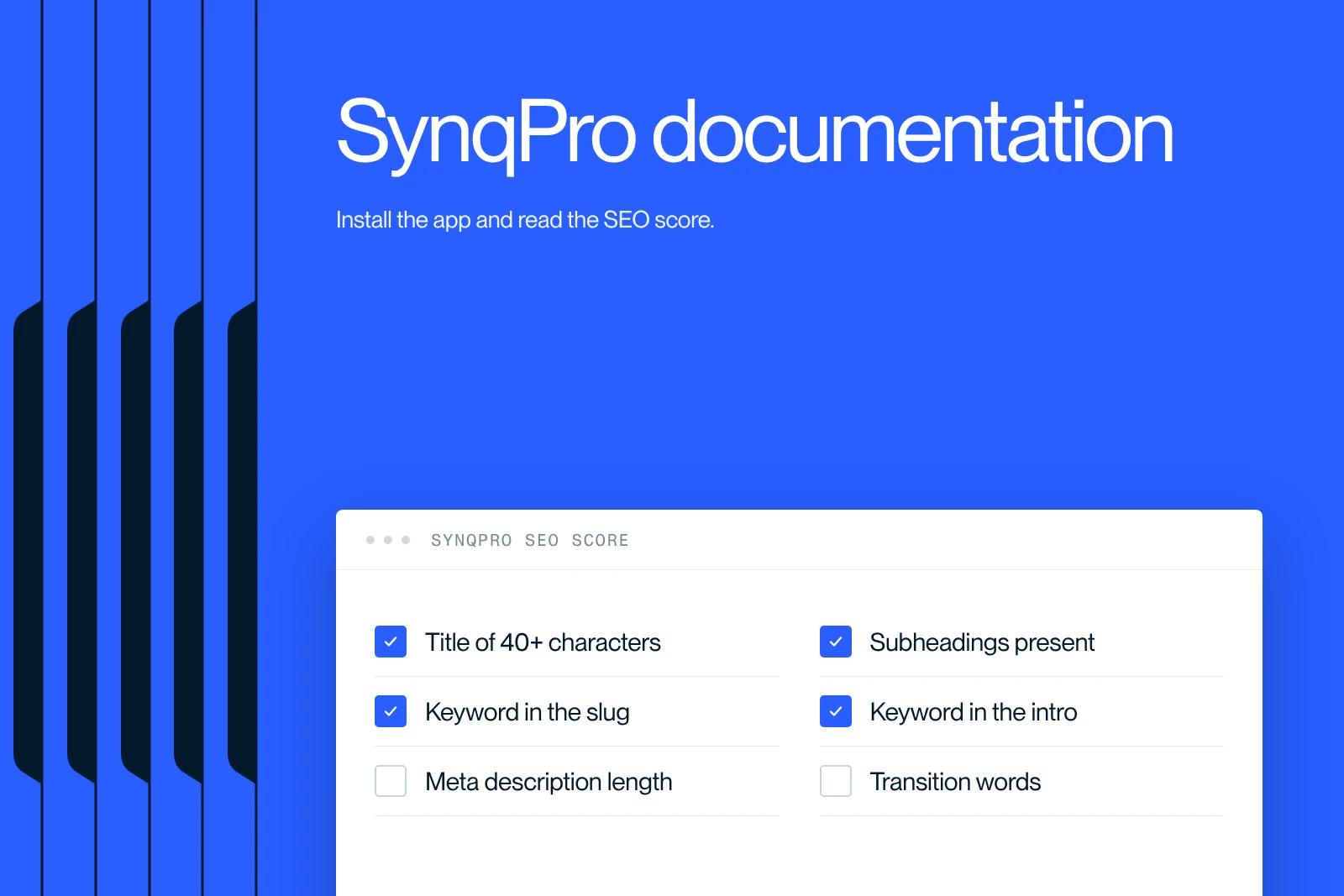
The SynqPro documentation is your toolbox. We show you how to get the most out of it. Ready to level up?
Explore this post with…
Complete onboarding guide for the SynqPro SEO app
Welcome to SynqPro, your go-to tool for optimizing your SEO content directly in Webflow. This guide walks you through each step so you can get started quickly and efficiently. With an intuitive interface and powerful features, SynqPro helps you manage your content while maximizing your search rankings.
Step 1: Download and install SynqPro
- Go to the download page:
- Search for SynqPro on Google or go directly to our official landing page.
- Click the “Install app” button or go straight to the installation page with this link: SynqPro - Installation.
- Download and install:
- Download the app for your system (web or desktop).
- Follow the step-by-step instructions to complete the installation.
- Check the technical requirements:
- Recommended browser: Google Chrome, for smooth integration with Webflow.
- Stable internet connection: For real-time syncing of CMS data.
Step 2: Create your SynqPro account
- Fill in the required information:
- Launch the SynqPro app after installation.
- Click "Create an account" and enter the required information:
- Your full name.
- A valid email address.
- A secure password.
- Your language preferences (choose your language for a personalized interface).
- Confirm your account:
- Check your inbox for a confirmation email.
- Click the link in the message to validate your account, or use the temporary password to log in.
- First login:
- Once your account is confirmed, log in with your credentials to access the main SynqPro interface.
Step 3: Complete your user profile
- Add your business information:
- Once logged in, go to the "User profile" section.
- Fill in the key fields:
- Company name: For tailored SEO tracking.
- Industry: For personalized recommendations.
- Language preferences: Choose from the available languages to optimize your experience.
- Configure your settings:
- Turn notifications on or off as needed.
- Customize your dashboard for quick access to the features you use most.
Step 4: Connect your Webflow account
To get the full benefit of SynqPro, you need to connect your Webflow account. This step lets you sync your projects and manage your SEO content directly from Webflow.
- Go to the integration section:
- In the SynqPro app, open the “Integrations” or “Webflow connection” tab.
- Authentication:
- Click the "Connect my Webflow account" button.
- A window will open asking you to authorize access to your Webflow account.
- Select a project:
- Once connected, a list of your Webflow projects will appear.
- Select the one you want to optimize with SynqPro.
- Grant permissions:
- Confirm the permissions SynqPro needs to interact with your project (CMS management, SEO changes, etc.).
Step 5: Set up your CMS Collections
SynqPro is built to manage your CMS Collections (blogs, products, portfolio pages) efficiently by syncing them with your Webflow content.
- Create or select a CMS Collection:
- In Webflow, go to the "Collections" tab in the Designer.
- Create a new collection or select an existing one (for example: Blog).
- Map your CMS fields to SynqPro:
- Open SynqPro from the Apps section of Webflow.
- Log in to your SynqPro account.
- Map the following fields:
- SEO Title: The title optimized for search.
- Meta Description: A short, informative description.
- Content: The main body of your articles.
- Check the data:
- Make sure all data is correctly synced between Webflow and SynqPro.
- Edit the fields if needed so everything matches perfectly.
Step 6: Optimize your content with SynqPro
SynqPro offers an intuitive interface that guides you through optimizing your content according to SEO best practices.
- Set a target query:
- For each article or page, enter a priority keyword in the dedicated bar.
- Follow the SEO recommendations:
- SynqPro analyzes your content and shows a list of SEO criteria to meet:
- SEO title: Must contain at least 40 characters.
- Meta description: Optimal length between 120 and 160 characters.
- Keyword density: Use the keyword 5% to 10% of the time.
- Transition words: At least 30% of sentences should contain them.
- SynqPro analyzes your content and shows a list of SEO criteria to meet:
- Optimization score:
- Every time you make a change, your SEO score updates in real time.
- Aim for a score of 100% to maximize your performance.
- Publish your optimized content:
- Once you are happy with your score, click "Publish" to sync your changes with Webflow.
Step 7: Track your SEO performance
- View your scores:
- After publishing, check the SEO scores of your articles directly in SynqPro.
- Quickly spot the articles that need adjustments.
- Detailed reports:
- SynqPro provides reports on how your pages perform based on keywords and SEO criteria.
Additional resources
For more clarity, watch this video explaining how to install and use SynqPro:
Conclusion
With SynqPro, SEO optimization becomes simple and intuitive. By following this guide, you are now ready to make full use of every feature in the app. Whether you are new to SEO or an expert, SynqPro gives you the tools you need to improve your visibility on search engines and maximize the impact of your content.
Get started today! Optimize your content and reach your goals with SynqPro. 🚀
Detailed guide to the SynqPro app features
With SynqPro installed and configured, here are examples of what you can do to maximize your SEO performance:
- Optimize your content:
- Edit your Webflow articles and pages directly with advanced SEO analysis tools.
- Use automatic suggestions to improve your keywords, titles and descriptions.
- Real-time analysis:
- Use real-time reports to measure how your pages perform.
- Identify areas for improvement and make the necessary changes.
- Simpler management:
- Manage all your content in one clear, intuitive interface.
- Publish or schedule your articles directly from SynqPro.
- Automatic updates:
- Any change you make in SynqPro is automatically synced with Webflow, which removes the risk of errors and repetitive tasks.
SynqPro is a tool built to optimize on-page SEO, directly integrated with Webflow.
This guide explains each feature of the app in detail so you can use it to its full potential. With SynqPro, you can improve the SEO of your blog posts in real time, with practical tips and intuitive tools.
Launching the SynqPro app
Step 1: Open SynqPro
- Open your Webflow site in the Designer.
- Go to the “Apps” section in Webflow and select SynqPro.
- Click to open the app. You will land on the main interface, where you can manage your blogs and optimize their SEO.
2. Set your priority keyword
Why set a priority keyword?
A priority keyword is essential for targeting a specific audience and optimizing your pages for search engines. SynqPro lets you set this keyword and guides you to use it effectively.
How do you add it?
- Select the blog post you want to optimize.
- In the right-hand panel of the SynqPro app, enter your main keyword.
- Once entered, the tool generates SEO recommendations based on that keyword.
3. SEO criteria shown on the right
SynqPro analyzes your content in real time and shows various SEO criteria to meet for maximum optimization.
Some of the key criteria analyzed:
- Keyword density: Checks that your priority keyword is used an optimal number of times.
- SEO title: Recommends adjustments to create an appealing, relevant title.
- Meta description: Helps you write a concise description optimized for search engines.
- Optimization score: A real-time rating of the overall SEO quality of your article.…
Follow the recommendations:
For each criterion, SynqPro gives specific suggestions. For example:
- Add or adjust keywords.
- Rework sections to make the content smoother and more relevant.
- Write a stronger title or meta description.
4. Real-time optimization score
The optimization score is a visual indicator of your content's SEO quality. It changes as you follow SynqPro's recommendations.
Goal: reach 100%
- Work on each criterion until the score reaches 100%.
- SynqPro guides you step by step, suggesting fixes and flagging weak points.
Some on-page SEO optimization criteria
SynqPro is designed to help you maximize the SEO performance of your content on Webflow. With an intuitive interface and real-time recommendations, you can easily optimize your pages by following proven criteria. This detailed documentation presents each criterion and explains how to meet it.
On-page SEO optimization criteria
1. At least 40 characters in the title
Why it matters:
A title that is too short can look uninformative to users and search engines. A title with at least 40 characters:
- Gives a clear idea of what the page is about.
- Improves click-through rate (CTR) by making your title more appealing.
How to meet this criterion:
- Write a descriptive, informative title.
- Include relevant keywords while keeping it natural.
Example:👉 Before: "Optimize your SEO" (17 characters)
👉 After: "The ultimate guide to optimizing your on-page SEO with SynqPro" (62 characters)
2. Use of subheadings
Why it matters:
Subheadings structure your content and make it easier to read. They:
- Help search engines understand the important sections.
- Improve the user experience by making your content readable and organized.
How to meet this criterion:
- Use the right HTML tags, such as <h2> for main sections and <h3> for subsections.
- Break your ideas into logical paragraphs.
Example:👉 Main subheading: “What is on-page SEO?”
👉 Subsection: “The basics for beginners”
3. Target query in the slug
Why it matters:
The slug (the part of the URL after the domain) helps search engines understand what your page is about. A URL that contains your main keyword is more relevant for SEO.
How to meet this criterion:
- Edit the slug in Webflow to include your main keyword.
- Make sure the URL stays short and readable.
Example:👉 Keyword: "SEO optimization"
👉 Slug: your-site.com/seo-optimization
4. Target query in the introduction
Why it matters:
The introduction is often the first thing search engines and users read. Mentioning your keyword in the first lines strengthens your page's relevance.
How to meet this criterion:
- Place the main keyword in the first 2 or 3 sentences.
- Do it naturally, without over-optimizing.
Example:👉 “This guide explains how to succeed with your on-page SEO optimization using SynqPro.”
5. Target query density
Why it matters:
A balanced density of the main keyword (between 5% and 10%) ensures good visibility without the risk of over-optimization, which Google could penalize.
How to meet this criterion:
- Spread the keyword throughout the text: title, subheadings, introduction, body and conclusion.
- Avoid excessive repetition.
Example:👉 1,000-word article → keyword used about 50 times.
6. Meta description length
Why it matters:
The meta description is a preview shown in search results. A length between 120 and 160 characters lets you:
- Give enough information.
- Attract clicks with a clear, engaging description.
How to meet this criterion:
- Write a concise, descriptive meta description that contains the main keyword.
Example:👉 "Learn how to optimize your on-page SEO with SynqPro to boost your performance on Webflow."
7. Sentences with transition words
Why it matters:
Transition words (for example "so", "therefore", "thus") make content smoother and better structured. This improves readability for users and relevance for search engines.
How to meet this criterion:
- Use transition words in 30% of your sentences.
- Check that these words connect your ideas naturally.
Example:👉 Before: "SynqPro optimizes your SEO. It improves your performance."
👉 After: "SynqPro optimizes your SEO and therefore improves your performance."
8. Target query in the title
Why it matters:
Including your main keyword in the title strengthens your page's relevance for that keyword, which improves your ranking in search results.
How to meet this criterion:
- Put the main keyword in the title, ideally at the start.
- Make sure the title still reads naturally.
Example:👉 Keyword: "on-page SEO"
👉 Title: “On-page SEO: a complete beginner's guide with SynqPro”
9. Target query density in subheadings
Why it matters:
Including your keyword in at least 50% of your subheadings improves rankings while strengthening the structure of your content.
How to meet this criterion:
- Add the keyword or its variants to your main subheadings.
- Keep it natural so readability does not suffer.
Example:👉 Subheading: “Why on-page SEO is essential”
Tip: check your SEO score in real time
SynqPro shows a real-time SEO score based on all the criteria above. Following the recommendations for each item gradually raises your score. Work on the criteria one at a time to reach a score close to 100%.
Recommended workflow with SynqPro
- Set your main keyword: Choose a relevant keyword for your audience.
- Work on each criterion: Follow SynqPro's suggestions to improve your content.
- Optimize up to 100%: Adjust your titles, descriptions and content until you get a perfect score.
- Publish and analyze: Put your content live and track its performance.
Additional resources
For more clarity, watch this video explaining how to use SynqPro:
Conclusion
SynqPro is a powerful tool for SEO professionals and content creators. By meeting the on-page optimization criteria detailed in this guide, you can significantly improve your search engine rankings and attract more traffic.
Start using SynqPro now to transform your content!


