Article
How to Back Up and Restore Your Webflow Site
Webflow9 min read

James BrunettoCo-fondateur & CEO
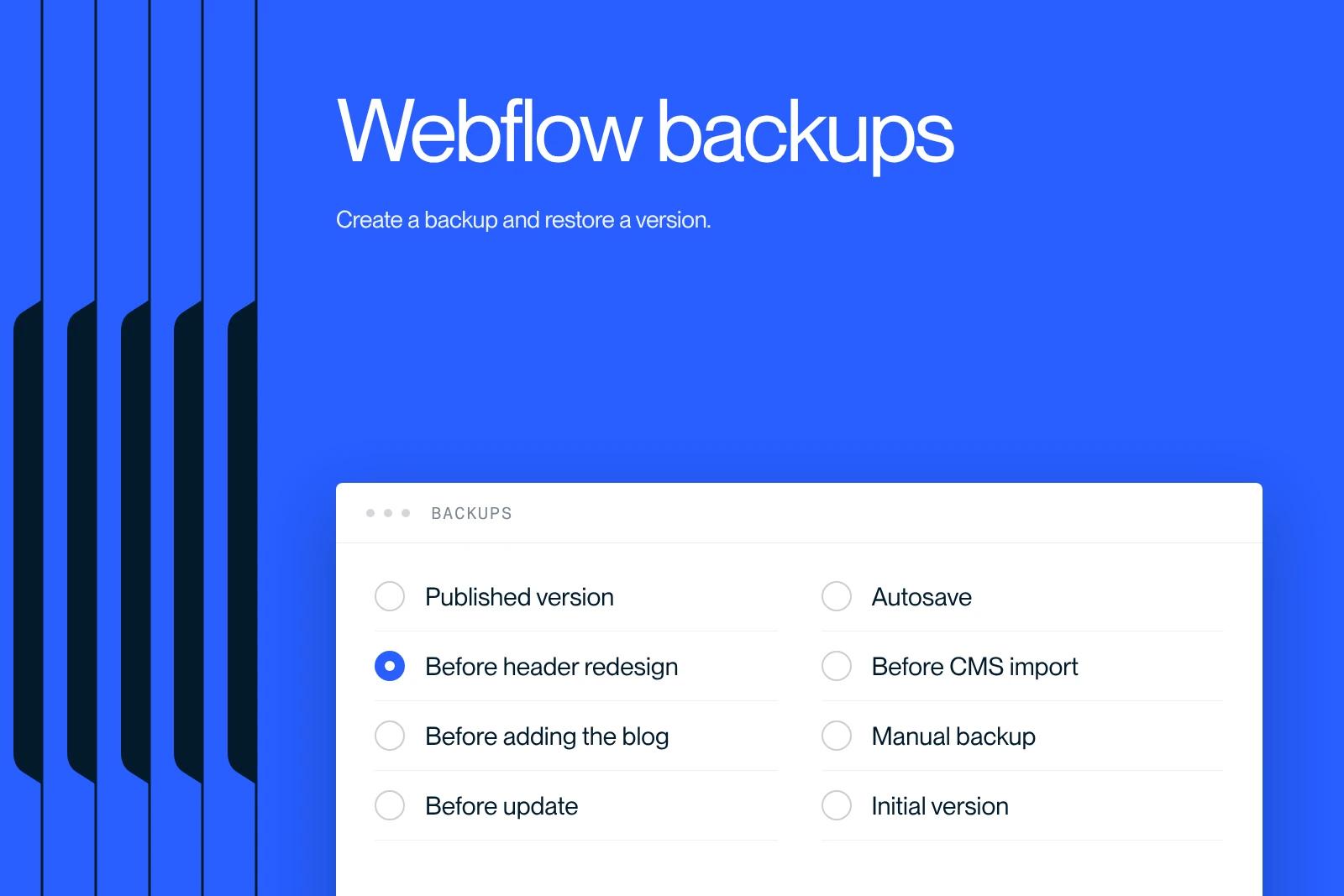
Never lose your data on Webflow. Learn how to back up and restore your site the right way.
Explore this post with…
Keeping your Webflow site secure and running is essential to avoid losing content or features because of mistakes, cyberattacks or technical issues.
This guide from our Webflow agency in France walks you through, step by step, how to back up and restore your Webflow site effectively.
Why Back Up Your Webflow Site?
A backup is a copy of your site that lets you restore an earlier version if something goes wrong. Without a backup, you risk losing hours of work, damaging your online image and even losing money if your site generates revenue.
The benefits of a backup:
- Fast recovery when something breaks: a bug or mistake can be fixed in a few clicks.
- Risk-free experimentation: try new ideas without fear of losing your content.
- Protection against the unexpected: cyberattacks, accidental deletions or malfunctions.
Step 1: Understand Webflow's Automatic Backups
Webflow automatically backs up your site at regular intervals. These automatic backups provide a baseline of safety and are created:
- After every site publish.
- Every hour while you work in the editor.
However, these automatic backups may not be enough if you want to lock in a specific version or before making major changes. That is why custom backups matter.
Step 2: Create a Backup of Your Webflow Site
1. Open Your Project
- Log in to your Webflow account.
- Select the project you want to back up.
2. Use the Keyboard Shortcut
- On Mac: press Command + Shift + S.
- On PC: press Ctrl + Shift + S.
3. Name and Save the Backup
A pop-up opens where you can name your backup. Use descriptive names that show the date or the nature of the changes (for example: "Backup before homepage redesign, 11/22/2024").
- Click "Save" to confirm.
4. Check the Backup
To view your backups, go to:
- Project Settings → Backups.
- You will see a chronological list of your backups.
Step 3: Restore a Saved Version
If something goes wrong (a design mistake, deleted content, and so on), you can quickly restore an earlier version of your site.
1. Go to Your Backups
- From your Webflow dashboard, open the project in question.
- Go to Project Settings → Backups.
2. Preview a Backup
If you have several backups and are not sure which one to restore:
- Click "Preview" to see the exact version of the site at that point in time.
3. Restore the Backup
- Once you have found the right version, click "Restore".
- Webflow will warn you that restoring may change the Collection IDs (important if you use tools like Zapier or Make).
- Click "Restore Anyway" to confirm.
4. Check Your Site
When the restore is complete, Webflow shows the message "Version restored successfully". Go back to the Designer to confirm everything is in order.
Step 4: Best Practices for Managing Your Backups
1. Schedule Regular Backups
- Back up after every major update or important publish.
- Create manual backups before changing key sections or trying out new designs.
2. Organize Your Backups
- Use a clear naming convention so you can find your backups quickly (for example: Date + Type of change).
- Delete unneeded backups to avoid duplicates.
3. Check Your Automations
- If you run automated workflows with tools like Zapier, check the Collection IDs after a restore. Your workflows may need updating.
4. Store External Copies
- Export a static version of your site and save it locally or to a cloud service (Dropbox, Google Drive, etc.). This step is especially useful for critical projects.
Step 5: Fix Common Problems
1. Corrupted or Incomplete Backup
- Make sure your internet connection is stable while creating the backup.
- Try creating a new manual backup.
2. Restore Fails
- Check your internet connection.
- If the problem persists, contact Webflow support with the details (error message, time, version).
Step 6: When and How to Restore After a Problem
When a restore is necessary:
- Accidental deletion of a page or section.
- Something breaks after an update.
- Site compromised by a cyberattack.
Before restoring:
- Pinpoint the exact problem.
- Write down all recent changes so you do not lose the adjustments made after the backup.
Advanced Steps for Managing Webflow Backups
1. Create Manual Backups Before Every Major Change
Webflow creates backups automatically, but their frequency may not be enough in some situations. Before publishing new content or changing a critical page, create a manual backup. This gives you full control over the versions available.
2. Name Your Backups Strategically
A descriptive name such as "Before blog changes, 11/22/2024" or "Final design backup, 12/01/2024" is essential to find the version you need easily. Avoid generic names like "Backup1" or "Test".
3. Automate Backup Reminders
If you manage several Webflow sites, set weekly or monthly reminders to check your backups. This keeps your data up to date, especially if you make frequent changes.
Restoring Your Webflow Site: Practical Cases
Restoring a backup is not a trivial action. Here are a few cases where this feature becomes crucial:
- Human error: an accidentally deleted section or page can be recovered in a few clicks with a restore.
- Bug after an update: if an update causes conflicts or breaks your pages, quickly roll back to a working version.
- Attack or hack: if your site is compromised, a restore lets you start again from a clean base.
Practical Steps to Restore a Backup:
- Identify the right backup: use the "Preview" feature to view your backups and pick the right version.
- Be careful with Collection IDs: if you use automations like Zapier, a restore can change collection identifiers. Plan for these adjustments ahead of time.
- Check after the restore: once the restore is complete, browse your site to make sure everything works properly.
Backups and SEO: Best Practices
Backing up and restoring your Webflow site can also play an indirect role in your SEO strategy. Here are a few tips to build these actions into your SEO routine:
1. Avoid long downtime
Search engines like Google detect downtime. A site that is offline for several hours can hurt your rankings. When something goes wrong, a quick restore keeps these interruptions short.
2. Keep your optimized content
A backup ensures that pages already optimized for keywords, meta tags and technical performance are not lost. You avoid having to redo your optimization work.
3. Test your SEO changes safely
Before changing your site structure or testing a new SEO strategy, create a backup. If the results are not convincing, you can easily go back to the previous version.
Tips to Improve How You Manage Webflow Backups
- Add an external storage system
Webflow handles backups internally, but it is a good idea to save an exported version of your site (HTML/CSS) to a cloud service like Google Drive or Dropbox. This adds an extra layer of security. - Work smoothly with your team
If several people work on the same site, coordinate your backups so no important changes get lost. - Document your backups and restores
Keep a record of the backups you create and the restores you run, especially if you manage sites for several clients. This makes management and technical audits easier.
Gain Peace of Mind with a Solid Backup Strategy
Backup management is often neglected until something goes wrong. By taking a proactive approach, you protect your work and your investment while ensuring a great user experience. Whether you are a designer, a developer or a project manager, mastering Webflow backups is an essential skill.
Start applying these practices today to secure your Webflow site and be ready for anything.
Conclusion: backing up and restoring your Webflow site
Backing up and restoring a Webflow site is an essential skill for every user. By following this guide, you can secure your content, avoid losses and keep your online activity running smoothly. Make a habit of scheduling regular backups and organizing your versions well to manage your Webflow projects at their best.
Protect your investment and gain peace of mind by setting up a robust backup strategy today!
Frequently asked questions
Yes, Webflow creates automatic backups:
After every publish.
Every hour while you work in the Designer.
However, for more control, it is a good idea to create manual backups.


