Article
Webflow Structured Data: A Step-by-Step JSON-LD Guide
Webflow6 min read

James BrunettoCo-fondateur & CEO
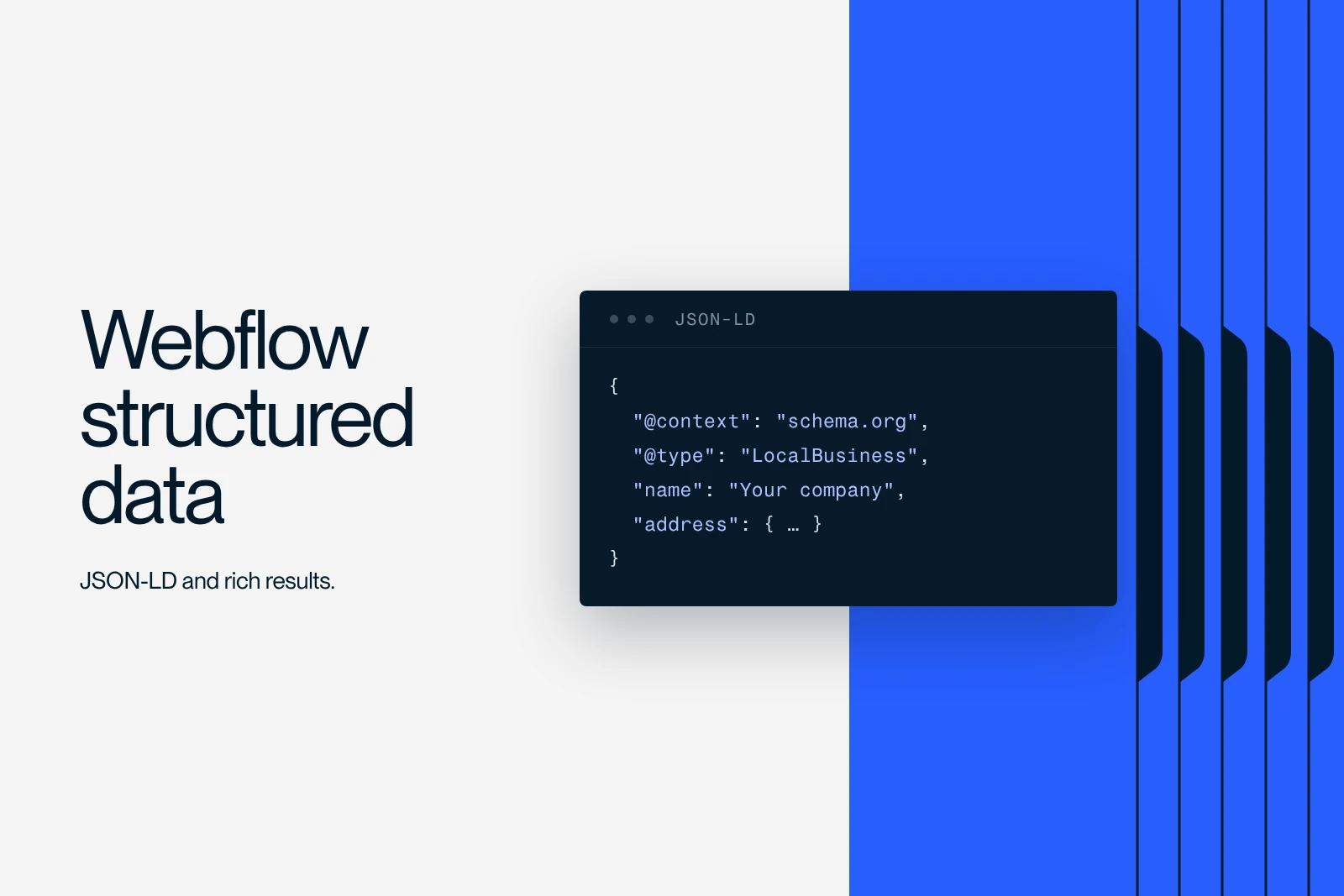
Structured data is essential to improve your visibility on Google. Learn how to add it to Webflow easily with JSON-LD.
Explore this post with…
Want to improve the organic search performance of your Webflow site, especially for local SEO or Google rich results? Adding JSON-LD structured data is a must.
In this article, you will find a complete, easy-to-follow guide to understand, generate and add structured data to Webflow without hassle. This tutorial relies on the free Dentsu Schema Markup Generator.
What is structured data (Schema.org)?
Structured data, also called Schema.org markup, helps search engines understand a site's content better. It gives precise information about a business, a page or a product, right in the HTML code, without being visible to users.
Examples of information you can enrich:
- Company name
- Address, phone number
- Links to social media profiles
- Opening hours
- Geographic coordinates
- Customer reviews
This markup helps your pages show up as rich results in search pages (also called rich snippets), which can boost your visibility a lot.
Step 1: Generate the JSON-LD code with the Dentsu tool
To generate JSON-LD markup easily, you can use the free Schema Markup Generator from Dentsu.
How to do it:
- Open the online tool: technicalseo.com/tools/schema-markup-generator
- Pick the markup type: "Organization" or "LocalBusiness"
- Fill in the following fields:
- Company name
- Website URL
- Logo URL hosted on Webflow
- Social media profiles (Facebook, LinkedIn, Instagram, TikTok...)
- Full postal address
- Opening hours
- GPS coordinates (latitude and longitude)
The tool automatically generates a JSON-LD script you can copy.
Step 2: Add the JSON-LD script to Webflow
Once the JSON-LD code is generated, you need to add it to your Webflow project.
Open the settings:
- Log in to your Webflow account
- Open your project
- Click "Settings" for the site
- Open the tab named Custom Code
Add the code:
In the "Before </body> tag" section, paste the JSON-LD script you got.
html:
<script type="application/ld+json">
{
"@context": "https://schema.org",
"@type": "Corporation",
"name": "Agence Utopia",
"alternateName": "Utopia",
"image": "https://cdn.website.com/logo.svg",
"url": "https://www.theutopia.fr/",
"address": {
"@type": "PostalAddress",
"streetAddress": "93 Bd de Sébastopol",
"addressLocality": "Paris",
"postalCode": "75002",
"addressCountry": "FR"
},
"geo": {
"@type": "GeoCoordinates",
"latitude": "48.8654908",
"longitude": "2.3518968"
},
"openingHoursSpecification": [
{
"@type": "OpeningHoursSpecification",
"dayOfWeek": [
"Monday", "Tuesday", "Wednesday", "Thursday", "Friday"
],
"opens": "09:00",
"closes": "18:00"
}
],
"sameAs": [
"https://www.facebook.com/agence.utopia",
"https://www.instagram.com/agence.utopia",
"https://www.linkedin.com/company/theutopia/",
"https://www.tiktok.com/@agence.utopia"
]
}
</script>
Save your changes and publish your site to make the data live.
Step 3: Validate your structured data
Once your site is published, you must check that Google reads the markup correctly.
Tools to use:
- Schema Markup Validator: validator.schema.org
- Google Rich Results Test: search.google.com/test/rich-results
Paste the URL of your Webflow page, run the test, then fix any errors. These steps make sure your structured data is taken into account.
Step 4: SEO, GEO and Local Business optimization
To go further with local SEO, here are a few extra best practices:
- Create dedicated pages for each location (e.g. Paris, Lyon, Marseille)
- Add custom JSON-LD markup for each city
- Encourage your customers to leave Google reviews
- Publish Google Business Profile posts
- Use local keywords in your titles and H1 tags
Step 5: Add structured data for an FAQ
FAQs enrich your pages and bring in more traffic. To get the most out of them, add dedicated structured data in the FAQPage format.
FAQ JSON-LD example:
html:
<script type="application/ld+json">
{
"@context": "https://schema.org",
"@type": "FAQPage",
"mainEntity": [
{
"@type": "Question",
"name": "What is a TikTok agency?",
"acceptedAnswer": {
"@type": "Answer",
"text": "A TikTok agency is a partner for businesses that want to grow through TikTok. It builds an editorial strategy, tailored content, and ad or influencer campaigns."
}
},
{
"@type": "Question",
"name": "How do you break through on TikTok?",
"acceptedAnswer": {
"@type": "Answer",
"text": "To break through on TikTok, you need to create creative content, post regularly, use trends and work with influential creators."
}
}
]
}
</script>
Adding it to Webflow:
- Go back to your project settings
- Paste the script in the "Before </body> tag"
- Publish your changes
Google can now read your questions and answers and show them automatically as rich results.
Conclusion
Adding structured data to Webflow significantly improves your visibility in search engines, strengthens your local SEO and raises your chances of showing up in rich results.
With this guide, you have the basics to generate, add and validate your JSON-LD markup. You can also go further with specific markup for local businesses, FAQs or products.
Need a Webflow agency? Contact our team.
Frequently asked questions
Structured data is invisible markup added to the HTML code of your Webflow site. It helps search engines like Google understand your pages better and show rich results in the SERPs.


