Article
Webflow Bandwidth: How to Reduce It
Webflow13 min read

James BrunettoCo-fondateur & CEO
Building a website with Webflow gives you a wide range of features, thanks to its mix of visual design and dynamic content management through its content management system (CMS). Still, managing Webflow bandwidth usage efficiently is critical, especially for Webflow projects that include many images, videos and other media files.
Explore this post with…
Bandwidth measures the amount of data transferred between your site and your visitors' browsers.
Webflow offers several plans and add-ons to manage bandwidth. Still, you need a solid understanding of how to optimize it to keep costs reasonable and avoid overage charges. If you want to combine performance and online visibility, working with a Webflow SEO agency can be a real asset. In this article, we look at effective ways to reduce bandwidth usage on your Webflow projects while keeping a great user experience.
Understanding bandwidth usage on Webflow
What is bandwidth and how is it used?
Bandwidth is the amount of data a website can transfer between its servers and its visitors over a given period. On Webflow, usage depends on the total volume of data downloaded during visits, including images, CSS files, JavaScript, videos and dynamic content coming from the CMS.
The more heavy resources your web project contains, or the more visitors it attracts, the higher your bandwidth usage will be. Since the pricing overhaul of May 13, 2026, Webflow's official pricing grid includes 1 GB per month on Starter, 10 GB on Basic and 50 GB on Premium, expandable up to 2.5 TB with paid add-ons. So it pays to understand how this data is used to avoid overages. Plan details are in our Webflow pricing guide.
Factors that affect bandwidth usage
Several elements affect bandwidth usage in a Webflow project. The size and number of files such as images, videos, CSS and JavaScript play a key role, because loading them generates a large volume of transferred data.
The frequency and amount of dynamic content, such as products in an online store or form submissions tied to the CMS, also influence usage. Custom web fonts, image lazy loading and how you handle downloadable files add to the data load too. Finally, the number of active visitors and how they interact with your site directly determine how much data is transferred.
Managing your workspace well and optimizing for Webflow's bandwidth limits, including the use of analytics tools, become essential to keep data usage under control and avoid needless extra costs.
Summary table to reduce bandwidth on Webflow
To improve your Webflow site's performance and reduce bandwidth usage, here are the main actions to take, with simple instructions to apply them.
How to reduce bandwidth usage on Webflow
| Action | How to do it |
|---|---|
| Compress images in the Assets panel | Open the Assets panel, select an image and click “Compress”. |
| Compress CMS images | In the CMS, replace large images with optimized versions before publishing. |
| Cut down background videos | Replace heavy videos with static images or lightweight animations. |
| Minify HTML, CSS and JS | Turn on minification in Project Settings → Publishing → Minify Code. |
| Clean up unused styles | In the Designer, remove unused classes with the Style Manager. |
| Remove unnecessary interactions | Review interactions in the “Interactions” panel and delete the ones you don't use. |
| Optimize for every device | Check each breakpoint and hide unnecessary elements on mobile and tablet. |
| Replace heavy background images | Use inline images with object-fit instead of CSS backgrounds. |
| Remove unused fonts | Delete unused fonts in Project Settings → Fonts. |
| Delete unnecessary files | Remove outdated files in the Assets panel to lighten loading. |
Optimizing images and videos
Compressing images without losing quality
To reduce bandwidth usage on your Webflow site, you need efficient image compression that doesn't hurt visual quality. Webflow lets you compress images directly in CMS Collections, which is especially useful for projects with many dynamic items. You can also use external tools like TinyPNG or ImageOptim before uploading your files, to shrink them without degrading quality.
Choosing lossless compression, which removes redundant information without changing the final rendering, keeps images sharp while cutting their weight significantly.
Using modern image formats
Modern formats such as WebP or AVIF shrink file sizes far more than traditional JPEG or PNG. Webflow supports automatic conversion of images to WebP, with a fallback to ensure compatibility across all browsers. Using these formats reduces the amount of data transferred, which helps you manage the bandwidth your web projects consume.
SVG files remain ideal for icons and logos, since they are light and scale to any screen resolution.
Implementing videos efficiently
Videos use a lot of bandwidth. To limit their impact, host your videos on dedicated platforms like YouTube or Vimeo and embed them in your Webflow site with iframes. This reduces the bandwidth load caused by heavy video files.
If you have to host videos directly, optimize their format, size and length, and use lazy loading so videos only load when the user can see them. This way, you optimize data usage while keeping a smooth user experience.
Optimizing code and resources
Minifying CSS, JavaScript and HTML
Minification reduces the size of CSS, JavaScript and HTML files by removing unnecessary spaces, comments and redundant lines of code. It lowers the weight of transferred files, which cuts bandwidth usage and speeds up loading on Webflow sites. Use automated tools, sometimes built into Webflow or available as third-party packages like cssnano or UglifyJS, to keep your code clean and efficient.
Combining CSS and JavaScript files when possible also reduces the number of HTTP requests, which improves the site's overall performance.
Using lazy loading for images and videos
Lazy loading delays loading images and videos until they appear in the visitor's viewport. Webflow makes this feature easy to turn on, and it helps reduce bandwidth usage by avoiding needless downloads of off-screen media. Lazy loading speeds up the initial page load and optimizes resource usage, which is especially useful for media-rich or high-traffic sites.
Cleaning up unused resources
As a Webflow project goes through updates and changes, some CSS files, JavaScript, images or fonts become outdated or unused. Keeping these resources clutters your workspace and increases the amount of data transferred, which hurts bandwidth.
Run a regular audit to find and delete these unnecessary items. It improves site performance and also makes Webflow bandwidth management and billing lighter.
Managing content efficiently
Using pagination and infinite scroll carefully
Pagination and infinite scroll can be very useful to limit the amount of content loaded when a page first opens. Webflow lets you turn on these features for CMS content lists, which can reduce the amount of data transferred and improve loading performance.
However, use infinite scroll carefully, because it can increase bandwidth usage if too much content loads as the user scrolls. Configure these features wisely to balance user experience with efficient resource management.
Replacing images with CSS when possible
When possible, using elements styled with CSS instead of images can greatly reduce the data load. Icons, progress bars and even some button designs can be built entirely in CSS, so no extra images need to be transferred. This technique lightens bandwidth and also makes browsing smoother and pages faster.
Limiting widgets and third-party integrations
Widgets and third-party integrations are handy for enriching the user experience, but they can use a significant amount of bandwidth. Third-party scripts, such as Google Analytics or other tracking tools, should be used sparingly, because they can slow page loading and increase the amount of data transferred.
Limit these integrations to the ones your site really needs, and optimize how they load with techniques like lazy loading whenever possible.
Using CDNs and caching
Benefits of using a CDN with Webflow
A Content Delivery Network (CDN) replicates your resources (CSS files, JavaScript, images, videos) on servers spread around the world. Visitors receive them from the nearest point of presence, which reduces latency and speeds up loading. On Webflow, this CDN is included in hosting: since April 2025 the platform has been moving its DNS infrastructure to Cloudflare, as explained in Webflow's help article on connecting a domain. Adding an external CDN in front of Webflow is therefore rarely necessary.
The right CDN improves the user experience, even during traffic peaks, while lightening the overall load of transferred data.
Configuring caching to save bandwidth
Caching is essential to limit bandwidth usage. Webflow automatically refreshes the cache when you publish, which keeps content consistent, but you can push optimization further.
By setting longer cache durations for static files (logos, web fonts, CSS files, JavaScript that rarely changes), you reduce the number of requests and the amount of data transferred on each visit. For dynamic resources, such as CMS items or form submissions, a shorter cache duration is better to keep information fresh.
For projects that need more control, some third-party solutions let you cache dynamic data on the client side with dedicated JavaScript libraries, although for now this stays limited to the current session. A well-configured caching policy reduces the bandwidth consumed and helps keep performance high for all your visitors.
Monitoring and analyzing bandwidth usage
Tools and methods to monitor bandwidth
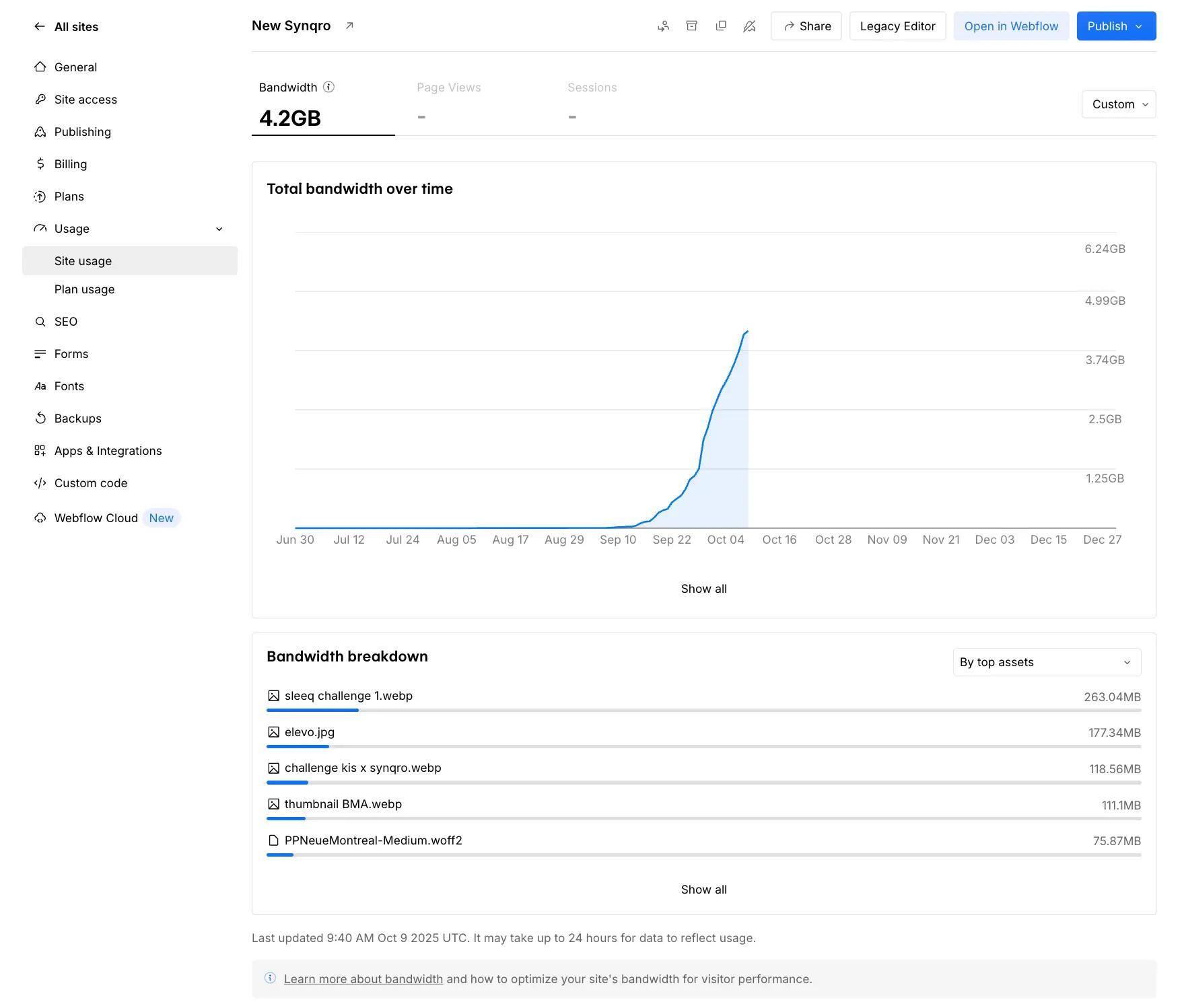
To manage the bandwidth usage of your Webflow projects well, you need solid monitoring tools. Besides Webflow's built-in dashboard, which shows overall usage and helps you spot the heaviest pages and files, there are advanced solutions such as SolarWinds NetFlow Traffic Analyzer or WhatsUp Gold. These tools capture, analyze and display network traffic in real time, with charts, alerts and detailed reports by user, protocol or interface.
They help you pinpoint the sources of excessive usage, so you can manage bandwidth proactively and in a targeted way.
Reading the data and making the right adjustments
Monitoring your bandwidth data is not enough: you also need to read it correctly to act effectively. Analyze usage trends to understand peaks tied to campaigns, events or new content. Identify the heaviest files or pages and consider targeted optimizations, such as stronger image compression or fewer third-party resources.
If you notice unusual usage linked to integrations or widgets, question whether you need them or optimize their configuration. By adjusting regularly based on these analyses, you keep bandwidth usage under control while keeping the user experience smooth and high quality.
Final considerations on content updates
Planning updates to minimize impact
To limit the impact of updates on your Webflow project's bandwidth usage, plan their frequency and scope carefully. Publishing a lot of heavy content, such as images or video files, all at once can cause sudden spikes in data usage and risk exceeding your plan's limits. It's best to space out major updates to spread the load on your bandwidth.
Organizing content well in your workspace, and regularly cleaning out outdated or unused files, also helps limit the amount of data transferred when you publish.
Strategies for balanced bandwidth usage during updates
An effective strategy is to optimize content before publishing it: compress media, adapt it to the ideal formats and dimensions, and use techniques like lazy loading for new elements. When updating, rely on CMS items to manage content dynamically rather than multiplying heavy static pages.
Webflow's bandwidth add-ons can be a temporary solution, but the ideal goal is still to balance website quality with tight control over transferred data. Finally, following a regular update schedule along with systematic bandwidth analysis will help you fine-tune your plan and avoid surprise charges.
Conclusion
Optimizing bandwidth on Webflow is a must, especially since the Premium plan, which replaced the old CMS and Business plans on May 13, 2026, includes 50 GB per month where the old Business plan offered 100. Compressing your images and videos, minifying your CSS and JavaScript files, limiting redirects, using lazy loading and removing unused resources are concrete ways to lighten data usage and keep the user experience smooth. Working with a Webflow partner agency gets you a high-performing site and gives you access to experts who can make full use of the platform's capabilities.
Take control of your usage and, if needed, move from the Basic plan to the Premium plan or add a bandwidth add-on to support your site's growth. The goal stays the same: control your costs and give your visitors a fast site, whatever the size of your audience.
Frequently asked questions
The main image formats recommended to reduce bandwidth usage on Webflow are WebP, AVIF and SVG. These formats deliver good image quality at smaller file sizes, which improves loading times and overall site performance.


