Article
Webflow Cookies: Management, Compliance and SEO Impact
SEO20 min read

James BrunettoCo-fondateur & CEO
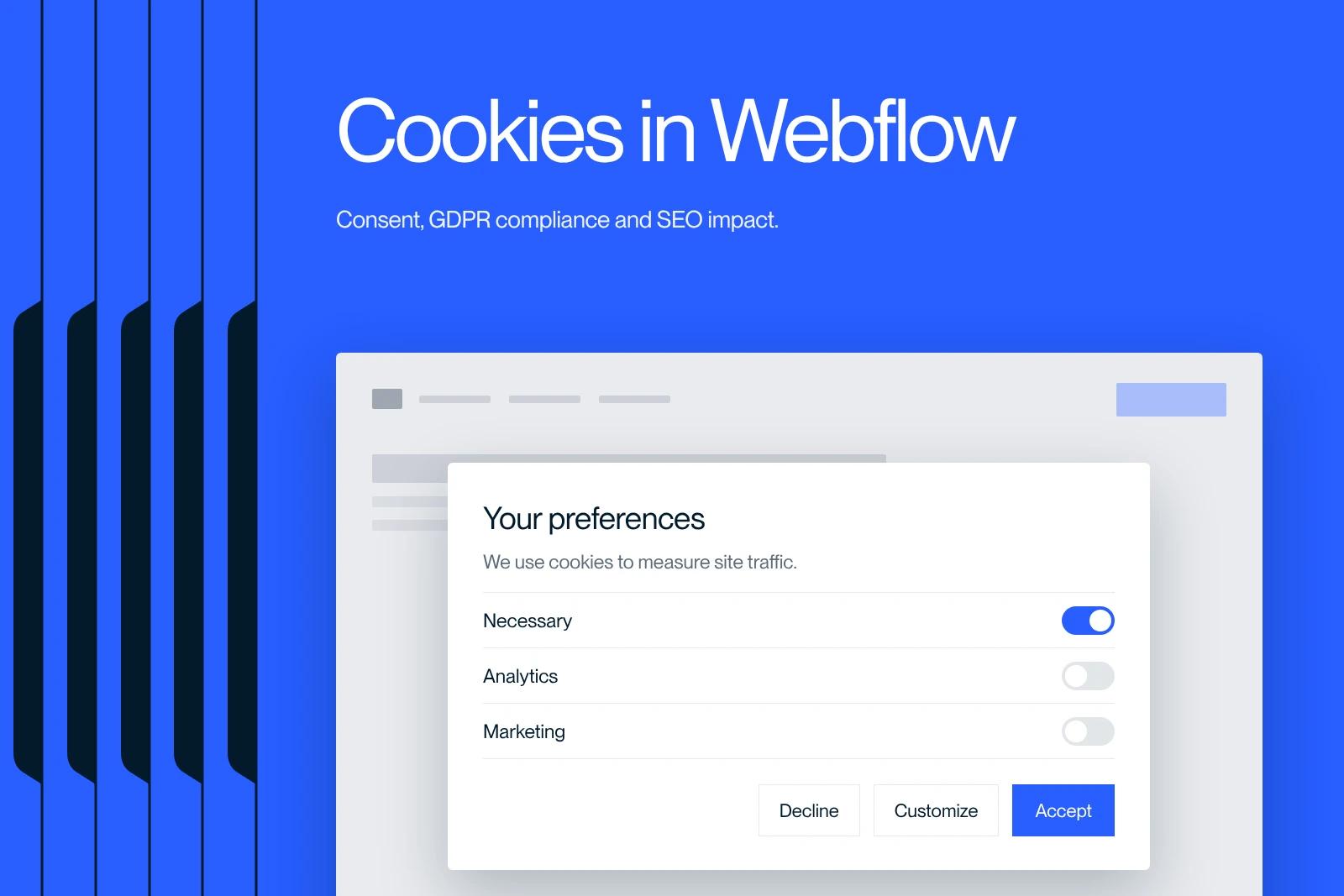
Webflow cookies are often a fuzzy topic. We cover management, compliance and SEO impact, so you stay on the right side of the rules.
Explore this post with…
In this article written by our Webflow agency, we take an in-depth look at Webflow cookies.
Cookies are everywhere in our daily browsing. Whether they remember our preferences or track our actions on a site, they play a crucial role in user experience and in how websites work. But when it comes to Webflow, a fast-growing platform for building professional websites, managing cookies can become a complex issue, especially with strict regulations such as the GDPR.
You will learn how they affect your site, their impact on search rankings (SEO), and how to configure and manage them effectively while meeting legal requirements. We also walk you through a dedicated section of frequently asked questions to give you all the essential information. Ready to dive into the world of Webflow cookies? Let's go!
Webflow Cookies: Definition and Regulation
A Webflow cookie is a small text file stored in a user's browser when they visit a site built on the Webflow platform. These files collect and remember various pieces of information, which makes it possible to:
- Improve the user experience by saving browsing preferences.
- Make it easier to analyze user behavior.
- Help personalize the content or ads displayed.
If you are a company or organization based in the European Union (EU) and you run a website, you must comply with the GDPR (General Data Protection Regulation). This obligation also applies to companies outside the EU that collect data from EU residents.
The GDPR sets strict standards for protecting users' personal data. If you run a Webflow site, it is essential to make sure your Webflow cookies comply with these rules.
These files contain data about your users which, under the GDPR, must be protected and stored properly.
But why is it essential to keep a record of consent for Webflow cookies? It goes far beyond ticking boxes to comply with the law. Here is why it matters:
Respect for privacy: Keeping consent records shows that you respect your users' privacy, like knocking on a door before walking in.
Stronger trust: Your users want to be sure their data is safe. By storing their consent, you strengthen their trust in your site.
Avoiding legal penalties: Poor data management can lead to legal complications. Properly storing consent gives your site legal protection.
IP address anonymization: Anonymizing IP addresses is another key step in securing data. It means masking sensitive information, which strengthens protection.
In conclusion, if you use Webflow, it is essential to make sure your cookies are compliant in order to protect user data, avoid penalties and build trust with your visitors.

Webflow Cookie Consent Banner
Adding Cookies to a Webflow Site for Free
It is entirely possible to add a cookie management system to Webflow without spending a cent, as long as you use open-source tools or freemium services with a free plan that covers basic use. Here is a simple, 100% free method:
Step 1: Use a free consent manager
➤ Cookie Consent by Popupsmart (free and easy to integrate)
Popupsmart offers a free, customizable solution for displaying a GDPR-compliant cookie consent banner on Webflow.
This banner lets users accept or refuse non-essential cookies before they are activated.
1. Go to: https://cookieconsent.popupsmart.com/#simple-cookie-consent
2. Customize the banner to match your brand guidelines (language, colors, text, position…)
3. Copy the generated code
Example of integration on Webflow:
Paste the script into Project Settings > Custom Code > Footer (before the </body> tag).
Example of a Free Cookie Consent Script
This script uses the open-source library Cookie Consent by Osano. It displays a simple, GDPR-compliant banner. You can customize the colors, the text and the link to your cookie policy.
<code><script>
window.addEventListener("load", function(){
window.cookieconsent.initialise({
"palette": {
"popup": {
"background": "#000"
},
"button": {
"background": "#f1d600"
}
},
"theme": "classic",
"position": "bottom",
"content": {
"message": "This site uses cookies to improve your experience.",
"dismiss": "I accept",
"link": "Learn more",
"href": "/cookie-policy"
}
});
});
</script>
</code>
💡 Paste this code into Project Settings > Custom Code > Footer or directly into an Embed element on your Webflow page.
Tip: Paste this script into your Webflow project settings > Custom Code > Footer.
Step 2: Load cookies only after consent
Combine the Popupsmart script with conditional logic so that you only load services such as Google Analytics or Meta Pixel after explicit acceptance by the user.
For example, use JavaScript to fire the tags only if consent has been given.
Consent Check Script Using localStorage
This code checks whether the user has accepted cookies before activating tracking scripts. It is useful for conditionally firing tags such as Google Analytics or Facebook Pixel.
<code>if (localStorage.getItem('cookieConsent') === 'granted') {
// Activate your tracking scripts here
}</code>
💡 This script assumes that your banner system (e.g. Cookiebot or a custom script) stores a 'granted' value in localStorage after acceptance.
Step 3: Test and check compliance
After integrating the consent banner:
- Test your site in private browsing
- Check that cookies do not fire without interaction
- Scan your site with a tool such as https://www.cookieserve.com to identify the cookies being loaded
Limitations of the free solution
- Design and customization are more limited than with a paid tool such as Cookiebot
- No fine-grained management of categories (statistics, marketing, preferences…)
- The consent logic has to be coded manually in your scripts
In Summary
Here is a free, working solution for adding a consent banner to Webflow:
- 100% free script
- GDPR-compliant (if configured properly)
- Easy to install without coding
- Suited to small sites or projects on a tight budget
If you want to go further with advanced management, automatic audits or automatic cookie categorization, it may be worth switching to a freemium solution such as Termly or Cookiebot.
Types of Webflow Cookies
There are several types of Webflow cookies you need to understand to manage them effectively:
Essential cookies: These cookies are required for the site to work properly, in particular to manage user sessions and shopping carts.
Performance cookies: They collect information about how visitors interact with your website. This data is anonymous and helps you improve the usability of your site.
Marketing cookies: Used to track visitors across several sites and display relevant ads.

Why is it important to manage Webflow cookies properly?
Managing Webflow cookies is not only about optimizing the user experience. It is also crucial for complying with data protection regulations such as the GDPR in Europe. If you do not manage your cookies properly, you risk heavy fines, not to mention losing your users' trust.
How to Configure Webflow Cookies
Configuring Webflow cookies properly can seem like a daunting task, especially for those who are not familiar with the platform. Here is a step-by-step guide to make sure you follow both best practices and legal requirements.
Step 1: Add a Cookie Consent Banner
The first step in managing Webflow cookies is to display a consent banner as soon as the user lands on your site. Here is how to do it:
Use a specialized platform: You can easily integrate a solution such as Cookiebot into Webflow to manage cookie consent. This tool helps you stay GDPR-compliant and collect your users' consent transparently.
Customize your banner: Make sure the consent banner is visible and matches your site's visual identity.
Step 2: Implement Conditional Scripts
Presenting the cookie management code in a Webflow blog post
To include this code in your Webflow blog post, it is important to give proper context on why cookie management matters under regulations such as the GDPR. You can explain to users how to set up a script that activates analytics and advertising cookies only after obtaining the user's consent. Here is a suggestion for how to present this in your blog post, with a clear explanation followed by code your readers can easily copy and paste.
How to set up a conditional script for cookie management on Webflow
For GDPR compliance, it is essential not to load non-essential cookies (such as those used for analytics or advertising) before obtaining the user's explicit consent. This respects your visitors' privacy and ensures your Webflow site stays compliant with current regulations.
Here is an example of a conditional script you can add to your Webflow site. This script activates analytics and advertising cookies only after the user has given consent. You can customize it according to the cookies you want to use.
Example script for managing cookies with user consent
html
Copy code
Example Script for Managing Cookies with User Consent
This script only loads analytics and advertising cookies after the user has given consent. It is ideal for making a Webflow site GDPR-compliant while preserving performance and visitor privacy.
<code><script>
// Function that checks whether the user has given cookie consent
function handleCookieConsent() {
// Replace with the mechanism that actually manages cookie consent (e.g. Cookiebot, Termly)
const cookieConsentGranted = getCookieConsentStatus(); // Placeholder function, replace it with your own implementation
if (cookieConsentGranted) {
// Activate analytics cookies
loadAnalyticsCookies();
// Activate advertising cookies
loadAdvertisingCookies();
console.log("Analytics and advertising cookies activated.");
} else {
console.log("Consent not obtained, cookies not activated.");
}
}
// Example function for loading analytics cookies
function loadAnalyticsCookies() {
// Insert here the code that activates analytics cookies, such as Google Analytics
(function(i,s,o,g,r,a,m){i['GoogleAnalyticsObject']=r;i[r]=i[r]||function(){
(i[r].q=i[r].q||[]).push(arguments)},i[r].l=1*new Date();a=s.createElement(o),
m=s.getElementsByTagName(o)[0];a.async=1;a.src=g;m.parentNode.insertBefore(a,m)
})(window,document,'script','https://www.google-analytics.com/analytics.js','ga');
ga('create', 'UA-XXXXX-Y', 'auto'); // Replace with your tracking ID
ga('send', 'pageview');
}
// Example function for loading advertising cookies
function loadAdvertisingCookies() {
// Insert here the code that activates advertising cookies (e.g. Google Ads, Facebook Pixel)
!function(f,b,e,v,n,t,s)
{if(f.fbq)return;n=f.fbq=function(){n.callMethod?
n.callMethod.apply(n,arguments):n.queue.push(arguments)};
if(!f._fbq)f._fbq=n;n.push=n;n.loaded=!0;n.version='2.0';
n.queue=[];t=b.createElement(e);t.async=!0;
t.src=v;s=b.getElementsByTagName(e)[0];
s.parentNode.insertBefore(t,s)}(window, document,'script',
'https://connect.facebook.net/en_US/fbevents.js');
fbq('init', 'your-facebook-pixel-id'); // Replace with your Facebook Pixel ID
fbq('track', 'PageView');
}
// Placeholder function that returns the user's consent status
function getCookieConsentStatus() {
// Replace this part with your own logic for checking the consent status
// Example: returns true if consent has been given, false otherwise
return localStorage.getItem('cookieConsent') === 'granted';
}
// Call the function on page load to manage cookies
document.addEventListener("DOMContentLoaded", function() {
handleCookieConsent();
});
</script>
</code>
💡 Add this code to Project Settings > Custom Code > Footer or to an Embed element in Webflow. Remember to replace the IDs (UA-XXXXX-Y, your-facebook-pixel-id) with your own.
How the code works
- User consent: The script checks whether the user has given consent through the getCookieConsentStatus() function. You need to adapt this function to the consent management mechanism used on your site (for example, Cookiebot or Termly).
- Analytics and advertising cookies: The script loads analytics cookies (such as Google Analytics) and advertising cookies (such as Facebook Pixel) only if the user has given consent.
- Customization: Remember to replace the IDs (such as the Google Analytics tracking ID or the Facebook Pixel ID) with those of your own site.
By adding this script to your Webflow site, you make sure that non-essential cookies are only activated after the user has agreed to their use. If you need help from a Webflow expert, contact our Webflow agency.
Step 3: Configure Google Analytics
Google Analytics on your Webflow site also relies on cookies to track user behavior. Make sure you configure Google Analytics to comply with GDPR rules:
- Enable IP address anonymization.
- Only activate tracking cookies after obtaining the user's consent.
Step 4: Audit Your Webflow Cookies Regularly
Running a regular audit of your Webflow cookies is good practice to make sure you are not collecting more data than necessary. This check also lets you update your scripts when legal regulations change.
A Simple Guide to Adding Webflow Cookies
Understand cookies: Get familiar with the types of cookies (session, persistent, third-party). These files improve the user experience by remembering preferences and tracking interactions.
Regulatory compliance: Make sure you comply with laws such as the GDPR. You must obtain
explicit consent from users before placing any non-essential cookie.
Prepare your Webflow site: Identify which cookies your site needs (visitor tracking, user preferences, etc.). Analyzing your needs will help you choose the right management solution.
Choose a cookie management solution: Use a tool that is compatible with Webflow, such as Cookie Script or iubenda. These solutions automate consent management.
Integrate the solution: Copy and paste the code or install the widgets provided by the cookie management tool directly in the Webflow interface.
Customize the consent message: Adapt the cookie consent message so it reflects the style of your site. Write a clear and engaging message.
Set up triggers: Configure triggers so that cookies are only activated after the user has agreed. Use the Webflow editor to set up these rules easily.
Test and validate: Check on different browsers and devices that your solution works properly. Make sure cookies are only activated after consent.
Ongoing compliance: Keep your cookie policy up to date. Update your scripts regularly to follow new regulations and practices.
Best practices and troubleshooting: Follow the recommendations of platforms such as Webflow and of the management tools to avoid common mistakes. If in doubt, check the available guides.
Resources and tools: Look at online tutorials, guides or Webflow forums to build your knowledge. This will make adding and managing cookies easier over time.
The Impact of Webflow Cookies on SEO
Your Webflow cookies have a direct impact on your site's organic search performance (SEO). Here is how they influence how your site performs on search engines.
Optimizing Loading Speed
Cookies can help reduce loading times by storing certain user information locally, such as language preferences or items already viewed. A site that loads quickly ranks better on search engines, Google in particular.
Personalizing the User Experience
Another benefit of Webflow cookies is that they let you personalize the user experience. The faster your visitors find what they are looking for, the longer they stay on your site. Search engines read this as a sign of quality, which improves your SEO ranking.
Conversion Tracking and Analytics
Cookies are also essential for tracking conversions and analyzing user behavior. Tools such as Google Analytics rely on cookies to collect accurate data on visits, bounce rate and navigation paths. Good analysis lets you optimize your site, which ultimately has a positive impact on SEO.

Frequently asked questions
By default, Webflow only sets essential cookies, the ones required for your website to work properly, such as those used to manage user sessions or shopping carts. These Webflow cookies do not require specific consent, because they do not collect sensitive personal data. However, as soon as you add extra features such as Google Analytics, marketing tools or third-party scripts, you will need to configure non-essential cookies. It is then crucial to obtain users' explicit consent to respect this policy and stay compliant with the GDPR and the French Data Protection Act (loi Informatique et Libertés). The data controller must make sure that the processing of personal data through these cookies meets privacy protection requirements.