Article
Webflow positions: static, relative, absolute, fixed, sticky
Webflow8 min read

James BrunettoCo-fondateur & CEO
In Webflow, an element's position is set in the Position section of the Style panel. It defines whether the element stays in the page flow (static, relative, sticky) or leaves it to be placed relative to a parent (absolute) or to the window (fixed).
In practice: relative mostly serves as the reference for an absolute child, fixed keeps an element on screen while scrolling, and sticky makes it stick past a threshold, inside its parent.
This guide covers each position, the settings in Webflow's current interface and the most common causes of bugs.
Explore this post with…
The 5 Webflow positions in one table
The CSS position property decides two things: does the element keep its place in the page, and relative to what are its offsets (top, right, bottom, left) calculated?
| Position | Keeps its place in the flow | Offset reference | Typical use |
|---|---|---|---|
| Static (default) | Yes | None, offsets are ignored | Regular content |
| Relative | Yes | Its own original position | Reference parent for an absolute child, small offset |
| Absolute | No | Nearest positioned ancestor, otherwise the body | Badge, icon, decorative layer, dropdown menu |
| Fixed | No | The browser window | Navigation bar, floating button, cookie banner |
| Sticky | Yes | Its direct parent, past a threshold | Side table of contents, table header, column that follows the scroll |
Where do you set position in Webflow?
Select the element, open the Style panel and scroll down to the Position section. According to Webflow's help article on position properties (updated on May 15, 2026), you will find:
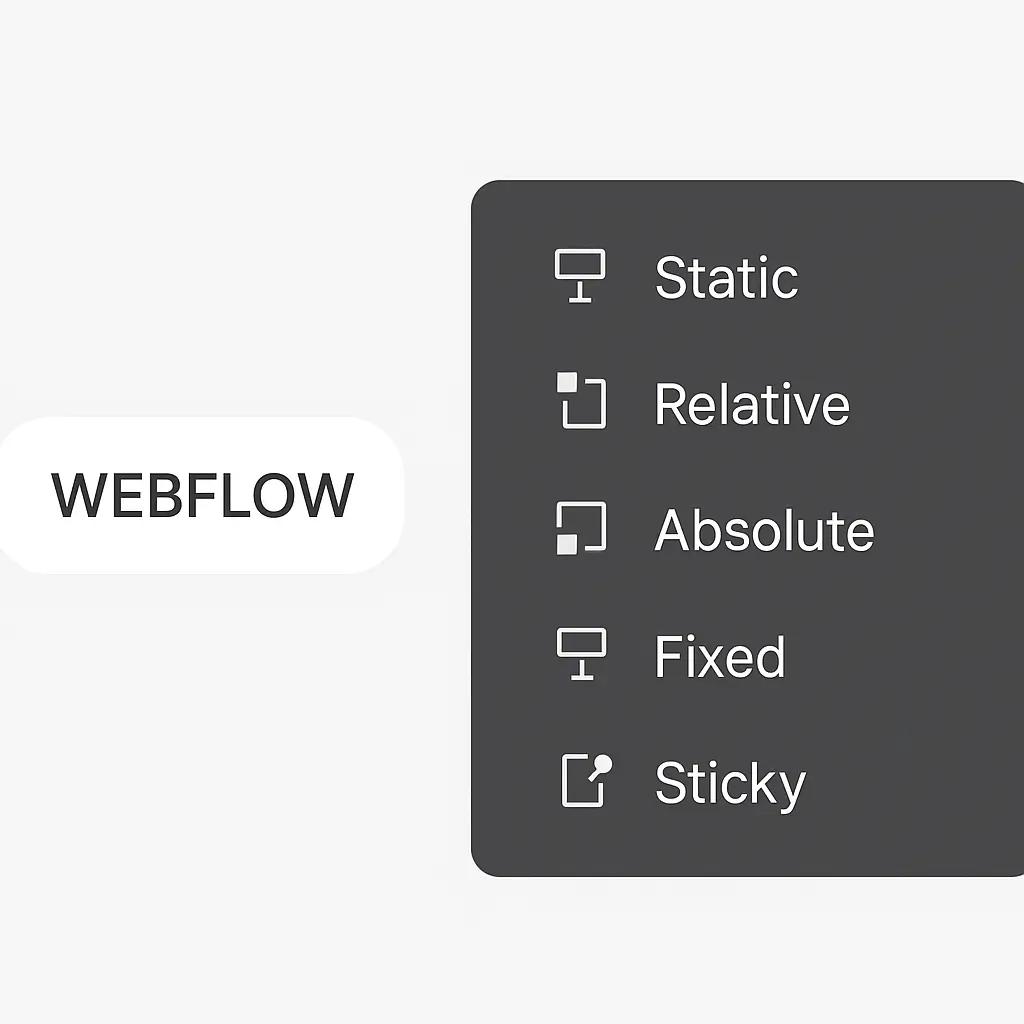
- the position menu: Static, Relative, Absolute, Fixed, Sticky;
- for absolute and fixed, presets (Top left, Top right, Bottom left, Bottom right, Left, Right, Top, Bottom, Full) that set offsets to 0;
- the top, right, bottom and left fields, which you can type in, drag or set to auto;
- the relativity indicator, which shows the element used as the reference;
- the z-index field, active only if the position is not static;
- the Float and Clear options.
Webflow has published an official video that shows each position in the Designer:
Static position: the default behavior
Static is the default value for every element. It follows the normal flow: elements stack in Navigator order, and top, left, right or bottom values have no effect. Choosing Static is also how you remove positioning applied by mistake.
Relative position: offset without pushing others around
A relative element keeps its place in the page but can be offset from its original position. With left: 20px, it moves 20 pixels to the right and the space it occupied stays reserved: neighboring elements do not move.
Its main use lies elsewhere: a relative element becomes the reference for its absolute children. It is the setting to put on a card to place a badge in a corner. It also enables z-index.
Absolute position: place one element over another
An absolute element leaves the flow: it no longer takes up space and other elements behave as if it did not exist. It is placed relative to its nearest positioned ancestor (relative, absolute, fixed or sticky). If it finds none, it is placed relative to the body.
The reliable method in three moves:
- Set the parent to Relative.
- Set the child to Absolute and choose a preset (Top right for a badge, Full for a layer that covers the whole parent).
- Check in the relativity indicator that the reference is the intended parent, then adjust the z-index.
Common uses: badges, icons placed over an image, color overlays, dropdown menus, tooltips. For modal windows, see our guide to pop-ups in Webflow.
Fixed position: stay visible while scrolling
A fixed element leaves the flow and is placed relative to the browser window. It stays in the same spot when the visitor scrolls the page. It is the classic setting for a navigation bar, a floating contact button or a cookie banner.
Two traps. First, a fixed navbar no longer reserves its height: add an equivalent padding-top to the first section so the content does not slide underneath it. Second, as the MDN documentation on the position property explains, if an ancestor has a transform, perspective or filter property other than none, the fixed element is placed relative to that ancestor instead of the window. A Webflow interaction that animates a transform on a parent is enough to cause this bug.
Sticky position: stick past a threshold
A sticky element behaves like a relative element up to a scroll threshold, then stays stuck like a fixed element, but only inside its direct parent. When the bottom of the parent arrives, the element leaves with it.
Example: a sticky table of contents with top: 100px stays 100 pixels from the top of the screen as long as the column that contains it is visible. The parent must therefore be taller than the sticky element, otherwise there is no room to stick.
Why is my sticky not working?
At Synqro, when a sticky element does not stick on a Webflow project, we check these points in this order:
- No offset is defined: you need at least one top, bottom, left or right value.
- A parent or an ancestor has overflow set to hidden, scroll or auto. This is the most frequent cause: set it to visible or use overflow: clip.
- The parent has a fixed height, or it is not taller than the sticky element.
- In a grid or flex layout, the element is stretched to full height: set its alignment to Start so it keeps its natural height.
Float and clear: keep them for text wrapping
Float places an element on the left or right of its container and lets text wrap around it. Webflow offers Float left, Float right and Float none (the default). Clear (none, left, right, both) prevents an element from wrapping around the floated elements that precede it.
Float comes from a time when it was used to build columns. Today, use Flexbox or Grid for layout, which are simpler and more robust in responsive design (see our guide to layout in Webflow), and keep float for an image with a paragraph wrapped around it in an article.
Z-index: managing overlaps
Z-index decides which element comes to the front when two positioned elements overlap. In Webflow, the field only works if the position is not static. A positioned element always comes in front of a static element.
The classic trap: a child with a z-index of 9999 stays behind an element next to its parent if that parent itself has a lower z-index. Z-index is compared between elements at the same level. So set a small scale for the whole site, for example 10 for layers, 100 for navigation, 1000 for modals.
Positioning best practices in Webflow
- Build the layout with Flexbox and Grid, and keep absolute for decorative or overlaid elements.
- Never set a text block to absolute: it no longer pushes anything and ends up overlapping everything else on mobile.
- Check every breakpoint: position can be changed per breakpoint, and an absolute element designed for desktop often breaks on tablet.
- Name your classes explicitly (badge-top-right, nav-fixed) so you can quickly find what is positioned. Our Webflow Designer guide covers how to organize classes.
Synqro is a Webflow Premium Partner agency, founded in 2019, with a production team in France. If your site keeps piling up overlaps and unreliable sticky elements, our Webflow team can rework the structure.
Frequently asked questions
Both take the element out of the flow. Absolute places it relative to the nearest positioned ancestor, and it scrolls with the page. Fixed places it relative to the browser window, and it stays visible while scrolling.


