Article
Webflow layout: sections, Flexbox, Grid and responsive design
Webflow6 min read

James BrunettoCo-fondateur & CEO
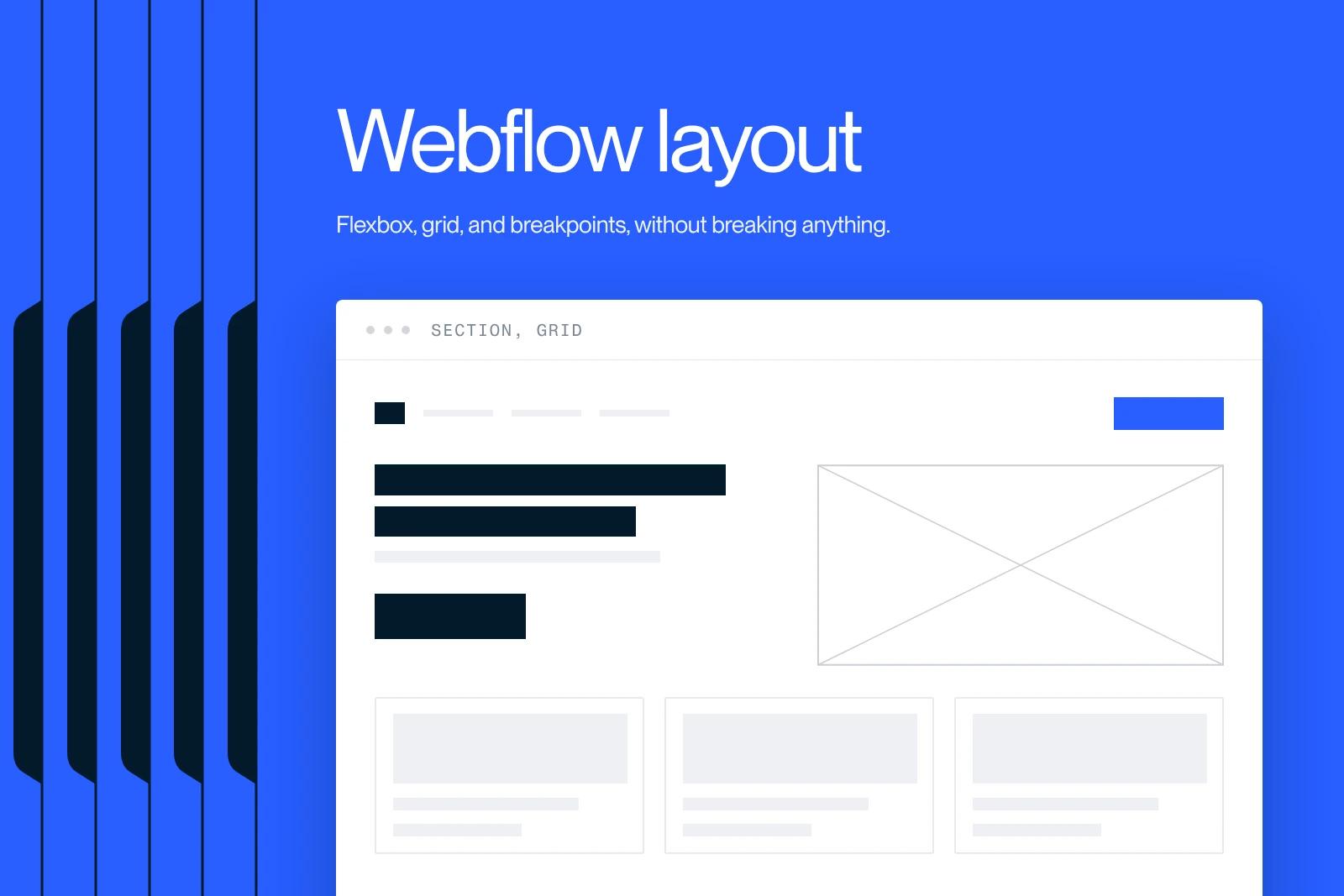
Webflow layout rests on a simple structure: Sections to divide the page, Containers to limit the width, then Flexbox (one dimension) or Grid (two dimensions) to arrange the elements. Webflow now recommends starting from Quick Stack, a ready-to-use grid element, for most layouts.
The design is built first on the Desktop breakpoint, then adjusted on the smaller breakpoints (991, 767 and 479 px) and, if needed, on larger ones.
This guide covers each element, when to use Flexbox or Grid, responsive design and common mistakes.
Explore this post with…
Webflow's structure elements
According to Webflow's help article on building layouts (updated May 19, 2026), the Structure category of the Add panel offers five elements.
| Element | Role | When to use it |
|---|---|---|
| Section | Full-width block that divides the page | Each major part: hero, benefits, testimonials, footer |
| Container | Limits the width and centers the content | Inside each section, to keep lines readable |
| V flex and H flex | Div block already set to vertical or horizontal Flexbox | Stacking or aligning elements on one axis |
| Quick Stack | Grid with Flexbox cells, 8 presets | Webflow's recommended starting point for most layouts |
The Div Block remains the basic building block for any grouping that does not need Flexbox or Grid. Webflow explains the difference between Section, Container and Div Block in this official video:
The box model: margin, padding and borders
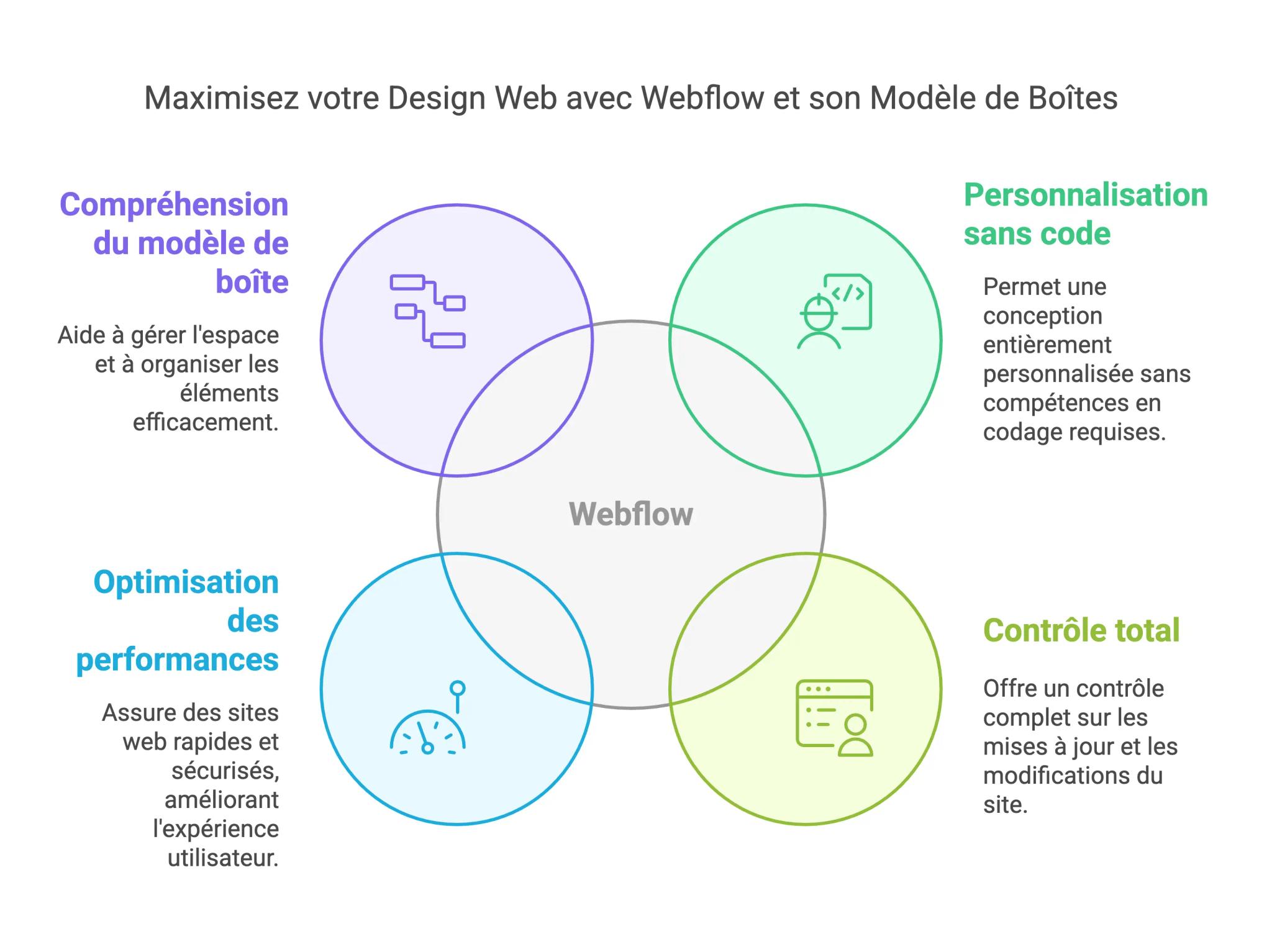
Every element is a box made of content, padding (inner space), border and margin (outer space). In the Style panel, the Spacing section shows these values as a clickable diagram. Practical rule: use padding to give a block breathing room on the inside, and the Flexbox or Grid gap to space neighboring elements, rather than case-by-case margins. For units, see our comparison rem vs px.
Flexbox or Grid: which one to choose in Webflow?
Flexbox arranges elements on a single axis, in a row or a column. Grid arranges them on two axes, in rows and columns at the same time. Both are set in the Style panel, in the Layout section, by choosing Display: Flex or Grid on the parent element.
| Need | Flexbox | Grid |
|---|---|---|
| Align a logo and a menu on one line | Yes | Possible, but unnecessary |
| Stack a heading, text and button | Yes (vertical) | Possible |
| Grid of same-size cards | With wrap, less precise | Yes |
| Asymmetric layout (2 columns + 1) | Difficult | Yes |
| Overlap two elements in one cell | No | Yes |
With Flexbox, the 3 × 3 alignment grid in the Style panel sets the children's alignment in one click, and the Gap field sets the space between them. With Grid, you define columns, rows and gaps, then place the children automatically or manually. Reserve absolute positioning for overlapping and decorative elements (see our guide to Webflow positions).
Quick Stack: the ready-to-use grid
Quick Stack is a display grid element whose cells are vertical Flexbox divs. When you drop it in, Webflow offers 8 presets (1, 2, 3 or 4 columns, 2 + 1, 1 + 2, 2 × 2...). According to the Quick Stack help page (updated January 29, 2026), on smaller breakpoints the number of rows switches to Auto and you set the size and order of each cell. Merging cells only works on Desktop. The feature is still flagged as beta.
The old Columns element no longer appears among the recommended structure elements. On an existing site that uses it, it keeps working, but prefer Quick Stack or Grid for any new section.
Responsive design: understanding Webflow breakpoints
According to Webflow's help article on breakpoints (updated September 2, 2026), styles start from the Desktop (Base) breakpoint and cascade in both directions.
| Breakpoint | Applies to | Inherits from |
|---|---|---|
| 1920px (optional) | Screens 1,920 px and wider | 1440px |
| 1440px (optional) | Screens 1,440 px and wider | 1280px |
| 1280px (optional) | Screens 1,280 px and wider | Desktop |
| Desktop (Base) | All devices, unless set otherwise | None, it is the base |
| Tablet | 991 px and below | Desktop |
| Mobile landscape | 767 px and below | Tablet |
| Mobile portrait | 479 px and below | Mobile landscape |
In practice: a value changed on Tablet never moves up to Desktop, but it does cascade down to both mobile breakpoints. Once a style is changed on a breakpoint, it no longer receives changes made above it. For the full method, see our guide to building a responsive site in Webflow.
At Synqro, we build each section on Desktop, then check it right away on Tablet and Mobile portrait before moving on to the next. Fixing responsive issues section by section costs far less than reworking the whole page at the end.
Typography and rich content
- Style the tags (Body, H1 to H6, Paragraph, Link) at the All pages level before creating classes: the whole site inherits them.
- Choose the heading level based on the structure of the content, not the size you want: a single H1 per page, then H2s and H3s in order.
- Use Rich Text for long-form content (articles, legal pages) and style its inner tags once and for all.
- Limit paragraph width (a max-width in rem or ch) to keep lines readable.
Common layout mistakes
- Building the layout with absolute positions: everything overlaps as soon as the screen gets smaller.
- Setting heights in px on text blocks: the text overflows on mobile or once it is translated.
- Stacking divs with no purpose (div inside div inside div), which makes the Navigator unreadable.
- Creating a new class for every variation instead of using combo classes or components.
- Testing only in the Designer: always check on a real phone after publishing.
Keeping a layout light and maintainable
A shared naming convention keeps the site from becoming unmanageable after a few months. The Client-First method is the most widespread in the Webflow ecosystem. Regularly remove unused classes with the Clean up function of the style manager, compress images before uploading and fill in their alt text.
Synqro is a Webflow Premium Partner agency founded in 2019. A complete site takes us 8 to 12 weeks, a good part of which goes into this invisible structure that makes the site easy to evolve. For a project, see how we work on Webflow projects.
Frequently asked questions
The Section is a full-width block that divides the page. The Container limits the width and centers the content inside a section. The Div Block is a generic box for grouping elements.


