Article
Webflow Radio Button: How to Add and Customize One
Webflow6 min read

James BrunettoCo-fondateur & CEO
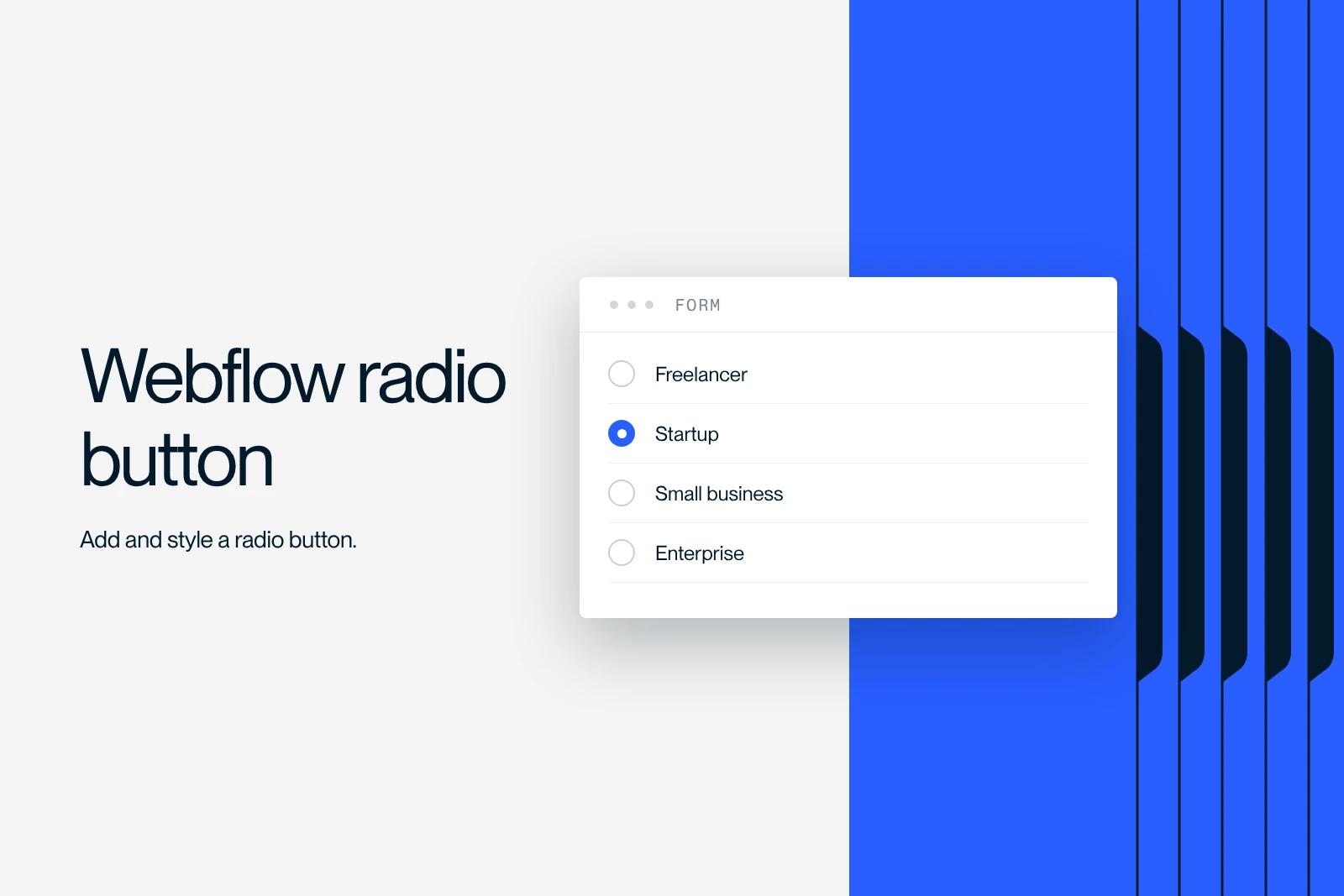
To get a radio button in Webflow, add a Form Block, drag in the Radio Button element, then give every option of the same question the same Group name. To customize it, set Style to Custom in the element settings, then style the Checked state in the Style panel.
A radio button lets people pick a single option out of several. It suits short questions with 2 to 5 answers that you want to show all at once.
This guide follows Webflow's current interface: adding the field, settings, custom styling, accessibility and common mistakes.
Explore this post with…
What is a radio button?
A radio button is an HTML form field, the input element of type radio, that lets you choose a single option within a group. Buttons in the same group share the same name attribute: checking one unchecks the others, as explained in the MDN documentation on input type radio.
| Field | Possible choices | When to use it |
|---|---|---|
| Radio button | Only one | 2 to 5 options to show at once (project type, timeline) |
| Checkbox | Several or none | Combinable options, consent |
| Select (dropdown) | Only one | Long list (country, industry) |
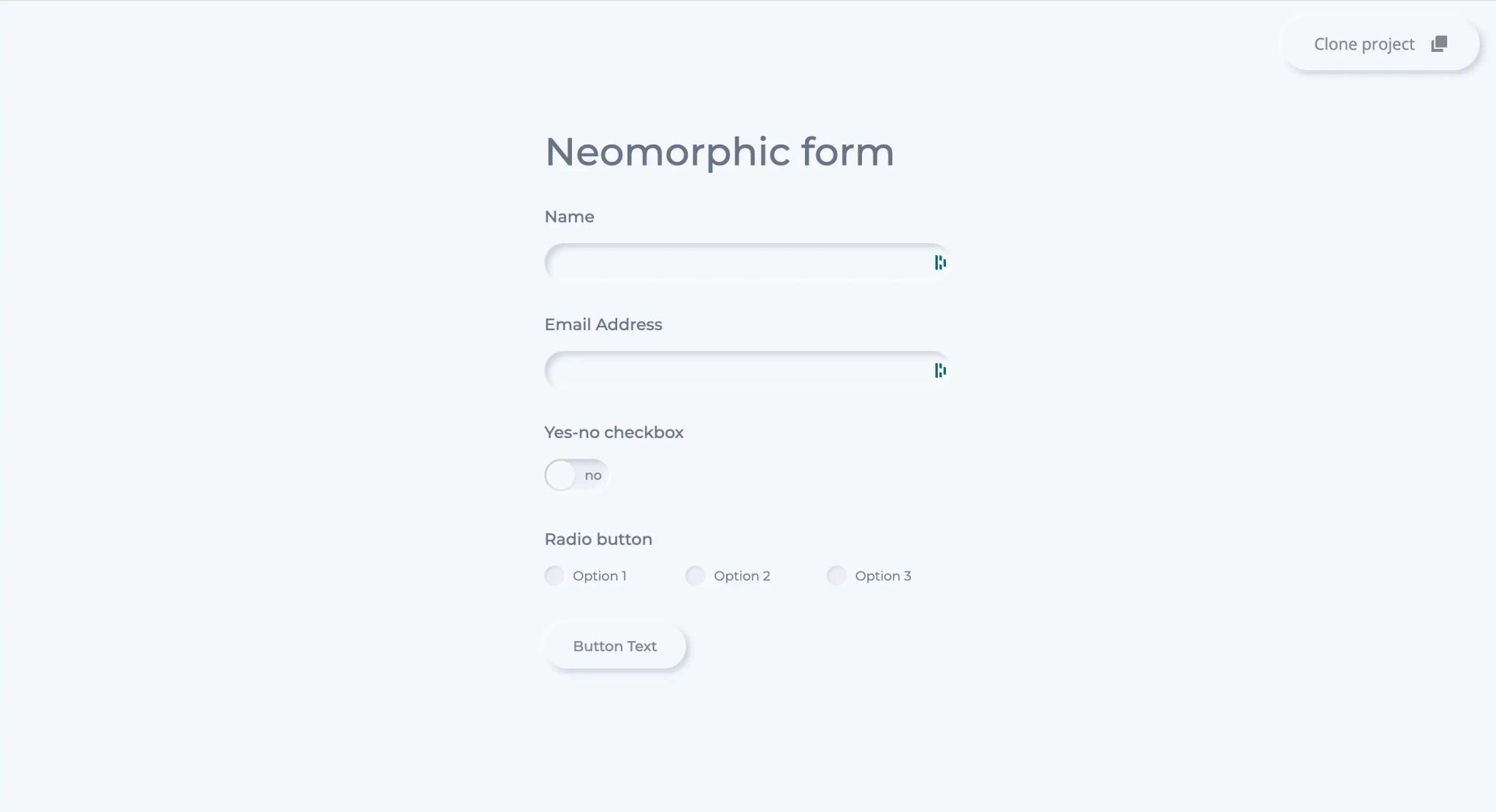
How do you add a radio button in Webflow?
- Add a form. Open the Add panel (A key), Forms category, and drag a Form Block onto the page. Every field must sit inside a Form Block.
- Add the question. Place a text element or a Label that asks the question ("What is your timeline?").
- Drag in a Radio Button from the same Forms category, then duplicate it once for each option. Edit the label shown for each option directly on the canvas.
- Configure each button in the element's Settings panel (see below): the same Group name for all options, and a distinct Choice value for each one.
- Publish and test by submitting the form from the published site, then check the value received in the form submissions.
Webflow radio button settings
According to Webflow's help article on checkboxes, radio buttons and selects (updated August 10, 2026), the radio field settings are as follows.
| Setting | Role | Tip |
|---|---|---|
| Group name | Name shared by the options of the same question | Identical on all options, otherwise several choices remain possible |
| Choice value | Value sent with the form | Short and readable (timeline-1-month), different from the label if needed |
| Style | Default or Custom | Custom to style the circle in the Style panel |
| Required | Makes an answer mandatory | One button in the group is enough, as long as the Group name is set |
Watch out for the trap Webflow points out: a button marked Required without a Group name must itself be checked for the form to submit. Always fill in the Group name first.
How do you customize a radio button in Webflow?
Native method: Custom style and the Checked state
- Select the radio button, open its Settings and choose Custom in the Style setting.
- In the Style panel, give the circle a class, then set its size (for example 1.25rem), border, 50% radius and background color.
- Open the States menu next to the selector and choose Checked: define the checked look (background color, thick border or center dot).
- Choose the Focused state and keep a clearly visible outline for keyboard navigation.
- If you reuse the class on another button, make sure that button is also set to Custom, otherwise the style will not apply.
Quick option: accent-color in CSS
If you only want to change the color of the native button, keep the Default style and add a CSS rule in the site's custom code or in a Code Embed: input[type="radio"] { accent-color: #1a1a1a; }. The accent-color property (MDN) is supported by current browsers and keeps the field's native behavior.
Advanced option: clickable cards
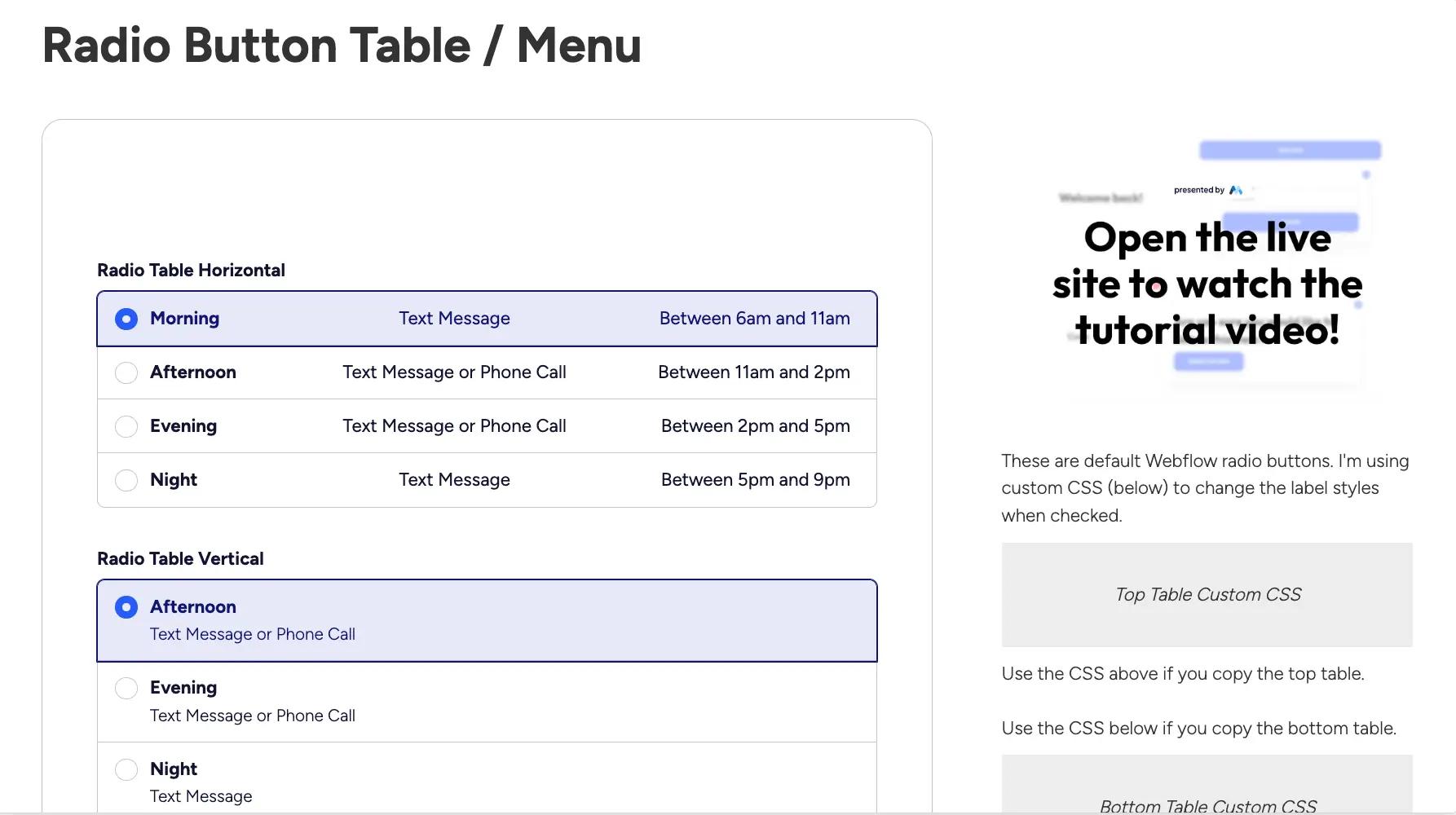
To turn each option into a card (icon, title, description), place the radio button and its content inside the same label, then style the card. Clicking anywhere on the card checks the option. To make the card change appearance when selected, one line of CSS is enough in current browsers: .radio-card:has(input:checked) { border-color: #1a1a1a; }. Avoid recreating the behavior in JavaScript: the native field already handles selection, keyboard use and submission.
On the contact forms we build at Synqro, we keep radio buttons for short qualifying questions (project type, timeline), and we switch to a dropdown beyond five options to keep the form compact on mobile.
Making a radio button accessible
- Group the options under an explicit question. The W3C tutorial on grouping form controls recommends a fieldset with a legend, which screen readers announce before each option. In Webflow, you do this with a Code Embed or with custom attributes (role="radiogroup" and aria-labelledby on the container).
- Keep the label clickable: in Webflow's Radio Button element, the text is already linked to the field.
- Do not add aria-checked to a native radio input: the browser already reports the checked state. This attribute is only for a fake button built with a div.
- Test with the keyboard: Tab moves into the group, the arrow keys move from one option to the next, and the space bar checks the active option.
- Check the contrast of the circle and the Focused state against your background. More rules in our guide to web accessibility.
Common mistakes
- Several options can be checked at the same time: the Group name differs from one button to another.
- The style does not apply: the Style setting was left on Default.
- Unreadable values in submissions: the Choice value was never filled in.
- A focus outline removed for aesthetic reasons, which makes the form unusable with a keyboard.
A short, clear form matters as much as the button design. To add it to a conversion page, see our guide to building a landing page in Webflow. And if you want custom forms connected to your CRM, Synqro's Webflow team can take care of it.
Frequently asked questions
Add a Form Block from the Add panel, Forms category, then drag in one Radio Button element per option. Next, give all the options of the question the same Group name in Settings.


