Article
Image SEO: 7 tips to optimize the images on your website
SEO8 min read

James BrunettoCo-fondateur & CEO
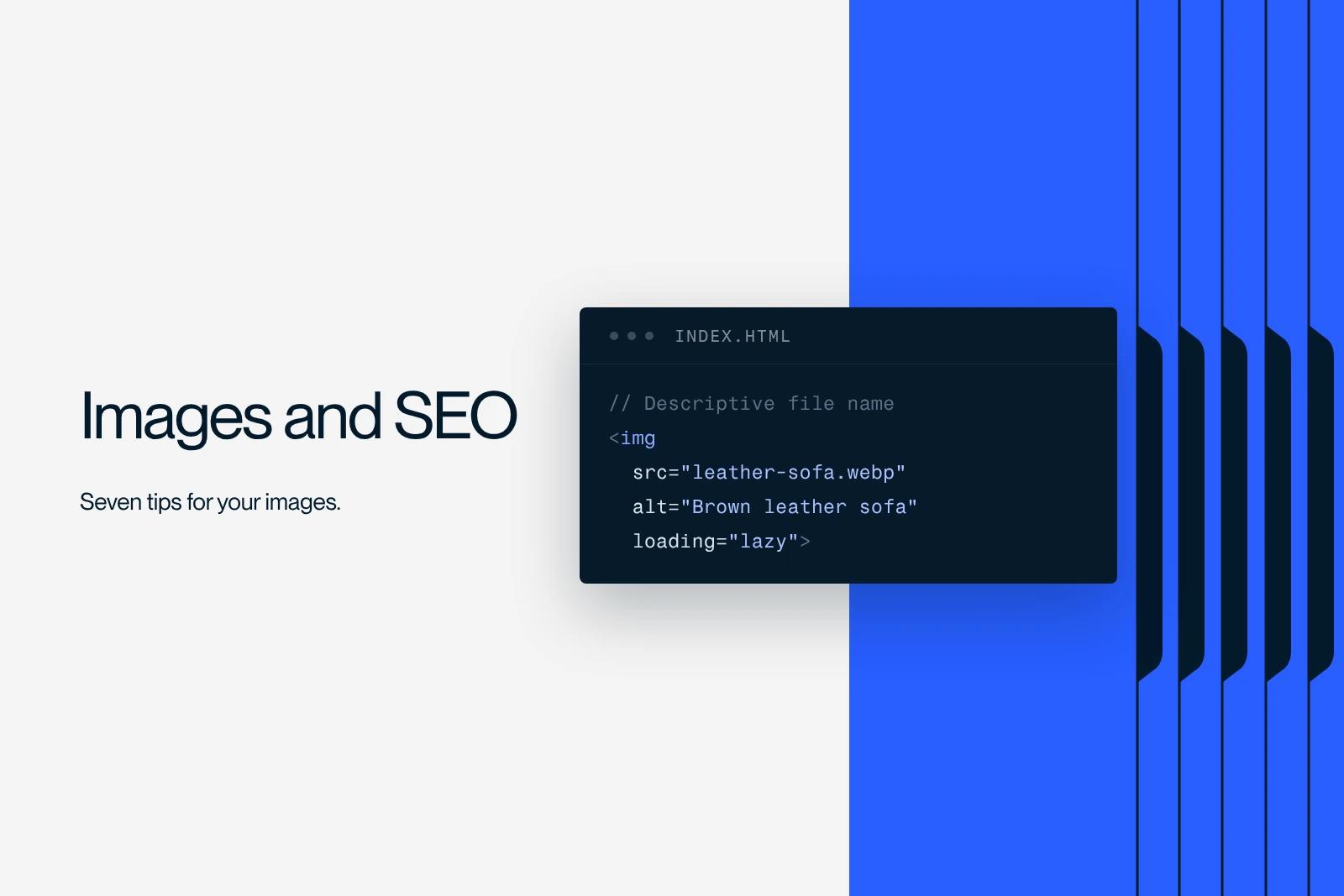
Optimizing an image for SEO means making it light, understandable and indexable: a modern format (WebP or AVIF), a small file size, a descriptive file name, a precise alt attribute, responsive variants, deferred loading for off-screen images and, when needed, structured data.
Google says it plainly in its documentation: alt text is the most important metadata of an image, and CSS background images are not indexed.
Here are the 7 settings that matter, along with what Webflow already does for you.
Explore this post with…
Image SEO covers the settings that help Google understand an image, help it appear in Google Images, and keep it from slowing down the page. The recommendations below are based on Google Search Central's Google Images best practices (updated in March 2026).
1. Choose the right image format
Google indexes BMP, GIF, JPEG, PNG, WebP, SVG and AVIF files referenced in the src attribute of an img tag. The file extension must match the actual file type.
| Format | Recommended use | Avoid for |
|---|---|---|
| AVIF | Photos and rich visuals, very efficient compression | Open Graph images (support still partial) |
| WebP | Versatile default format, transparency included | Nothing in particular |
| JPEG | Photos when WebP/AVIF is not possible | Logos, text, transparency |
| PNG | Screenshots, visuals with sharp edges | Photos (heavy files) |
| SVG | Logos, icons, vector illustrations | Photos |
| GIF | Small animations | Still images, long animations (use a video instead) |
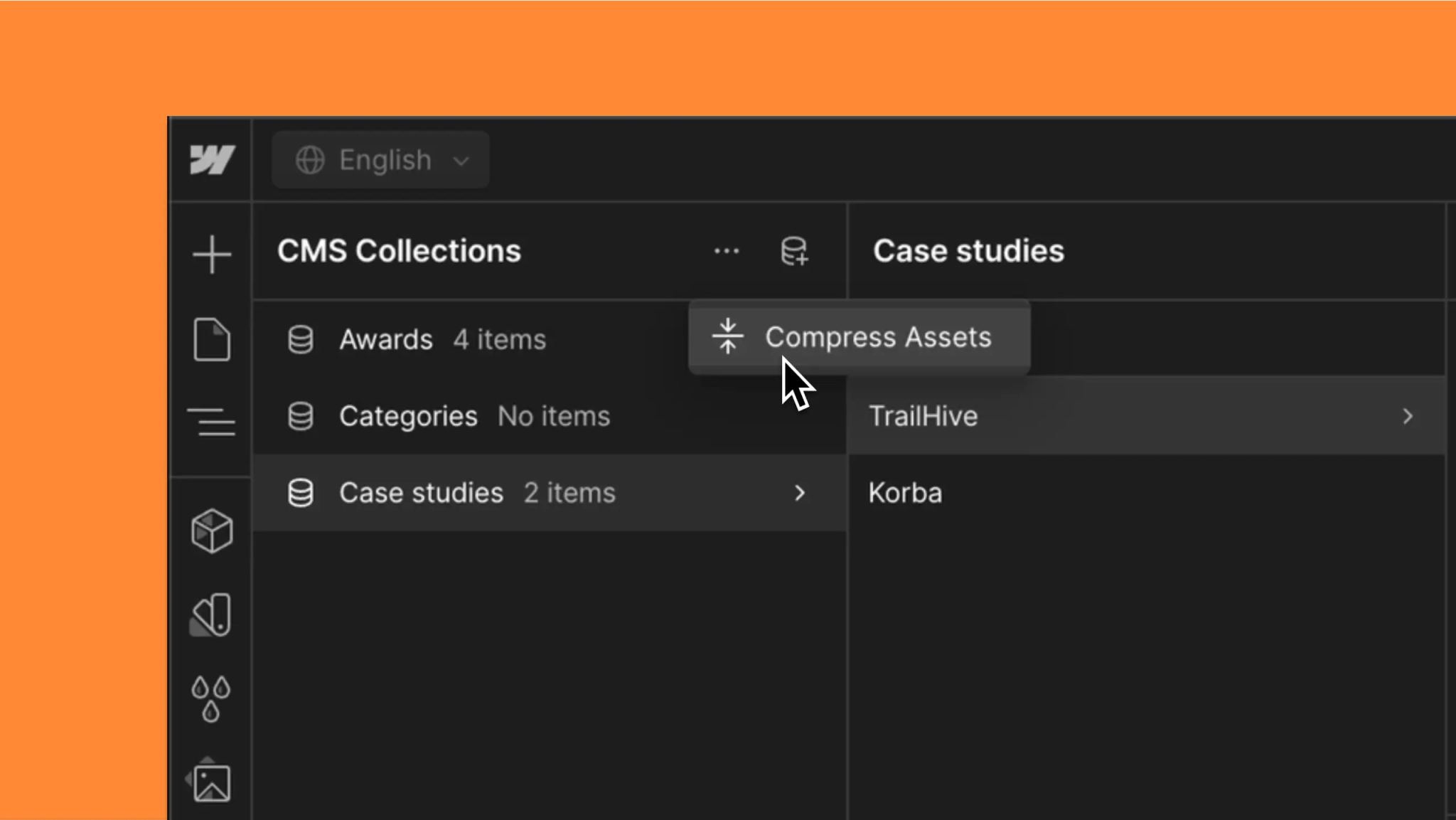
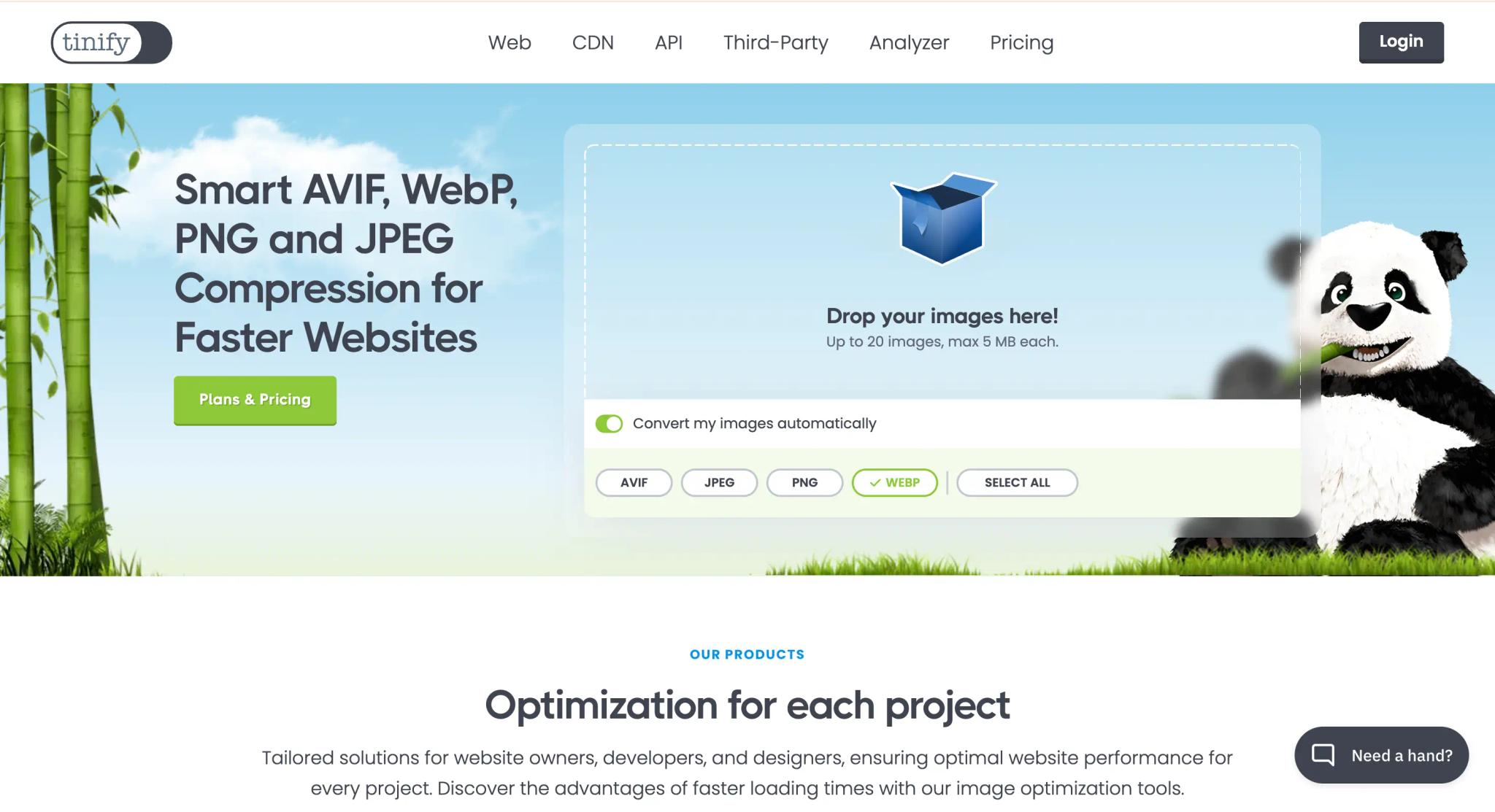
In Webflow, the image conversion tool turns JPEGs and PNGs into WebP or AVIF from the Assets panel, or all at once for every CMS image. Be careful: the original is replaced and cannot be restored in its former extension. Download it first. For sharing images (Open Graph), Webflow recommends WebP over AVIF.
2. Resize and compress
An image that is too heavy slows down rendering, especially when it is the largest visible element: it then determines LCP, one of the Core Web Vitals. Two rules are enough in most cases:
- Do not upload an image wider than its maximum display size (a 6,000-pixel photo for a 1,200-pixel block wastes bandwidth).
- Compress before uploading with Squoosh, TinyPNG or ImageOptim. Lossy compression suits photos; lossless compression suits flat-color visuals and screenshots.
Always declare the image's width and height (width and height attributes or a CSS aspect ratio). The browser then reserves the space and the page does not "jump" while loading, which keeps CLS from getting worse.
3. Use a descriptive file name
Google says the file name gives it light clues about the subject of the image. It is a small signal, but it costs nothing:
- Avoid: IMG_1234.jpg, final-photo-v2.png.
- Prefer: pellet-stove-living-room.webp, crm-dashboard.avif.
Practical rules: lowercase, words separated by hyphens, no accents or spaces, a few words that describe the image. Rename before uploading: changing the name of a file that is already live also changes its URL.
4. Write a useful alt attribute
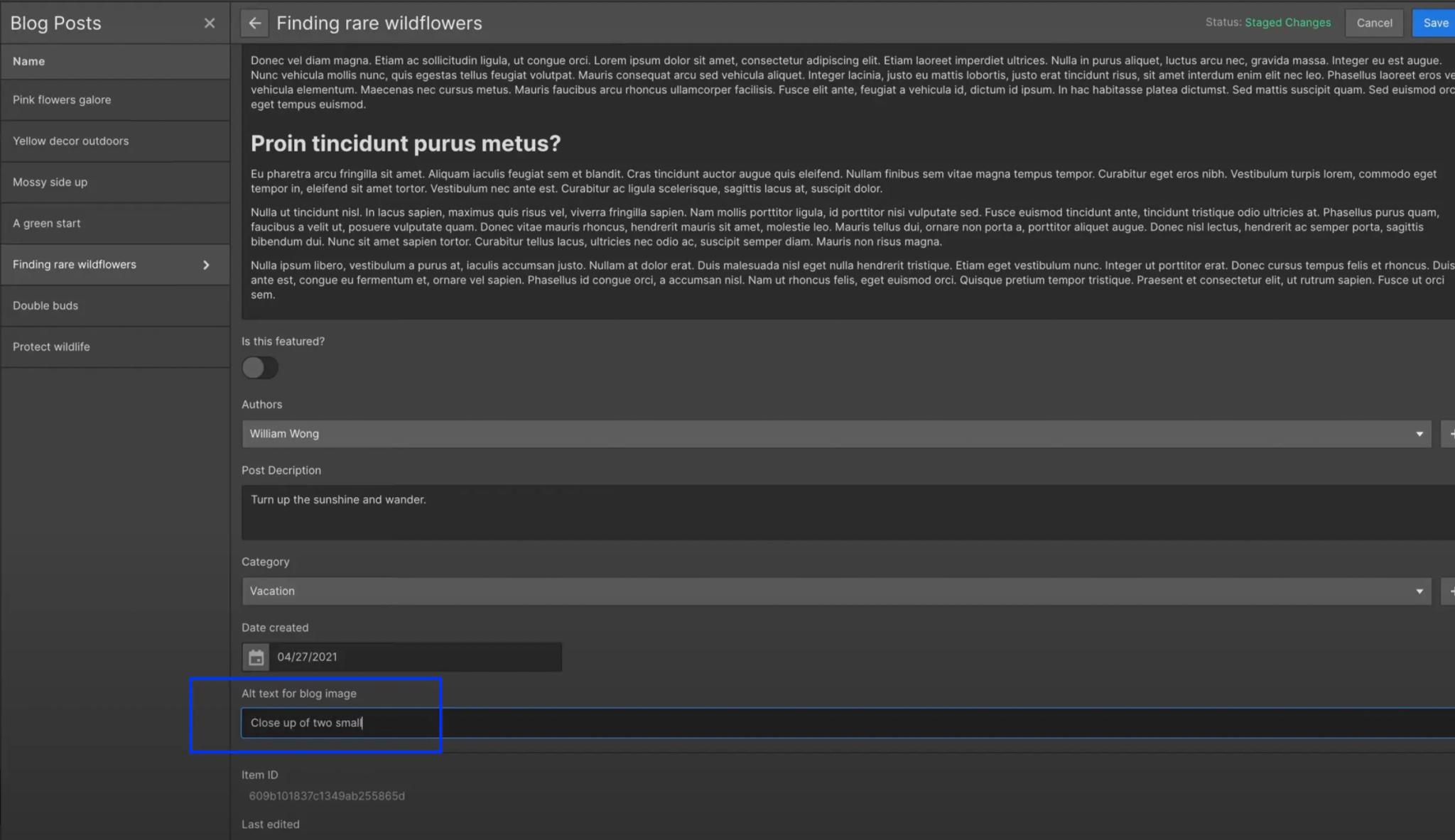
The alt attribute describes the image in text. Google combines it with computer vision and the page content to understand the image, and treats it as anchor text when the image is a link. Screen readers read it aloud to blind and visually impaired people.
Google's own example, from worst to best:
| Alt attribute | Verdict |
|---|---|
| Missing | Bad |
| List of keywords (puppy, dog, small dog, puppies...) | Bad, may be treated as spam |
| puppy | Better |
| Dalmatian puppy playing fetch | Best |
A purely decorative image gets an empty alt (alt="") so that screen readers skip it. It is also a web accessibility requirement. For an SVG embedded directly in the code, use a title element instead of alt. In Webflow, alt text is set in the Assets panel (default value) or in each image's settings.
5. Serve responsive images
A responsive image exists in several widths; the browser loads the one that fits the screen. Google recommends the srcset attribute (with sizes) or the picture element, always with a fallback src:
<img src="puppy-800.webp" srcset="puppy-500.webp 500w, puppy-800.webp 800w, puppy-1600.webp 1600w" sizes="(max-width: 768px) 100vw, 50vw" width="1600" height="1067" alt="Dalmatian puppy playing fetch">
Webflow does this automatically. According to its help page on responsive images, it generates up to seven variants (from 500 to 3,200 pixels) and adds srcset and sizes. Three limits: images must be uploaded in Webflow (not through CSV import or the API), weigh less than 4 MB, and background images or images in a rich text field do not benefit from it.
Another important point: Google does not index images loaded as CSS backgrounds. If an image needs to rank in Google Images, use a real image element.
6. Use lazy loading, except above the fold
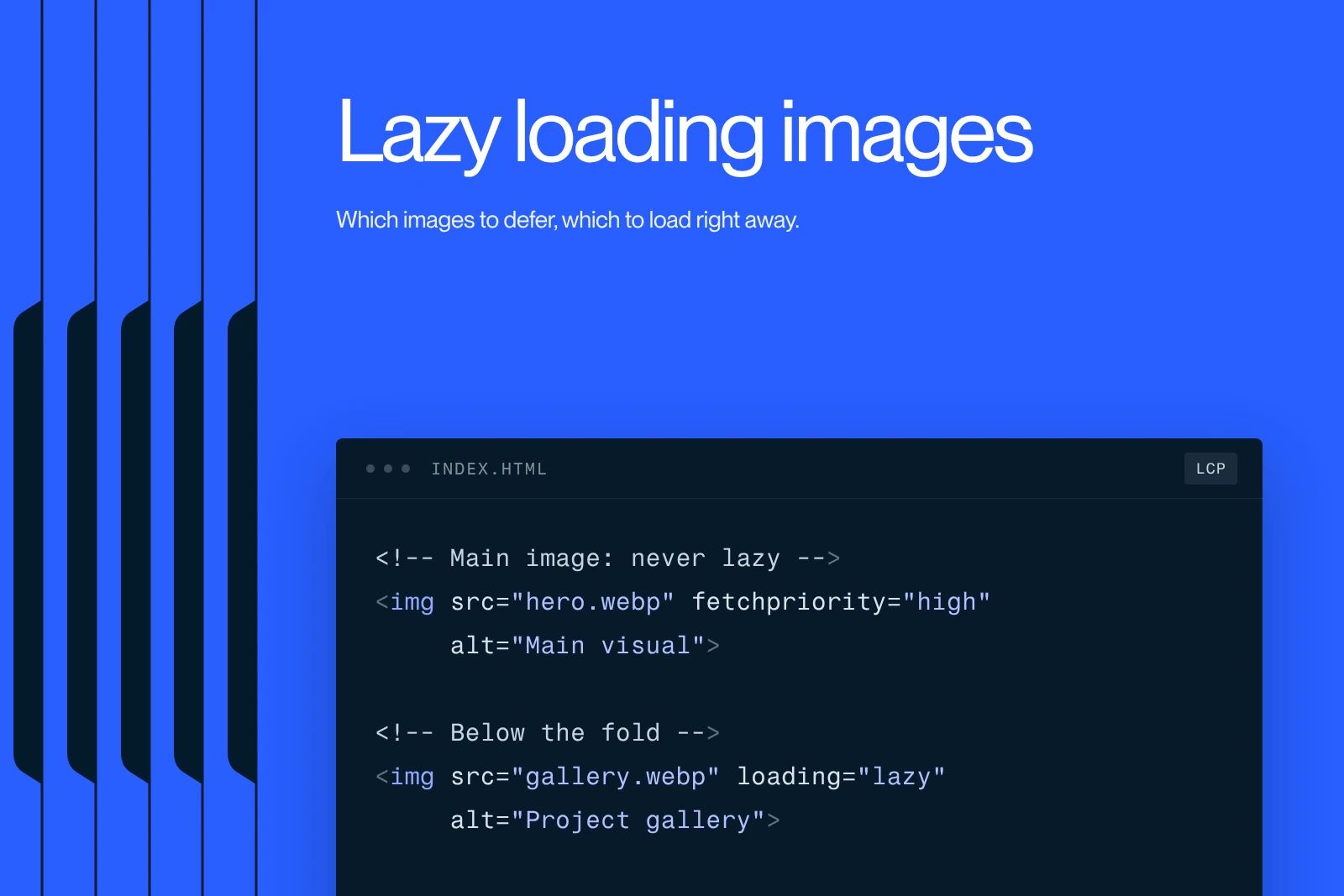
Lazy loading delays the loading of images that are not yet visible. The native loading="lazy" attribute on the img tag is all you need, with no JavaScript library.
But never apply it to the main image visible when the page opens: Google's web.dev guide to lazy loading advises against deferring images in the initial viewport, because it delays LCP. In Webflow, set those images to Eager loading in their settings. The details are in our article lazy loading images: when to use it, when to avoid it.
7. Add structured data and an image sitemap
Image structured data is mostly used to show licensing information in Google Images. According to Google's documentation on image metadata, an ImageObject must contain contentUrl and at least one of the properties creator, creditText, copyrightNotice or license. The license property is required to get the "Licensable" badge.
{"@context": "https://schema.org", "@type": "ImageObject", "contentUrl": "https://www.example.com/images/dalmatian-puppy.webp", "creditText": "Example Studio", "license": "https://www.example.com/image-license"}
To choose the image that represents a page in search results, Google takes primaryImageOfPage or the og:image tag into account: pick a representative, high-resolution image with no embedded text or logo. Our guide to Schema.org structured data covers the implementation in detail. Finally, an image sitemap helps Google discover images it might miss, including those hosted on a CDN.
Image SEO checklist before publishing
- WebP or AVIF format (SVG for logos and icons).
- Width suited to the display, compressed file, declared dimensions.
- Lowercase file name with hyphens.
- Descriptive alt, or empty if the image is decorative.
- Important images in an img tag, not as a CSS background.
- Lazy loading on off-screen images, immediate loading for the main image.
- A caption or nearby text that explains the image: Google uses it too.
How we handle images at Synqro
At Synqro, images are part of the QA of every site before launch: conversion to WebP or AVIF in Webflow after backing up the originals, alt text written by hand (never mass-generated), and the main image of each template set to load immediately. We also favor the client's real photos, of teams, products and offices, over stock images: they say something true about the company. If you are preparing a site, our Webflow team builds these settings in from the design stage.
Frequently asked questions
It is the set of settings that make an image light, understandable and indexable: format, file size, file name, alt attribute, responsive variants, loading and structured data. The goal is to appear in Google Images without slowing down the page.