Article
Webflow Components: How to Build Custom Components (2026)
Webflow7 min read

James BrunettoCo-fondateur & CEO
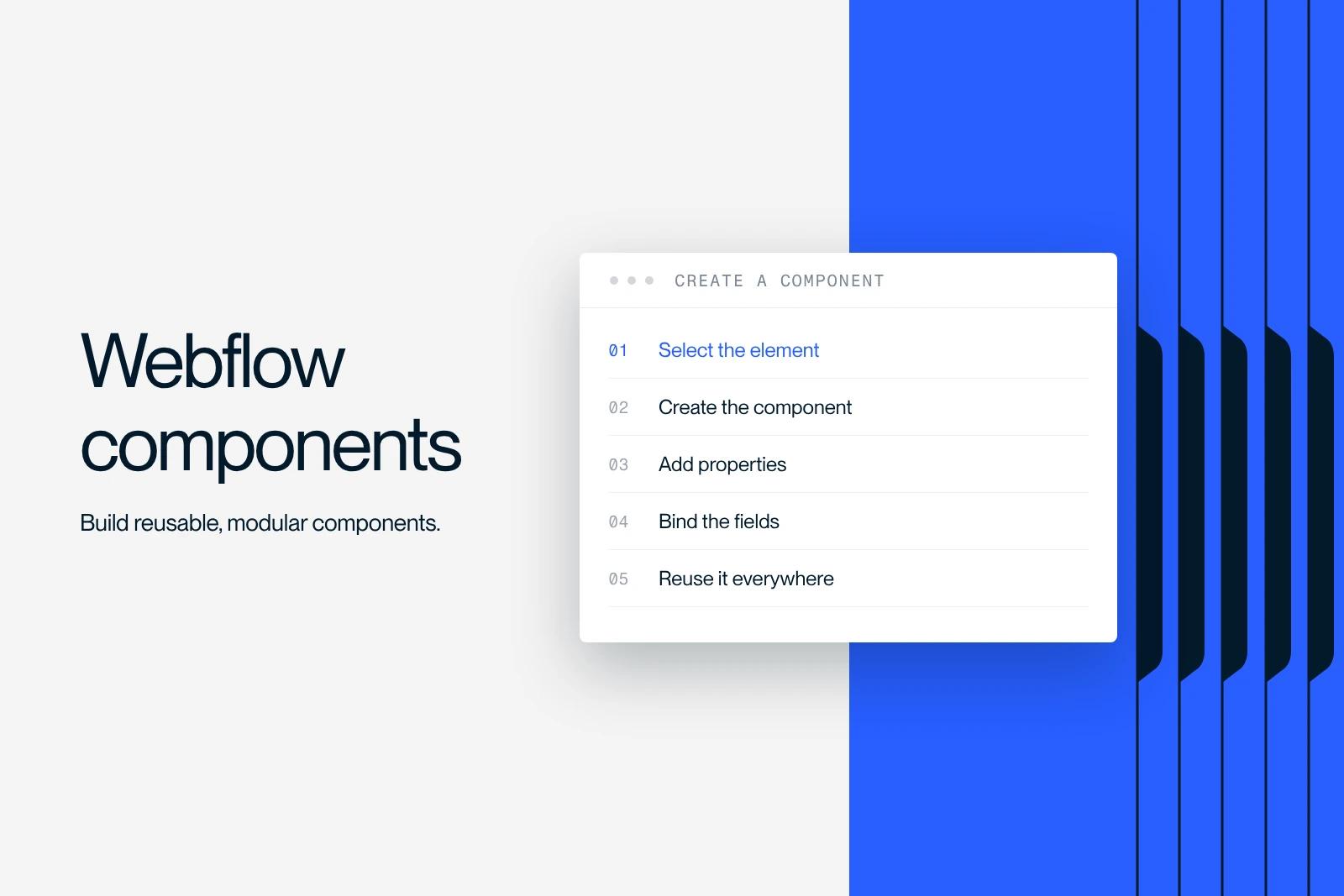
A Webflow component is a reusable block, such as a navbar, a footer or a card, and every copy of it across the site updates when you edit the original. To create one, select the elements, open the Components panel (Cmd + Shift + A or Ctrl + Shift + A) and choose Convert selection.
Properties (props) then let you change the text, image or link of each copy. Variants offer several styles, and slots let you place other components inside.
This guide follows the Webflow documentation updated in September 2026.
Explore this post with…
Custom Webflow components are the foundation of a site you can grow without starting over. The steps below follow the official Webflow components overview (updated September 2, 2026).
What is a Webflow component?
A component is a group of elements saved as a template. The main component holds the structure and the styles. Each copy placed on a page is an instance. Editing the main component updates every instance; editing an instance only changes that instance.
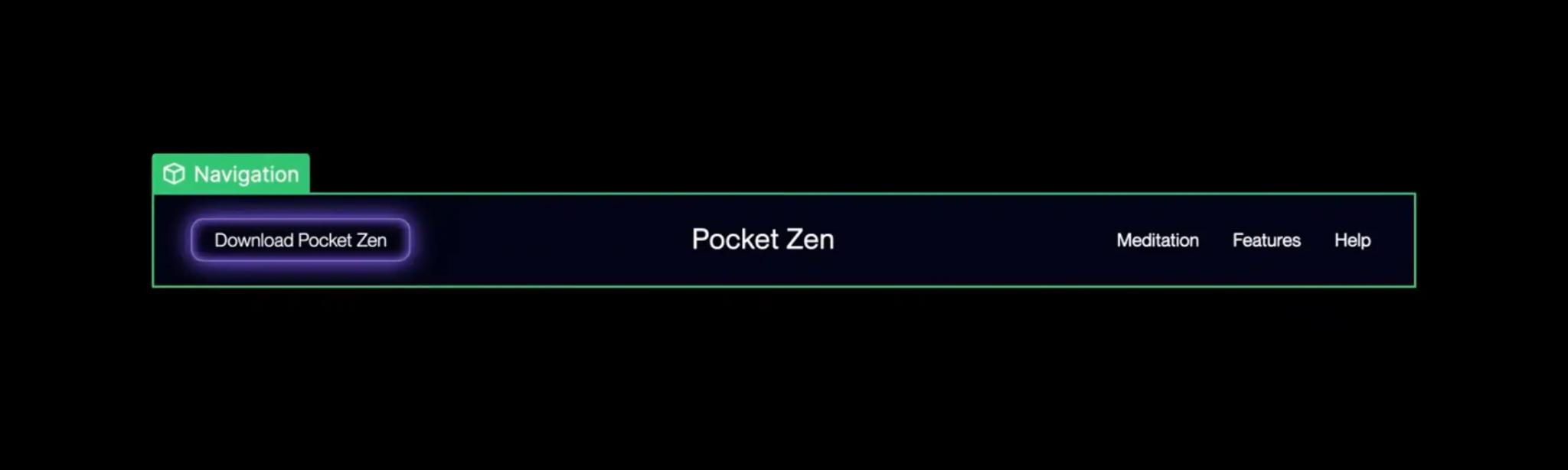
The classic example is the navbar. Build it once as a component and it shows up on every page. Adding a link then happens in one place.
Why use components in Webflow?
- Consistency: a button, a card or a header looks the same everywhere.
- Maintenance: you fix something once, not on every page.
- Team autonomy: with well-defined properties, someone from marketing can assemble a page without breaking the layout.
- Sharing: libraries push the same components to several sites in a Workspace.
How to create a component in Webflow
From existing elements
- Select the element or group of elements (for example the section that holds your card).
- Open the Components panel: Cmd + Shift + A on Mac, Ctrl + Shift + A on Windows.
- Click the new component icon, then Convert selection.
- Name the component, put it in a group and add a description if needed.
- Review the properties Webflow suggests: rename them or uncheck the ones you don't need, then click Create.
From scratch
In the Components panel, choose Create blank. The Component Canvas opens with a simple div as the container, and you can change its tag in Element settings. This method works best when you build a component library before the pages.
Editing a component: main or instance?
- In context: double-click an instance (or right-click, Edit component). You edit the main component while seeing it on the page.
- In the Component Canvas: right-click, Open component, to work on the component on its own.
- Exit: use the back arrow next to the component name, or press Esc.
The Components panel shows how many times each component is used. You can only delete a component once it has no instances left.
Properties (props): customizing each instance
A property is a component value that each instance can override. The Webflow documentation on component properties lists these types:
| Property type | Example use |
|---|---|
| Text | Card title, button label |
| Rich text | Paragraph with links and bold text in a testimonial block |
| Image | A different photo or logo per instance |
| Link | Destination of a call-to-action button |
| Video | Video in a demo section |
| Number | Displayed rating, price or counter |
| Switch | Show or hide a badge, an icon, a subtitle |
| Collection list | Filter, sort and display limit of a CMS list inside the component |
To create a property:
- Open the main component (double-click an instance).
- Open the Properties panel (K key), click the plus and pick a type.
- Give it a clear name and a default value, and put the property in a group if the component has many.
- Connect it: select the element, open Element settings, click the purple dot next to the value and choose the property. A property that isn't connected does nothing.
An instance placed on a CMS template page can connect its properties to Collection fields (text, image, link, date, number, reference...). One card then works for every post.
Variants: several styles for one component
Variants give you several versions of one component: a solid or outline button, a light or dark card. In the main component, click the plus next to Variants in the Navigator, then name the variant. Styles changed in the base variant apply to all of them; styles changed in a variant stay specific to it. A component has only one variant property, but as many variants as you need, according to the documentation on component variants.
Slots: placing other components inside
A slot is a reserved area in a component where you drop other components. Example: a two-column section whose right column accepts an image, a form or a video. The structure stays locked, the content stays flexible.
How do you unlink an instance?
Right-click an element of the instance, then Unlink instance. The instance becomes a group of regular elements: properties become fixed settings, variants become styles, slots become elements. It will no longer receive component updates. To keep the original intact, duplicate the instance and unlink the copy. Instances placed inside rich text can't be unlinked.
Sharing components across several sites
Libraries share components between the sites of one Workspace, with centralized updates. They also hold code components (React components imported by a technical team) and AI-generated code components. The number of libraries depends on the Workspace plan: one on Core, unlimited on Agency.
Best practices for durable Webflow components
- Name by function: Card / Article rather than Blue block. Use the panel's groups and descriptions.
- Expose few properties: only what really changes from one instance to the next. Too many settings make a component fragile.
- Prefer variants over duplicates: one button with three variants beats three button components.
- Hide technical components: the panel's visibility option lets you hide them from Marketer roles.
- Test every breakpoint: a component gets reused in many contexts, so its responsive behavior must hold up everywhere.
To structure a full library, the logic of atomic design helps you break elements down, and the Client-First method helps you name the classes inside them.
At Synqro, a Webflow Premium Partner since 2019, we plan components from the mockup stage so the client's team can then assemble new pages on its own. For a full website (8 to 12 weeks) or a landing page (2 weeks), contact our Webflow agency.
Frequently asked questions
The main component is the template. An instance is a copy placed on a page. Editing the main component updates every instance; editing an instance through its properties only changes that instance.


