Article
Client First for Webflow: Principles and Benefits (2026)
Webflow19 min read

Dantin DurandDéveloppeur Full-stack
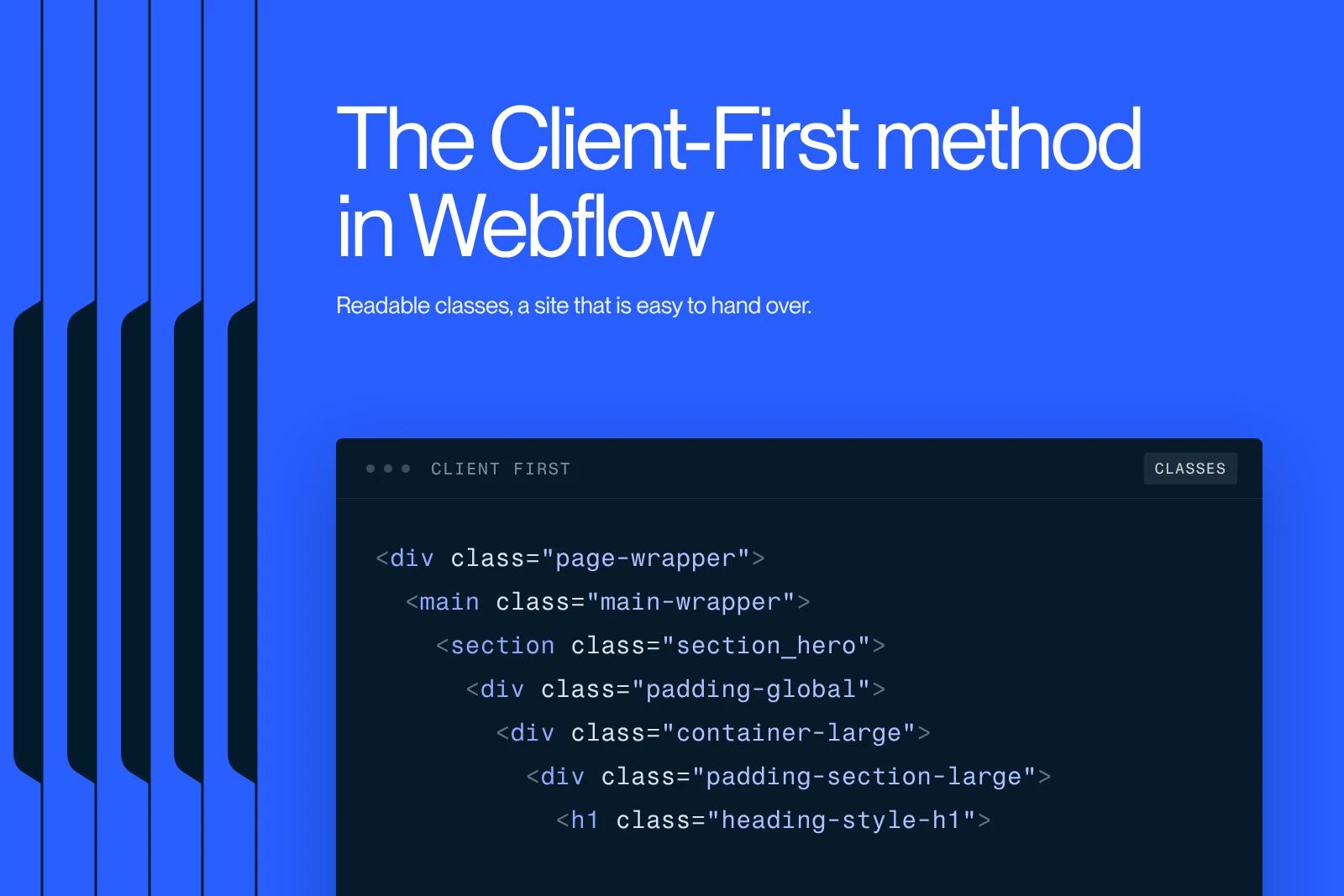
Client First is a system for organizing and naming classes in Webflow, created by Finsweet. It is not a theme or a plugin: it is a convention. It answers a question that is simple but costly when you get it wrong: how do you name and structure a site's classes so the site is still readable and editable two years from now, by someone who did not build it?
This guide covers the whole system in its version 2: the four types of classes, the six-block page structure, the spacing system, the folder-based naming convention, combo classes, rem handling, the CSS specificity trap, the tools in the ecosystem, and what the method does not solve.
Explore this post with…
What is the Client First method?
Client First is a style system for Webflow developed by Finsweet. Its promise is in the name: build with the person who will take over the project in mind first. The client, another developer, another agency.
Finsweet describes it as a mindset before it is a list of rules. In practice, it comes down to five commitments: the same system on every project, an explicit naming strategy, standardized page structures, a project that is manageable and ready to scale, and readability for anyone who opens the Designer without having taken part in the build.
The current version is V2, released on August 26, 2022. It renamed several classes and, above all, changed the meaning of the underscore, a point we come back to below. If you still come across documentation that mentions page-padding or section-hero with a hyphen, you are reading V1.
One useful clarification: Client First teaches neither HTML nor CSS. Finsweet says so explicitly. The method assumes the basics are already there and simply adds a discipline on top.
The problem Client First solves
Every Webflow project starts out clean. The problem shows up in month three, when the site has grown, two people have worked on it, and the Style Manager panel holds four hundred classes that nobody remembers the purpose of.
The symptoms are always the same. Duplicate classes, created because nobody could find the existing one. Names that describe a look rather than a role, such as big-blue-text, which became wrong the day the brand guidelines changed. Stacks of five classes on a single element, impossible to untangle. A harmless edit that breaks three pages elsewhere.
This mess has a measurable cost. Each change takes longer than the one before. Handing the site over to the client becomes impossible, which locks them in with their provider. And the day the site needs to evolve, the redesign quote arrives sooner than expected. This is exactly the scenario we try to avoid on the projects we deliver, just like the classic mistakes made when building a Webflow site.
The four types of classes
Client First sorts every class in a project into four categories. This is the foundation of the system: knowing which category the class you are creating falls into determines its name.
Utility classes
A utility class carries a specific combination of CSS properties that can be applied anywhere in the project. It never contains an underscore, only hyphens.
Examples from the documentation: text-size-large, margin-large, background-color-grey, text-color-black. These are the building blocks of the system. You use them all the time and only rarely create new ones.
Custom classes
A custom class is created for a component, a page or a unique element that the utility system does not cover. It contains at least one underscore.
Examples from the documentation: header_content, faq_item, testimonial-slider_headshot, team-list_headshot-wrapper. Finsweet gives a warning: creating a custom class should not be a reflex. Before writing one, ask whether three utility classes could do the same job.
Global classes
A global class is not a third naming type. It is a classification by use: a class meant to be used across the whole project. A utility class is global by nature, and a custom class can be global too, for example the class of a component reused on ten pages.
Combo classes
A combo class is a variant of a base class: it inherits its styles and changes a few of them. Client First requires a prefix, is-, so a variant can be spotted right away.
The textbook case is the button: a button class that carries the base style, then is-secondary, is-text or is-inactive for the variations. Other examples from the docs: text-size-large is-home-header, section_header is-home.
Page structure: the six core classes
Client First requires the same architecture on every page. It is probably the most visible part of the system, and the one that makes a project instantly recognizable when you open the Navigator.
The nesting, from outermost to innermost:
- page-wrapper: the div that wraps absolutely all of the page content. It exists so you never style the body directly. On the body, you only set typography and background color. Everything else goes here.
- nav: the navigation, inside page-wrapper but outside main-wrapper.
- main-wrapper: the main content, with the HTML tag main. The navigation and the footer must not sit inside it, for accessibility reasons.
- section_[identifier]: wraps an entire section of content, with the section tag. It is a custom class, hence the underscore. The identifier turns the Navigator into a map of the page: section_header, section_services, section_contact.
- padding-global: handles the global horizontal spacing of the page. This class only carries padding-left and padding-right, nothing else.
- container-[size]: the unified container system, in three widths. container-small, container-medium, container-large. It centers the content and gives it a maximum width.
- padding-section-[size]: the vertical spacing of the section, as padding-top and padding-bottom. Three sizes here too. The English documentation recommends placing it on the same div as padding-global rather than adding another level of nesting.
- footer: outside main-wrapper, like the navigation.
So the default structure of a section reads like this: main-wrapper, then section_[identifier], then padding-global, then container-large.
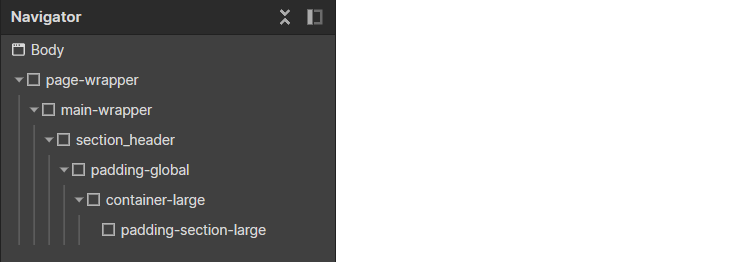
The structure classes nested in order, on a page that is still empty.
The benefit is more practical than aesthetic. When every page follows the same pattern, you know where to click without thinking, and a global spacing change happens in one single place.
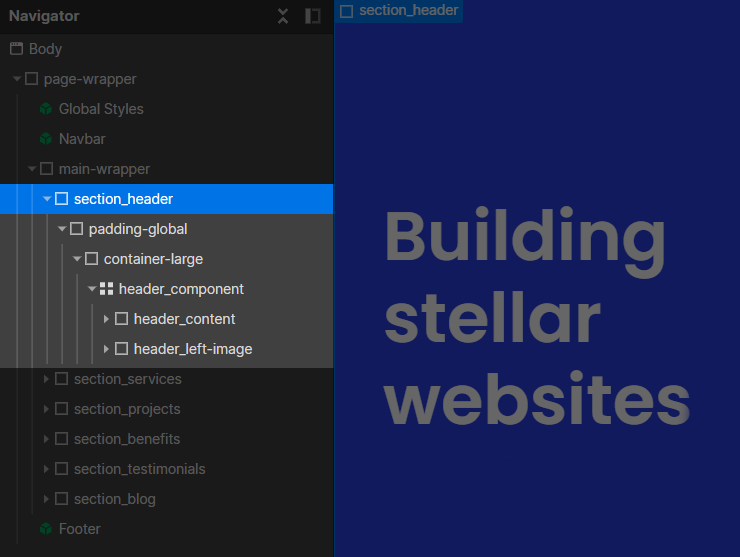
Section identifiers turn the Navigator into a map of the page.
The spacing system
This is the part of the system that saves the most time day to day, and the one that surprises people most at first.
Spacing is not set pixel by pixel in the style panel. It is applied by stacking two utility classes: a direction class and a size class.
The direction classes cover margin-top, margin-bottom, margin-left, margin-right, margin-horizontal, margin-vertical, and the six equivalents for padding.
The size scale, from smallest to largest, is the same for margins and paddings:
- 0: 0rem
- tiny: 0.125rem
- xxsmall: 0.25rem
- xsmall: 0.5rem
- small: 1rem
- medium: 2rem
- large: 3rem
- xlarge: 4rem
- xxlarge: 5rem
- huge: 6rem
- xhuge: 8rem
- xxhuge: 12rem
Three intermediate values exist outside the scale for cases that do not land exactly on it: custom1 at 1.5rem, custom2 at 2.5rem, custom3 at 3.5rem.
So a spacing is written as margin-bottom plus margin-medium. Two classes, no value typed by hand, and guaranteed consistency across the whole site.
The three ways to apply spacing
Finsweet documents three implementations, to choose from depending on the context:
- The spacing block: an empty div between two sibling elements, which carries a padding-bottom and a size. Simple, and visible in the Navigator.
- The spacing wrapper: a div that wraps the content and carries the spacing. Useful when the element has to stay attached to its margin.
- CSS Grid: a grid parent whose gap values handle the spacing between children. It is often the cleanest solution for a list or a grid of cards.
The naming convention: the underscore creates the folder
This is the major conceptual change in V2, and the most common source of confusion for anyone coming from V1.
In V2, the rule is arithmetic: one underscore equals one folder, and two underscores equal two nested folders.
- home-testimonials_wrapper creates a home-testimonials folder containing a wrapper element.
- home_testimonials_wrapper creates a home folder, a testimonials subfolder, and the wrapper element inside it.
The hyphen simply separates words within a segment. In team-list_headshot-wrapper, the folder is team-list and the element is headshot-wrapper.
These folders are virtual: the Finsweet extension is what displays them as a tree in the Designer, based on the naming convention.
From general to specific
The keywords in a class name always go from the most general to the most specific. text-size-large reads as: the text family, the size property, the large value. team-list_headshot-wrapper reads as: the component, the element, its role.
This rule also applies to utility classes, where the hyphen creates a folder hierarchy as well: text-color-black and text-color-white are grouped in a color subfolder inside a text folder.
How deep to nest
The documentation sets no hard limit. It gives a rule of judgment instead: only nest when the organizational benefit is obvious. The suggested guidelines:
- One level for small custom sites, reusable global components, and folders with fewer than a dozen elements.
- Two levels for large projects and component libraries with many variants, when more than a hundred elements call for an extra layer of organization.
A word on components: in V2, if an element should be treated as a component, you use the word component as the identifier, which gives names such as form_component or client-slider_component. This is the counterpart to the change in meaning of the underscore, which marked a component in V1. The topic ties in with custom components in Webflow.
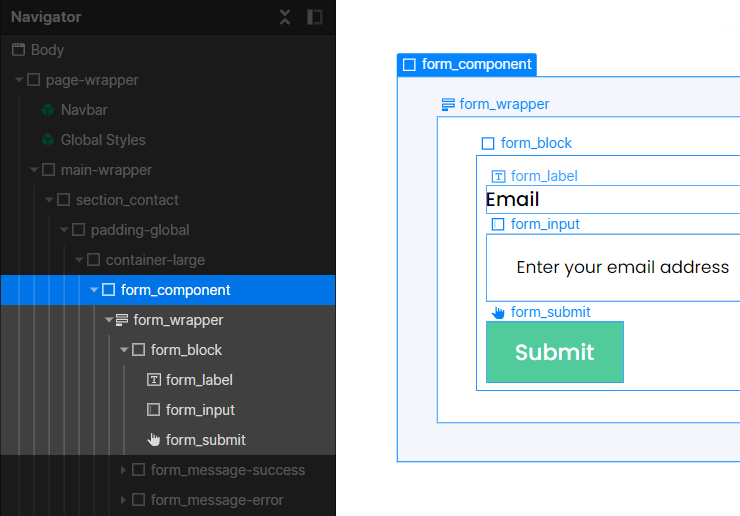
A Client First component: the word component identifies the element, and the underscore creates the form folder.
Combo classes and the anti-stacking rule
Client First tolerates combo classes but sets an explicit limit on the number of classes stacked on a single element:
- One to two classes: the normal case, no problem at all.
- Three classes: acceptable, but the documentation asks the question: why three?
- Four classes: the absolute maximum.
- Five or more: too many. Create a custom class instead.
The reason is not dogmatic. Webflow does not let you reorder the classes stacked on an element, and the order decides which one wins in a conflict. Beyond four, the behavior becomes hard to predict and impossible to fix cleanly.
Typography: tags first
Client First takes the opposite stance to many utility systems: HTML tags carry the default styles. You style H1 to H6 and the body text directly, with no class. Classes only come in for variations.
Finsweet identifies three cases where a typography class is justified:
- a one-off variation in size, color or weight;
- a conflict between style and semantics: heading-style-h2 lets you give an H1 tag the look of an H2, which solves the common case of a main heading you want to keep discreet without breaking the hierarchy;
- giving the look of a heading to an element that is not one, to avoid adding an unnecessary heading tag.
This third point deserves emphasis, because it directly affects SEO: an H2 used for its look pollutes the structure of the page. The utility system gives you a way to separate the two.
Rems, and the 62.5% myth
Client First works in rem, not in pixels. The rem is a relative unit based on the font size of the root element.
The documentation is clear about the calculation base: 16 pixels. To convert, you divide by 16. 64px equals 4rem, 2rem equals 32px.
This is a point many tutorials get wrong: the technique of setting the root font-size to 62.5% so that 1rem equals 10px, very common elsewhere, does not appear in the Client First documentation. The system stays on the 16 pixel base.
Three exceptions to systematic conversion:
- in typography, 14px, or 0.875rem, is acceptable, while 12px is considered too small;
- for micro-spacing, 2px equals 0.125rem;
- one-pixel borders stay in pixels and are not converted.
Fluid responsive
For adapting to screens, Client First recommends root font scaling rather than the vw and vh units. The principle: change the root font size at the different breakpoints, which makes every rem value follow automatically.
The arguments Finsweet puts forward are solid. The method changes nothing in the usual workflow. It respects the font size settings of the user's browser, and therefore accessibility. It is easier to maintain than a project riddled with vw. It behaves correctly on zoom, and it can be added at the end of a project as an optional improvement.
It is an approach that complements the general principles of responsive design in Webflow.
CSS specificity, the real trap
This is the most concrete technical difficulty in the system, and Finsweet devotes an entire page to it.
Webflow adds classes to the stylesheet in the order you create them. In a conflict, the most recently created one wins. This detail breaks the spacing system when the order is wrong.
The typical case: you apply margin-bottom then margin-large. If the size classes were created after the direction classes, the size is more specific, and you end up with a large margin on all four sides instead of the bottom only. The behavior is correct from a CSS point of view. It is just unexpected.
Another common case: a hide utility class overridden by a custom class created later.
Finsweet rightly points out that this is not a flaw in Client First. It is how CSS works. But it is the reason you should start from the official cloneable, where the class creation order is already correct, rather than rebuild the system by hand.
The tools in the ecosystem
- The Client First cloneable: the official starter project, with a style guide page containing all the pre-built classes. No pages, no layouts, nothing to delete. It is available in a French version.
- The Global Styles Embed: a block of CSS shipped with the cloneable. It handles text smoothing, focus states, removing stray margins in Rich Text elements, centering containers, and enabling inline-flex in the Designer.
- The Finsweet extension: it generates the virtual folder tree in the Designer from the naming convention.
- The Client First Figma library: a Figma to Webflow kit aligned with the system, useful if your production pipeline goes from Figma to Webflow.
- Relume: the largest Webflow component library built with Client First.
- A px to rem converter, built into the documentation.
Client First and SEO
Let's be clear: Client First is not an SEO method and does not improve any ranking on its own. Google does not read your class names.
The effect is indirect, but real on three points.
First, semantics. The method requires the main tag on the main content and the section tag on sections. It also provides heading-style-h#, which lets you keep a correct heading hierarchy without sacrificing the design. Many sites break their H1-H2-H3 structure for purely visual reasons. That problem goes away.
Second, performance. A project with no duplicate classes and no stacking produces a lighter stylesheet. It is not spectacular, but it plays a part in Core Web Vitals, and above all it makes later optimizations possible without breaking everything.
Third, maintainability. A clean site is quick to fix. When a technical SEO audit flags thirty items to deal with, the difference between a structured project and a messy one is counted in days of work. It is also what makes it possible to add structured data cleanly on collection pages.
The limits of the method
Client First is not free in terms of time, and Finsweet does not hide it.
The learning curve is real. The documentation warns that it is normal not to understand a page on first reading, and that fully absorbing the system can take months. It is not something you learn in a day.
Rigor is a condition, not a bonus. A convention half applied by a team that does not share it produces a worse result than no convention at all, because it gives the illusion of order.
The system is verbose. Two classes for one margin is surprising when you are used to setting it directly in the style panel. The gain only shows at scale.
It is not always the right tool. For a single, throwaway landing page built in two days, a lighter convention is enough. The investment pays off as soon as the project has to last, grow, or pass through several hands.
Migrating an existing project
Taking a messy Webflow site and moving it to Client First is a project in its own right. Here are a few guidelines from our own practice.
A full migration in one pass is rarely realistic on a live site. A gradual switch works better: you start from the cloneable for new pages, convert the global components first (navigation, footer, buttons), then the sections page by page as already planned changes come up.
The class creation order matters, for the specificity reasons covered above. It is better to import the utility system in the right order at the start than to add classes as you go.
And you have to make an honest call: on a very old site, a redesign sometimes costs less than a conversion.
The role of an agency
Knowing the method is not enough. What makes the difference is consistency: applying the same convention on every project, documenting it, and training the people who take over the site.
It is also a question of exit. A site delivered in Client First is a site you can hand to someone else, or take back in-house. That is precisely why the method is called Client First, and it is a criterion we encourage you to raise with any provider.
A well-organized Webflow agency applies this kind of method by default. To go further on how to organize a project, see also our complete guide to the Webflow Designer and our article on atomic design, which shares the same spirit as Client First.
Conclusion
Client First does not change how a site looks. It changes how it is built. Four types of classes, the same page structure everywhere, a two-class spacing system, and a naming convention that tidies up the project by itself.
The investment is real, in learning as much as in discipline. It pays off as soon as a project grows or passes through several hands, which means almost every professional project.
If you want a Webflow site that is clean, scalable and that you can evolve without depending on anyone, talk to our team about your project.
Frequently asked questions
Client First was developed by Finsweet, a studio that specializes in Webflow. Today it is one of the most widely used naming conventions in the Webflow ecosystem, and the foundation of libraries such as Relume.


