Article
How to change a Webflow post slug without losing SEO
SEO7 min read

Guillaume SchluppConsultant SEO
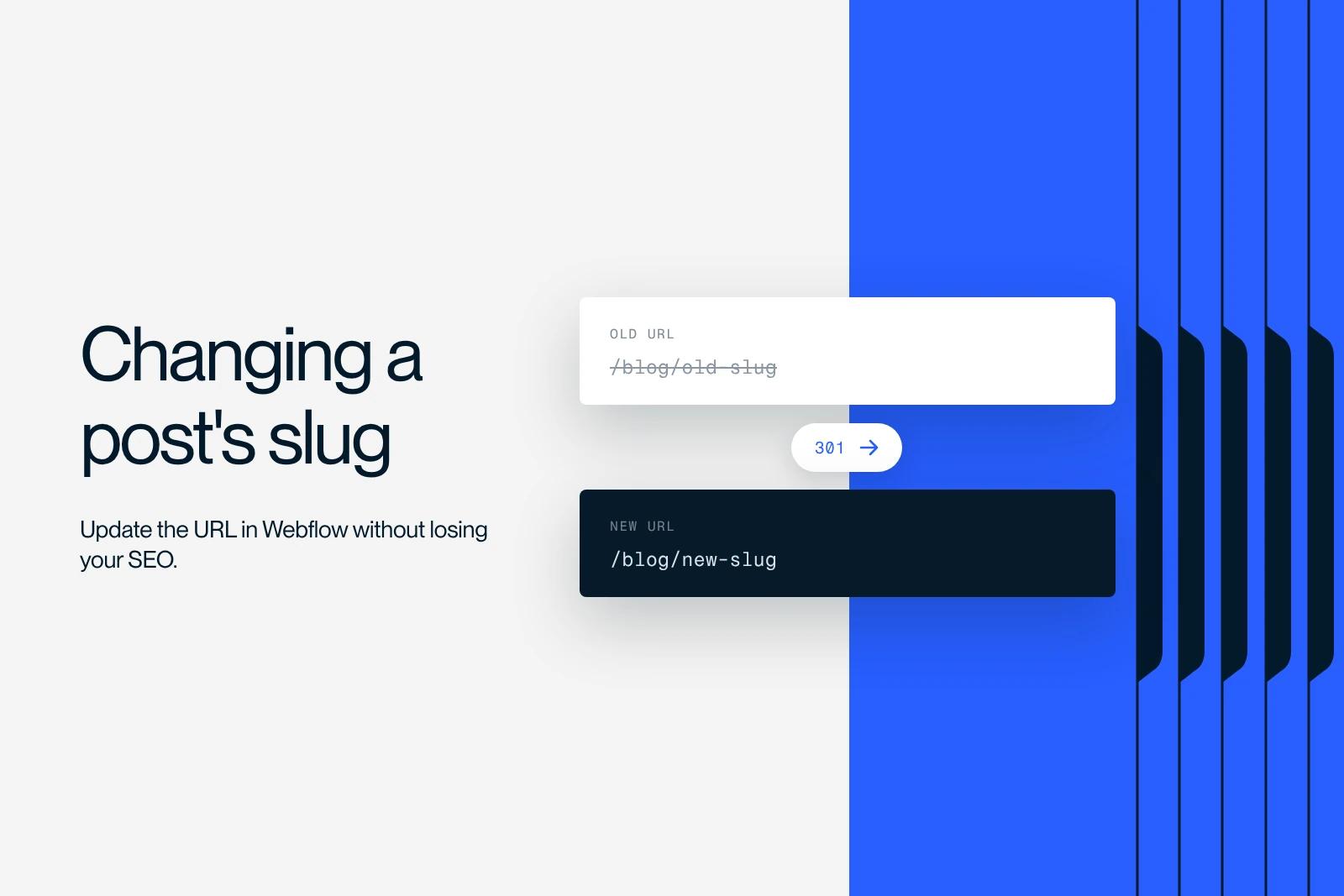
You can change the slug of a Webflow post that is already published, but the change is never neutral.
As soon as you edit the URL, the old address returns a 404 error, and Webflow does not create any redirect automatically.
To keep both your rankings and your visitors, you need to change the slug and then set up a 301 redirect yourself. This step-by-step guide, written for beginners, shows you how to do both cleanly, in the right order, and how to check that everything works.
Explore this post with…
Why changing a post slug can break your SEO
The slug is the final part of the URL that identifies your post, for example my-post in agence-synqro.fr/blog/my-post. Once a post is published, Google knows this URL, other sites may link to it (backlinks), and readers may have it in their bookmarks.
If you change the slug carelessly, the old URL stops existing. Google still knows it for weeks, though, and keeps sending visitors who land on a 404 page. The result: you lose the rankings you earned, the authority passed on by backlinks, and part of your traffic. A 301 redirect exists to prevent exactly this waste by sending the old URL to the new one automatically.
What to know before you change a slug
A 301 redirect is a permanent redirect. It tells Google that the page has moved for good, and it passes most of the old URL's SEO value to the new one. It is the right tool in this specific case, unlike a 302 redirect (temporary).
Three points to keep in mind before you start:
- Webflow does not redirect on its own. Changing a slug never creates the redirect. It is a separate, manual step.
- Only change a slug when it helps. Fixing a typo, clarifying the URL or removing an outdated date are good reasons. A cosmetic change is not worth the risk.
- Prepare both URLs. Write down the exact old slug and the new one before you touch anything. You will need them for the redirect.
Step 1: change the post slug in the Webflow CMS
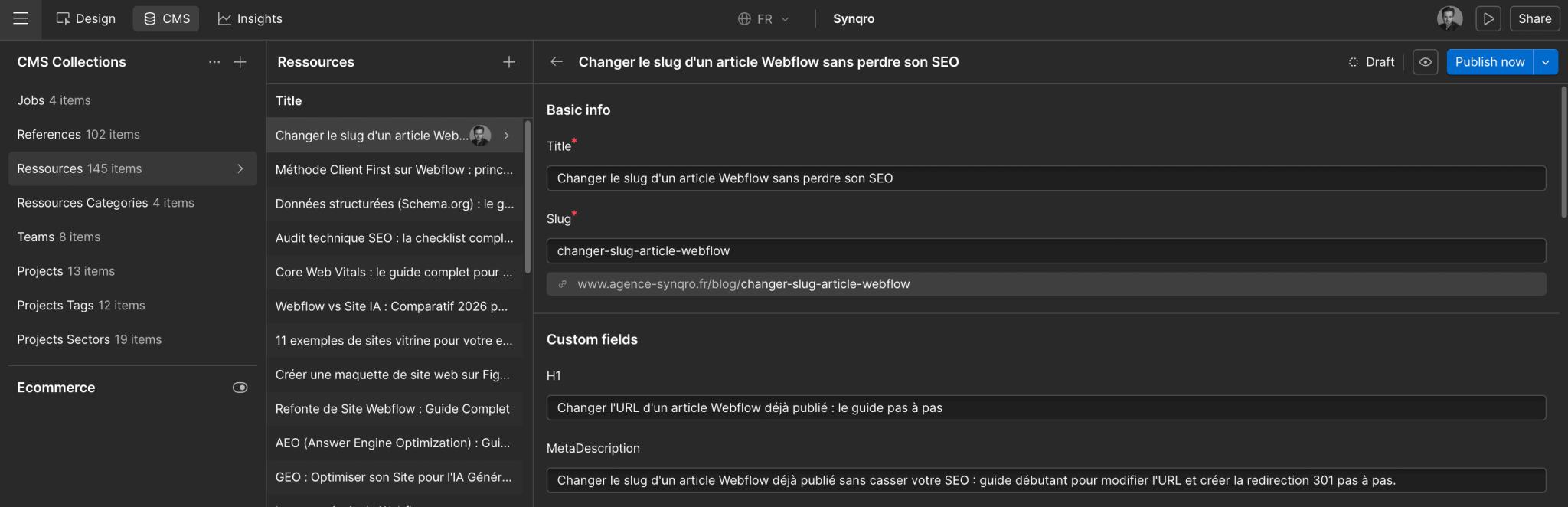
This first step happens in your CMS collection, where your blog posts live.
- Open the Webflow Designer (or the Editor), then the CMS Collections panel.
- Select your blog collection and click the post you want to open.
- Find the Slug field, just below the post name. Write down its current value: this is your old slug.
- Replace the slug with your new value. Keep the URL short and lowercase, with words separated by hyphens and no accents or special characters.
- Save the post (Save), then publish the site (Publish) to make the new URL live.
At this exact moment, the new URL works but the old one returns a 404. You need to set up the redirect right away.
Step 2: create the 301 redirect in Webflow
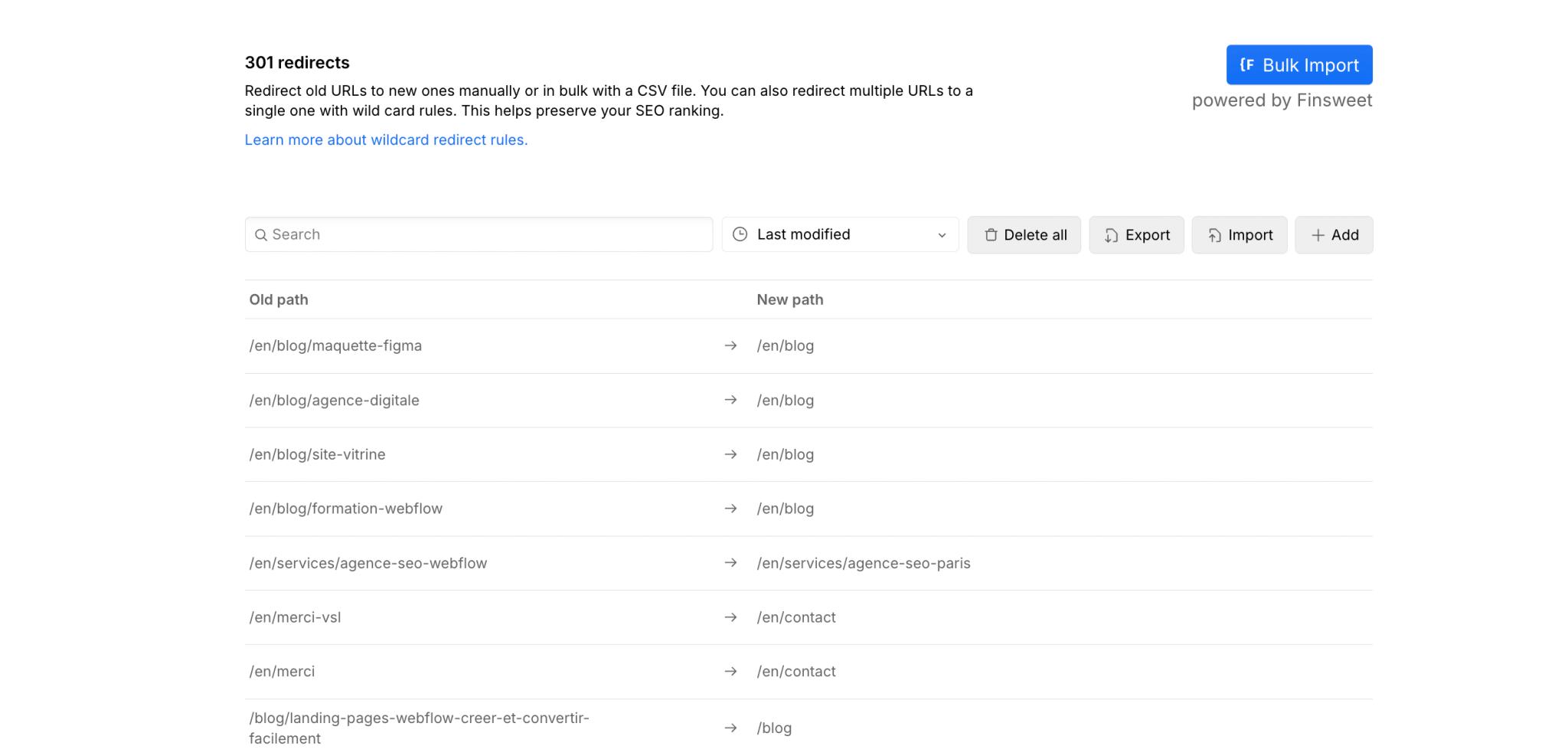
Redirects are managed in the site settings, not in the collection.
- Go to Site settings, in the Publishing tab.
- Scroll down to the 301 redirects section.
- In the Old Path field, enter the full old path from the root, for example /blog/old-slug.
- In the Redirect to Page field, enter the new URL, for example /blog/new-slug.
- Click Add Redirect Path to save the rule.
- Publish the site again: a redirect only takes effect once the site is published.
Always enter relative paths (starting with /), not the full URL with the domain name. Also think about your other language versions: if the post exists under a path such as /fr/blog/..., that version needs its own redirect.
Step 3: republish and update your internal links
Once the redirect is in place, check the links that pointed to the old URL. In Webflow, dynamic links bound to the CMS item update automatically. Links typed by hand in a rich text field or on a static page, however, stay stuck on the old slug.
- Find the posts or pages that cited the old URL and replace the link with the new one.
- Take the opportunity to add internal links to this post from 2 or 3 strong pages.
- Good internal linking helps Google rediscover the new URL faster.
To go further on method, our SEO playbook for beginners explains the logic of internal linking and indexing.
Step 4: check indexing in Search Console
The last step is to confirm that Google has picked up the change.
- Open Google Search Console on your domain property.
- Paste the new URL into the URL Inspection tool at the top.
- Click Request indexing to flag the new page.
- Inspect the old URL too: it should now show a redirect.
- Keep an eye on the Page indexing report over the following days.
The time it takes ranges from a few days to a few weeks, depending on how often your site is crawled. A manual indexing request helps speed things up.
Bonus: redirect several URLs at once
If you change the structure of several posts at once, Webflow accepts pattern-based (wildcard) redirects. In Old Path, you use parentheses to capture part of the URL, for example /blog/(.*), and in the destination you reinsert that segment with /articles/$1. Every old URL is then redirected to its equivalent. Keep in mind that Webflow caps the total number of redirects depending on your plan, so save individual redirects for one-off changes.
Common mistakes to avoid
| Mistake | Consequence | Good practice |
|---|---|---|
| Changing the slug without a redirect | 404 error and lost rankings | Always add the 301 right after |
| Entering the full URL in Old Path | Redirect does not work | Use a relative path starting with / |
| Forgetting to republish the site | The redirect is not applied | Publish after every change |
| Overlooking the other language version | 404 on the other language version | Create one redirect per language |
| Creating many similar slugs | Cannibalization and duplicate URLs | One search intent, one URL |
On the question of duplicate URLs, our article on the canonical tag is a useful complement. And if you are planning a broader redesign, the guide to migrating a Webflow site covers managing redirects at scale. For a full redesign, our Webflow agency can also handle the redirect plan.
Conclusion
Changing the slug of a published Webflow post is simple as long as you follow the order: change the slug, create the 301 redirect, republish, then check in Search Console. The redirect is not optional. It is what protects your rankings and your visitors. If you run a growing Webflow blog and these steps feel risky, the team at our Webflow SEO agency can handle your URL changes safely. Let's talk about your project.
Frequently asked questions
No. Changing the slug of a Webflow post or page does not generate any redirect. The old URL returns a 404 error as soon as you republish. You need to create the 301 redirect manually in Site settings, Publishing tab, 301 redirects section. It is a separate and required step to protect your rankings and your visitors' experience.