Article
How to create animations in Webflow: method and settings
Webflow8 min read

James BrunettoCo-fondateur & CEO
The method we use in production to animate a Webflow site: triggers, default settings, performance and mistakes to avoid.
Explore this post with…
To create an animation in Webflow, select an element, open the Interactions panel, pick a trigger (click, hover, scroll into view, page load) and set the properties to animate on the timeline. A fade-in takes five minutes. What takes time is tuning the timing, the easing and the performance, and that is where most sites go wrong.
At Synqro, we have been shipping Webflow sites since 2019. This article gives the method we use in production, our default settings, and the mistakes we keep finding when we audit sites built by others.
Webflow, Lottie or GSAP: which tool for which animation
Before opening the Interactions panel, pick the right tool. Webflow offers three, and we add a fourth when the project calls for it.
| Need | Tool | Why |
|---|---|---|
| Reveal on scroll, hover, menu, tabs | Webflow Interactions | Native, no code, editable by the client |
| Animated illustration, icon, branded loader | Lottie (JSON file) | Vector, lightweight when exported well, can follow the scroll |
| Complex sequence, pinned scroll, split text | GSAP + ScrollTrigger | Full control, smoother, requires code |
| Color transition, underline, micro-interaction | Plain CSS (transition) | Zero JavaScript, the fastest option |
Simple rule: if a CSS transition can do it, we do not use Interactions. If it needs more than three synchronized elements or a pinned scroll, we move to GSAP and ScrollTrigger. Everything in between is a job for Interactions.
Creating an animation in Webflow in 5 steps
1. Pick the element and the trigger
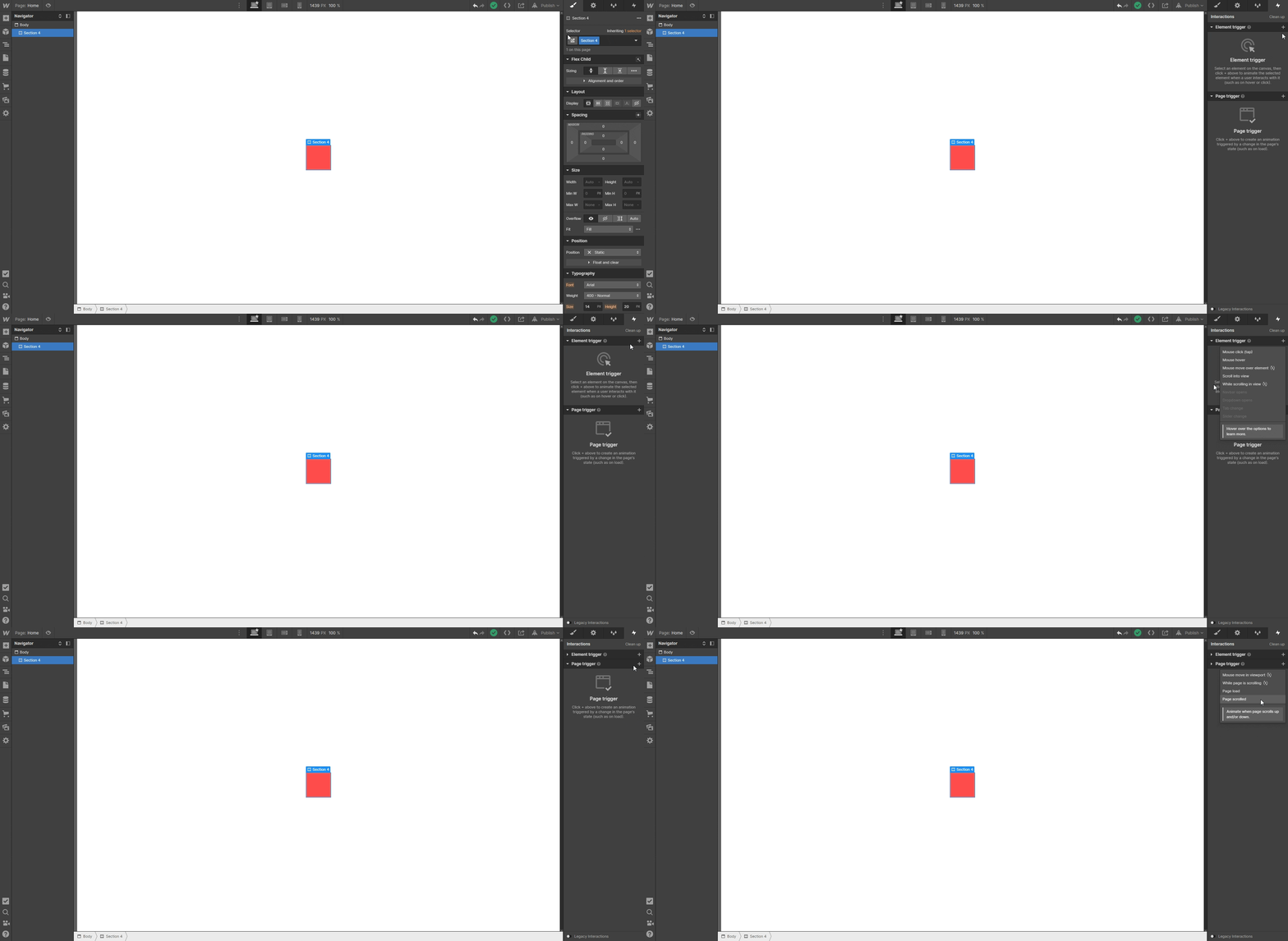
Select the element in the Designer, open the Interactions panel and create an element trigger or a page trigger. The four we use on 90% of projects:
- Scroll into view: the animation plays once when the element enters the viewport. This is the trigger for section reveals.
- While scrolling in view: the animation follows the scroll position from 0 to 100%. Use it for parallax and progress bars.
- Mouse hover: for buttons and cards. Always set the hover-out animation, otherwise the element stays frozen.
- Page load: for a loader or the hero entrance. One per page, no more.
2. Set the initial state
Before animating, tick Set as initial state on the first action: opacity at 0%, position offset 24 px down. Without an initial state, the element shows, disappears and reappears on load. It is the most common mistake we fix on sites we take over, and it counts toward the CLS Google measures.
3. Add actions on the timeline
Each action animates one property: Move, Scale, Rotate, Opacity, Size, Filter, Background color. Stack two or three per element at most. Beyond that, the animation gets hard to read and expensive to compute.
Two properties cost the browser almost nothing: transform (Move, Scale, Rotate) and opacity. All the others (Size, Background color, Filter) trigger a layout or paint recalculation. Keep them for small elements.
4. Set duration, delay and easing
This is where perceived quality is decided. Our defaults:
| Animation | Duration | Easing | Delay |
|---|---|---|---|
| Section reveal on scroll | 500 to 600 ms | Ease Out Quart | 0 ms, then an 80 to 100 ms stagger between elements |
| Button or card hover | 150 to 200 ms | Ease Out Cubic | 0 ms |
| Mobile menu opening | 300 ms | Ease In Out Cubic | 0 ms |
| Page loader | 1 s maximum | Ease In Out Quart | Never block content beyond that |
| Parallax (While scrolling) | 0 to 100% of scroll | Linear | 40 to 80 px of travel, no more |
An Ease Out curve feels instantly responsive: the element starts fast and settles gently. Ease In, which starts slowly, makes the site feel sluggish. We only use it for exits.
5. Test on all three screen sizes
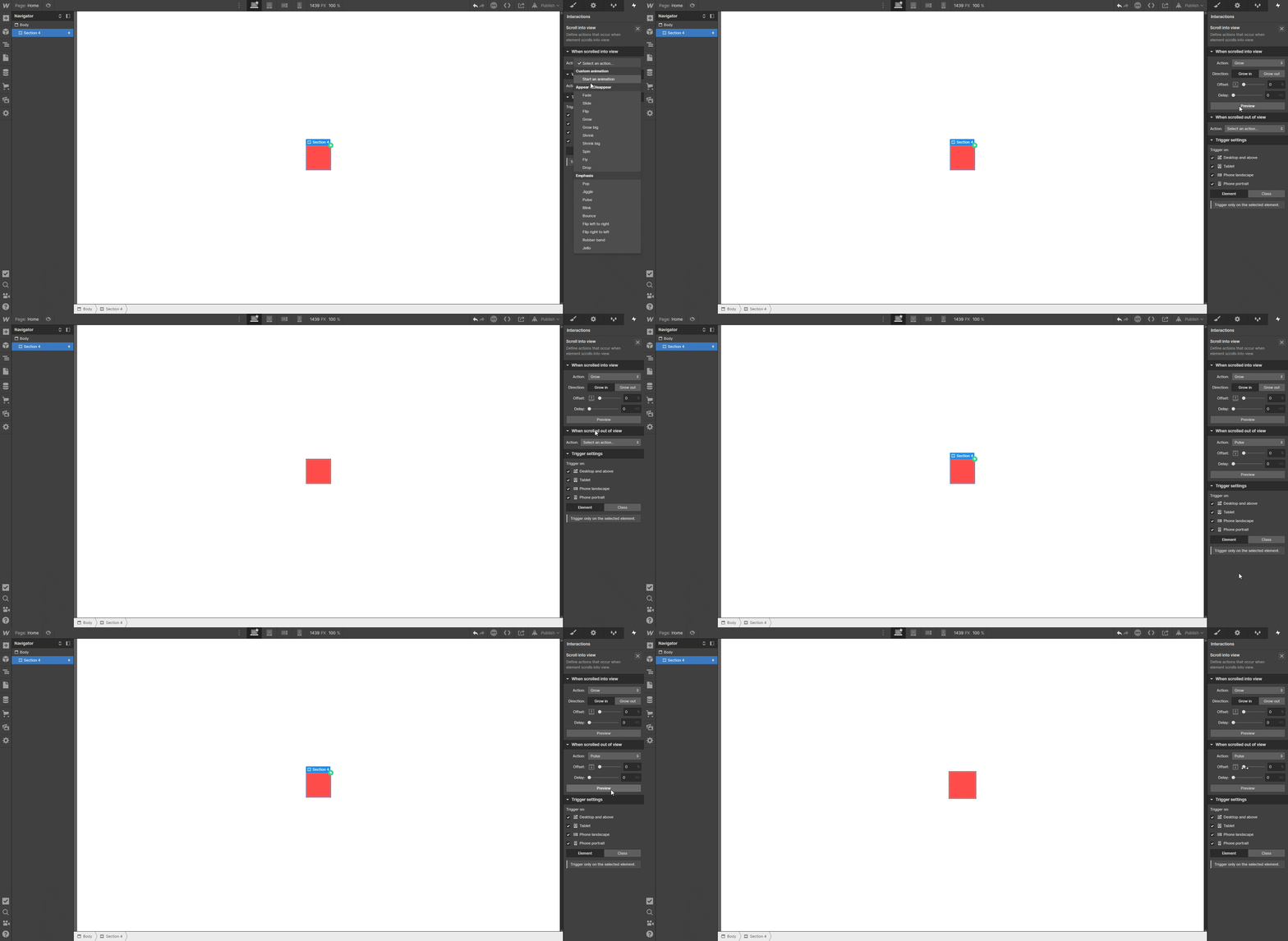
The Preview button plays the animation inside the Designer. Then test the published site on a real phone, not only in the emulator. Hover triggers do not work with a finger: on mobile, a hover becomes a tap, and a card that only reveals on hover hides its content. In the Interactions panel, every trigger can be disabled per breakpoint. We switch off parallax and mouse-follow animations on tablet and mobile, every time.
Apply one animation to many elements without rebuilding it
The Affect setting offers three options: the selected element, every element with the same class, or the element's children. This is how you set up a grid's card reveal once and apply it to 12 cards. Tick Limit to nested elements so the animation only touches elements inside the trigger, otherwise every card on the page fires at once.
For staggers, Webflow has no automatic option. Create the interaction on the class with a delay, then offset each card by hand, or switch to GSAP as soon as there are more than six elements.
Lottie and 3D: when it is worth it
Lottie lets you embed a vector animation exported from After Effects as JSON. It is driven like any interaction: play on load, loop, on hover, or synced to the scroll with While scrolling in view. Here is a 3D and Lottie animation we built for Mon Casier Frais:
Three rules before adding a Lottie:
- A JSON file under 300 KB. Above that, ask the motion designer to simplify the paths.
- No bitmap images embedded in the JSON. They multiply the weight by ten.
- One looping Lottie per screen. Two simultaneous loops on mobile and scrolling stutters.
What it looks like on a full site
On a studio or agency site, animations carry the brand. See the site we built for La Combine, a motion design studio. And below, another case on a multilingual site running Weglot:
Performance and accessibility: our guardrails
An animation is worthless if it slows the page down. Before every launch:
- Transform and opacity only on large sections. Other properties stay on elements under 200 px.
- Initial state set on everything that reveals on scroll, to avoid flashes and layout shifts. We check CLS in PageSpeed, see our Core Web Vitals guide.
- No animation on lazy-loaded images above the fold: the image arrives after the animation and the block stays empty. Details in our article on lazy loading images.
- Respect prefers-reduced-motion. We add a CSS rule in the head that disables transitions and animations when the user has asked their system to reduce motion.
- Twenty interactions per page at most. Beyond that, we simplify or move to GSAP, which groups everything in a single timeline.
The mistakes we find in audits
On the Webflow sites we take over, the same problems keep coming back:
- A 3 or 4 second loader hiding a site that has already loaded. Visitors leave before it ends.
- Reveals without an initial state, flashing on load and hurting CLS.
- Height animations (Size) on entire sections, which make laptops struggle.
- Hover effects on mobile, so content cannot be reached with a finger.
- Parallax with 300 px of travel that makes people seasick.
- Interactions duplicated on every page instead of one on the class.
The other pitfalls, beyond animation, are in our list of Webflow website mistakes.
Going further
Webflow University's free course on interactions and animations covers the whole interface in two hours. For the cases the Interactions panel cannot handle, our GSAP and Webflow guide takes over. And if you would rather hand the subject to a team that does it every week, here is what our Webflow agency does.
Frequently asked questions
No, the Interactions panel covers reveals, hovers, menus and parallax without a line of code. Code becomes useful for complex sequences, pinned scroll or staggers of more than six elements, where GSAP is easier to maintain.


