Article
GSAP animation: 4 copy-paste code examples (2026 guide)
Webflow15 min read

James BrunettoCo-fondateur & CEO
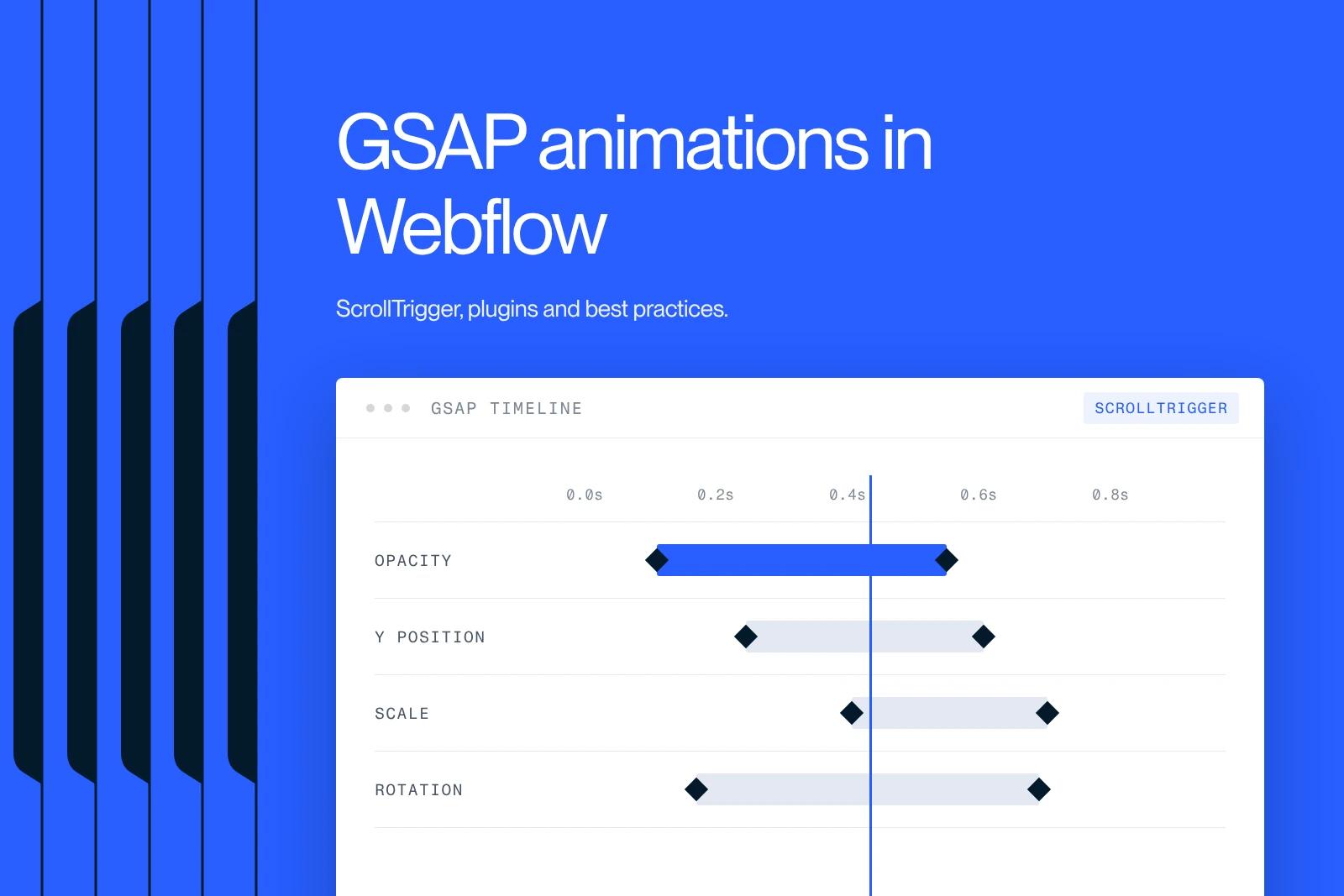
A GSAP animation takes a few lines of code, and the library has been free for everyone since April 2025, plugins included. Below are four complete, commented examples, scroll reveal, letter-by-letter heading, parallax and loading sequence, ready to paste into Webflow or any site.
You also get the exact state of GSAP in October 2026, the official CDN, the mistakes we fix most often and our rule for deciding when to animate.
Explore this post with…
In short: GSAP (GreenSock Animation Platform) is a JavaScript animation library, owned by Webflow since October 2024 and free for everyone since version 3.13 in April 2025, ScrollTrigger, SplitText and MorphSVG included, commercial use included. The current version is 3.15 (checked in October 2026). In Webflow, you turn it on from the site settings with no external script, or use it without code through Interactions with GSAP. The four examples below cover what most marketing sites need.
GSAP in October 2026: free, version 3.15, owned by Webflow
GSAP is a framework-agnostic JavaScript library. It animates CSS properties, SVG, canvas and plain JavaScript objects, on a Webflow site as well as in a React or Vue app.
It rests on two building blocks. A tween moves an element from one state to another: position, opacity, scale, rotation. A timeline chains several tweens with precise timing, and you can pause it, reverse it or tie it to scrolling.
Four dates tell you where the library stands:
- October 15, 2024: Webflow announces the acquisition of GreenSock, the company behind GSAP. The library stays available everywhere, not only on Webflow.
- April 29, 2025: GSAP 3.13 makes the whole library free, former Club GSAP plugins included, "even for commercial use". The Club shuts down and SplitText is rewritten.
- April 30, 2025: a new standard license (last modified May 30, 2025). One restriction only: you cannot build GSAP into a tool that lets people create visual animations without code and competes with Webflow. For a website, an app or a campaign, no limit.
- April 13, 2026: GSAP 3.15.0 ships, the current version on npm as of October 21, 2026.
In practice, there is no paid tier, no license key and no private repository anymore. The npm package and the CDN contain everything.
| Plugin | Role | Typical use case |
|---|---|---|
| ScrollTrigger | Animate on scroll | Reveals, parallax, pinned sections, vertical storytelling |
| SplitText | Split text | Headings animated letter by letter, word by word or line by line |
| MorphSVG | Morph an SVG | Smooth transition from one icon to another |
| DrawSVG | Draw an SVG | Progressive drawing of a line or a logo |
| ScrollSmoother | Smooth scrolling | Fluid scrolling and depth effects |
| Flip | Animate a state change | Transition between two layouts, grid filters |
| Draggable, Inertia, MotionPath | Interaction and paths | Drag and drop, inertia, movement along a path |
Loading GSAP: official CDN, npm or the Webflow integration
Three ways to load the library. Pick one per site: GSAP loaded twice is the first cause of bugs we find in audits.
Via CDN. One tag per file, the core first, then the plugins, before the closing body tag. The files are served by jsDelivr straight from the official npm package:
<script src="https://cdn.jsdelivr.net/npm/gsap@3.15.0/dist/gsap.min.js"></script>
<script src="https://cdn.jsdelivr.net/npm/gsap@3.15.0/dist/ScrollTrigger.min.js"></script>
<script src="https://cdn.jsdelivr.net/npm/gsap@3.15.0/dist/SplitText.min.js"></script>
Via npm. For a project with a bundler: npm install gsap, then import gsap from "gsap" and import { ScrollTrigger } from "gsap/ScrollTrigger". Every plugin has been in the public package since 3.13.
In Webflow. Load nothing by hand. Open the site settings, go to GSAP integration, turn on the library and check the plugins you need. Webflow hosts the files, loads them and registers the plugins for you. Details are in the Webflow section below.
In the examples that follow, the gsap.registerPlugin line is unnecessary on Webflow but harmless if the plugin is already registered. You can leave it in.
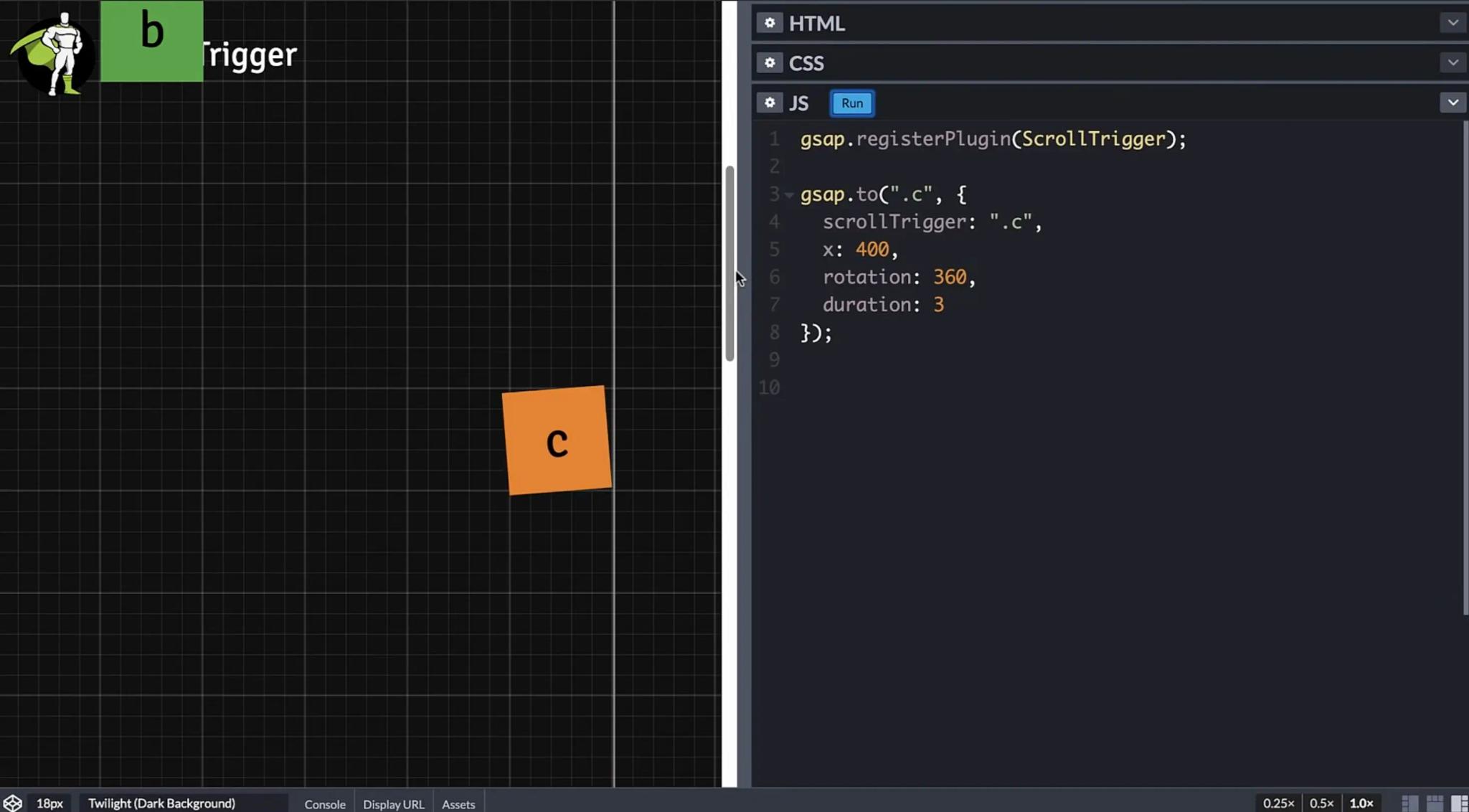
Example 1: scroll reveal with ScrollTrigger
The most common need: each block on a page slides up slightly and fades in when it enters the viewport. Give the reveal class to the elements you want to animate.
// Register the plugin (not needed on Webflow, harmless if done twice)
gsap.registerPlugin(ScrollTrigger);
// One animation per .reveal block, fired when its top reaches 85% of the viewport
gsap.utils.toArray(".reveal").forEach((block) => {
gsap.from(block, {
opacity: 0,
y: 40,
duration: 0.8,
ease: "power2.out",
scrollTrigger: {
trigger: block,
start: "top 85%",
toggleActions: "play none none none"
}
});
});
What the important settings do:
- start: "top 85%" means "when the top of the block reaches 85% of the viewport height". The first word describes the element, the second the viewport.
- toggleActions says what to do on enter, leave, enter back and leave back. "play none none none" plays once. Use "play none none reverse" to play backwards when the visitor scrolls up.
- markers: true adds visual start and end markers during development. Remove it before publishing.
For a grid of cards, replace the loop with ScrollTrigger.batch(".card", { onEnter: (batch) => gsap.from(batch, { opacity: 0, y: 40, stagger: 0.15 }) }): cards that enter together animate in a cascade.
Example 2: letter-by-letter heading with SplitText
SplitText splits a text into lines, words or characters, each in its own element, so you can animate them separately. Since version 3.13 it is free and can re-split when web fonts finish loading.
gsap.registerPlugin(SplitText);
// Split the heading into words and characters, then slide each character up
SplitText.create(".hero_title", {
type: "words, chars",
autoSplit: true,
onSplit(self) {
// Returning the tween lets SplitText replay it cleanly after a re-split
return gsap.from(self.chars, {
y: 40,
autoAlpha: 0,
duration: 0.6,
ease: "power3.out",
stagger: 0.03
});
}
});
Three things to know. Splitting into words as well as characters keeps a word from breaking at the end of a line. The mask: "chars" option wraps each character in a clipping container for a reveal-from-below effect. By default, SplitText adds an aria-label to the heading and hides the fragments from screen readers, so the text stays readable for assistive technology.
Keep the effect for headings. Splitting a whole paragraph into characters creates hundreds of elements and weighs on mobile.
Example 3: scroll parallax
A simple parallax: the image of a section moves slower than the page, which adds depth. In CSS, give the image a height of 120% of its section and the section overflow hidden, or a gap appears at the bottom.
gsap.registerPlugin(ScrollTrigger);
// The image moves up by 20% of its height while the section crosses the viewport
gsap.to(".parallax_img", {
yPercent: -20,
ease: "none",
scrollTrigger: {
trigger: ".parallax_section",
start: "top bottom",
end: "bottom top",
scrub: true
}
});
scrub: true locks the animation to the scrollbar, in both directions. A number instead of true, for example scrub: 0.5, adds half a second of smoothing: the movement catches up with the scroll gently. The none ease is deliberate; an easing curve makes no sense when the finger or the wheel is driving.
Example 4: timeline on page load
A timeline chains several animations with precise timing. The classic case: when the page loads, the heading appears, then the text, then the button, with a slight overlap.
// Defaults shared by every step
const tl = gsap.timeline({
defaults: { duration: 0.7, ease: "power2.out" }
});
// Each step starts 0.4s before the previous one ends
tl.from(".hero_title", { y: 30, opacity: 0 })
.from(".hero_text", { y: 20, opacity: 0 }, "-=0.4")
.from(".hero_cta", { scale: 0.9, opacity: 0 }, "-=0.4");
The third parameter, "-=0.4", is the position in the timeline: 0.4 seconds before the previous step ends. You can also pass an absolute time (1.2) or a label. The same timeline can then be controlled with tl.pause(), tl.reverse() or tl.restart(), for example on a button click.
One performance rule: do not animate the largest element of the first screen, cover image or main heading, from zero opacity. Google measures the moment it appears (LCP), and an entrance animation delays it.
Using GSAP in Webflow: with or without code
Since the acquisition, Webflow has integrated GSAP at two levels. The right choice depends on who maintains the site and how much control you need.
Without code: Interactions with GSAP
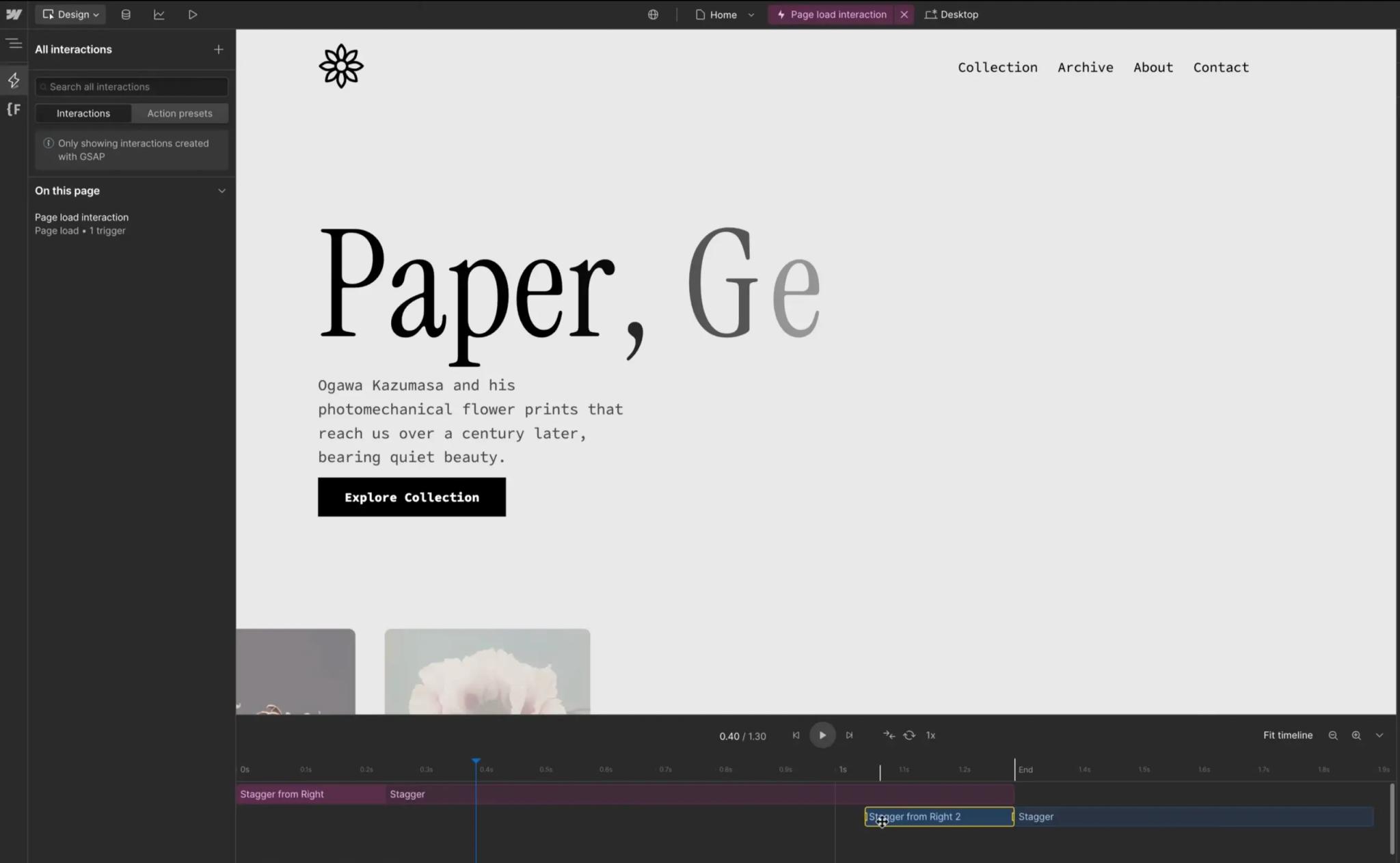
Launched on July 10, 2025, Interactions with GSAP rebuild Webflow's interactions panel on the GSAP engine, for all users and at no extra cost. You get a horizontal timeline, SplitText, staggers, ScrollTrigger, a reduced motion setting and the ability to reuse an interaction across the whole site.
According to Webflow's help center, updated September 8, 2026, this is the version enabled by default on all new sites. Classic Interactions remain available and the two can coexist, but each version loads its own resources: keep only one. Our step-by-step guide to creating animations in Webflow covers that panel in detail.
With code: the site's GSAP integration
The official procedure (help article updated July 17, 2026) takes five steps:
- Open the site settings, click GSAP integration and turn on the GSAP library.
- Check only the plugins you need (ScrollTrigger, SplitText...). Webflow hosts and registers them automatically: no CDN script to add.
- Write the animation in the page settings, Custom code section, before the closing body tag, or in an Embed component. Wrap it in a DOMContentLoaded listener so the elements exist when the script runs.
- Preview: Webflow runs custom code in preview, before publishing. Turn on markers: true in ScrollTrigger to fine-tune the triggers.
- Remove the markers, test on a real phone, then publish.
The wrapper to copy for every example in this article:
<script>
window.addEventListener("DOMContentLoaded", () => {
// paste the chosen example here
});
</script>
Classes. In Webflow, the ".hero_title" selector is the class you gave the element in the Style panel. Name your classes before writing the script, and avoid animating in code an element that already carries a native interaction: both write the same transform property and the last one wins.
Webflow support does not help with custom code: questions go through the community or your agency.
| Option | For whom | What it allows | Limit |
|---|---|---|---|
| Interactions with GSAP | Designers, marketing teams | Timeline, scroll, SplitText, staggers, reduced motion, reuse, no code | Less flexible than a script for complex logic |
| Classic Interactions | Existing sites | Webflow's legacy interactions | No new features, separate resources |
| GSAP integration in code | Developers | All of GSAP: timelines, Flip, MorphSVG, conditional logic | Requires JavaScript, no Webflow support |
New to Webflow? Build the page without animation first. Animation comes last, once the structure and the copy are stable.
The mistakes we fix most often
Eight causes account for almost every GSAP animation that does not work or slows a site down.
- The script runs before the DOM. GSAP cannot find the element and the console shows "target not found". Put the code before the closing body tag or inside a DOMContentLoaded listener.
- GSAP loaded twice. Webflow integration turned on plus a CDN tag added by hand: two copies, plugins registered on the wrong one, random behavior. One source only.
- Conflict with a native interaction. A Webflow interaction and a GSAP tween on the same element both write the transform property. Pick one or the other per element.
- Classic Interactions mixed with Interactions with GSAP. Each system loads its own resources. Webflow's help ranks performance in this order: GSAP only, Classic only, then both together.
- Mobile forgotten. A pin and a heavy scrub that run fine on a MacBook stutter on a mid-range phone. Simplify or disable below 800px with gsap.matchMedia(), and test on a real device, not the emulator.
- prefers-reduced-motion ignored. Some people ask their operating system to reduce animations. gsap.matchMedia() handles it with one condition:
const mm = gsap.matchMedia();
// Animations only run when no motion reduction is requested
mm.add("(prefers-reduced-motion: no-preference)", () => {
// your tweens and timelines here
});
- Main content hidden on load. A hero that starts at zero opacity delays LCP and hurts your Core Web Vitals. Animate what surrounds the main element, not the element itself.
- Expensive properties. Animating top, left, width or height forces the browser to recalculate layout on every frame. Prefer x, y, scale and opacity, which go through transform and stay smooth.
Markers left in production are the ninth, more embarrassing than harmful. These settings are part of basic web accessibility: an animation forced on someone who opted out is a defect, not a detail.
When to animate, and when not to: our rule
Our position: an animation has to help people understand or decide, otherwise it costs load time and attention for nothing. In our projects we keep it for three moments: arriving on the page, showing a product or a proof, and the call to action. The rest of the page stays quiet. That is the rule we have applied as a Webflow agency since 2019, across more than 150 sites delivered.
For Qobra, a sales commission management SaaS, we built the Webflow site that supported its rebranding, then optimized it for two years: ROI calculator, funnels per audience. Documented result: 3x more inbound requests and 16x more organic traffic. Animation helps people read the product. It was never the point.
For Zeliq, a sales prospecting platform, we rebuilt the site with a component library and trained the team. An animation defined once in a component is reused on every page, without a developer, and stays consistent.
For Morning, a workspace company, the conversion rate doubled. What made the difference was the work on user journeys, not animation. When a client asks for "more motion" on a page that does not convert, we start with the journey.
When not to animate: a long content page, a form, a pricing table, a page read on a phone over 4G. When to animate: a product page, a homepage, a key number that deserves attention. In both cases, one highly visible animation per page, rarely two.
What we do for you: scoping workshop, component-based design in Figma, Webflow build with Interactions with GSAP or code depending on the need, QA on real devices, then training for your marketing team. A full site ships in 8 to 12 weeks, a landing page in 2. We are a brand and web agency based in Dubai with a French-speaking team, working with companies in Paris, across France and internationally, remotely or on site.
Frequently asked questions
Yes, entirely, since version 3.13 on April 29, 2025. The standard license covers commercial use at no cost and includes the plugins once reserved for Club GSAP: ScrollTrigger, SplitText, MorphSVG, DrawSVG, Flip. The only restriction targets no-code animation tools that compete with Webflow.


