Article
Webflow website mistakes: 10 pitfalls to avoid
Webflow8 min read

Guillaume SchluppConsultant SEO
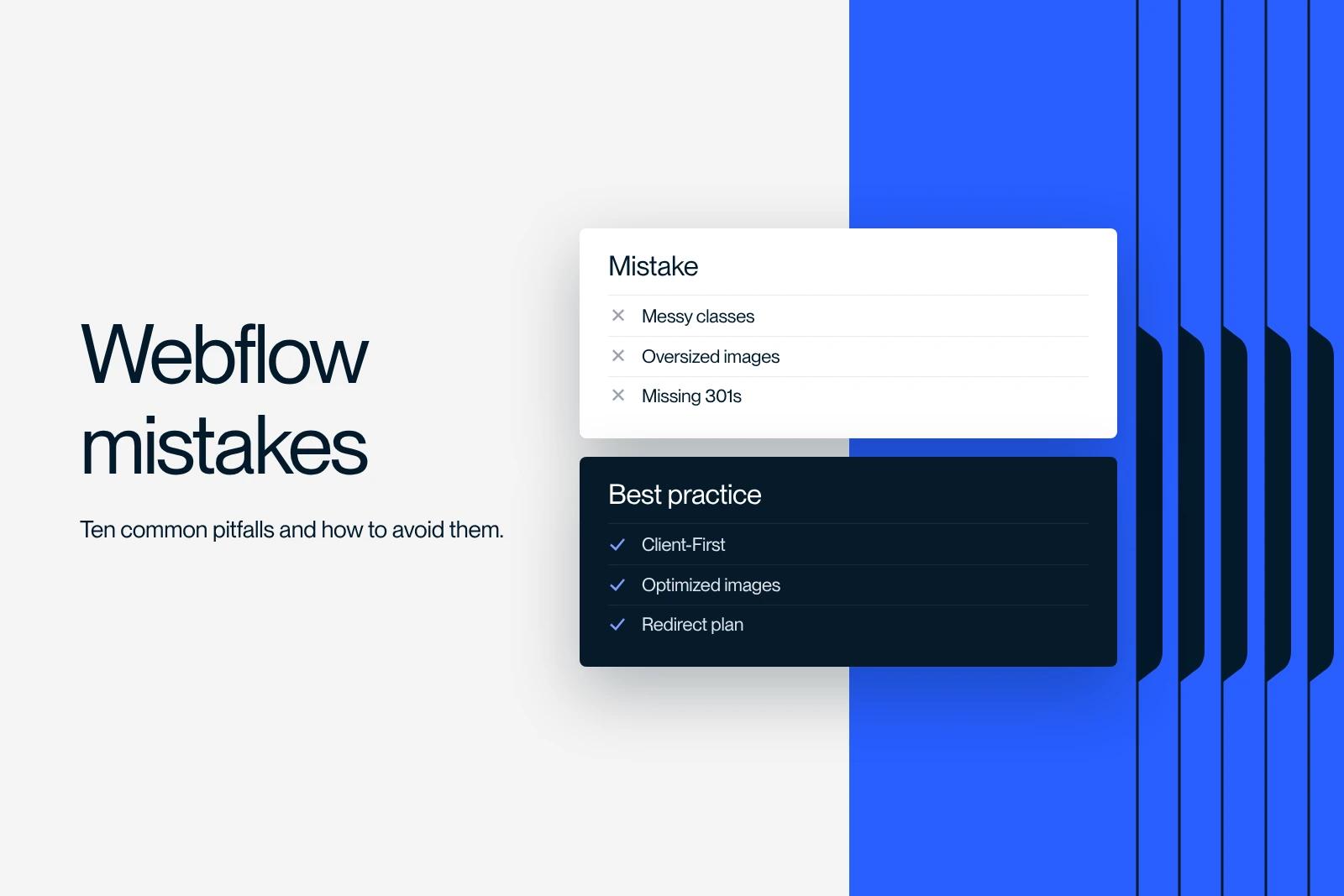
The most costly Webflow website mistakes are CSS classes without a naming convention, responsive design left until the end, forgotten technical SEO, oversized images and missing 301 redirects during a migration.
None of them is visible on launch day. They show up a few months later: a slow site, lost rankings, updates that break the layout.
Here are the 10 pitfalls, their consequences and the concrete fix in Webflow, up to date as of October 2026.
Explore this post with…
Synqro has worked with more than 150 companies since 2019 as a Webflow Premium Partner. The Webflow website mistakes listed here are the ones we keep finding when a site has to be taken over or redesigned. If you are just starting out, begin with our Webflow guide for beginners, then come back to this list before you publish.
1. Creating classes without a naming convention
In Webflow, every style lives in a class. Without a naming rule, you end up with classes like div-block-27 or heading-copy-3, duplicates and combinations nobody can read. The problem does not show at launch. It shows at the first change.
- Consequence: editing one class breaks another block, and a new contractor wastes time figuring out the logic.
- Fix: adopt a convention from day one, for example Finsweet's Client-First, with structure classes, utility classes and explicit names (section_hero, button-primary).
The principles and limits of this convention are covered in our article on the Client-First method in Webflow.
2. Leaving responsive design until the end
Building every page on desktop and then "adapting" mobile at the end of the project multiplies the rework. It is also an SEO risk: since July 5, 2024, Google crawls sites with its smartphone crawler, as announced on the Google Search Central blog. Content that is hidden or broken on mobile is content Google sees poorly.
- Fix: check each section on the tablet and mobile breakpoints while you build it, not at the end. Use flexbox, grid and relative units (rem, %) rather than fixed pixel widths.
- Watch for: buttons too small for a finger, overflowing text, unusable menus, images wider than the screen.
The full method is in our guide to responsive design in Webflow.
3. Neglecting basic technical SEO
Webflow provides native SEO settings, but it does not fill them in for you. The most common oversights:
- Headings: several H1s on one page, or levels chosen for their visual size rather than for structure.
- Title tags and meta descriptions: empty or identical from one page to the next, especially on CMS pages.
- Alt text: missing on meaningful images, which hurts accessibility and image search.
- Sitemap and indexing: automatic sitemap not enabled, utility pages (thank-you page, legal notice, style guide) left indexable.
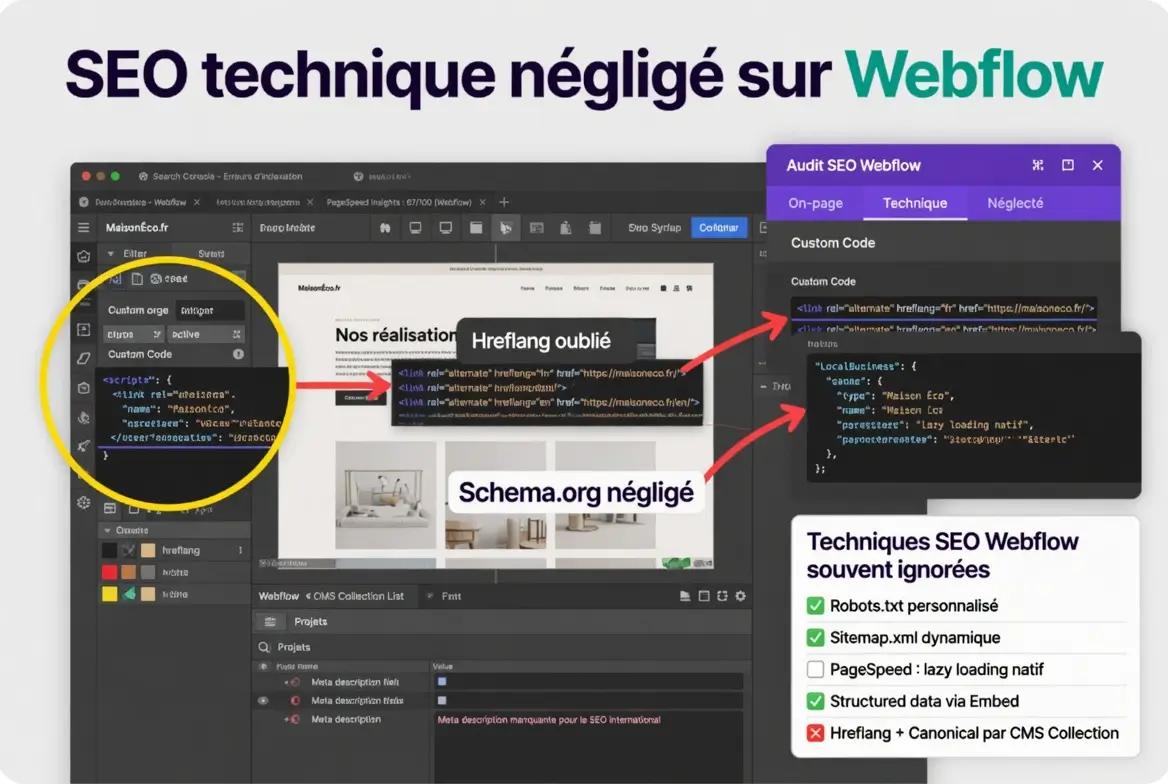
Fix: create SEO fields in each CMS Collection, bind them to the template page settings, and run a page-by-page checklist before publishing. Our SEO strategy for Webflow covers the whole picture.
4. Letting unused classes and styles pile up
Even with a convention, a project accumulates orphan classes through trial and error. They bloat the stylesheet and make the Style panel hard to read.
- Fix: regularly use the Style Manager option to clean up unused styles, and turn repeated elements into components rather than copies.
Components, their properties and their variants are explained in our guide to custom Webflow components.
5. Uploading unoptimized images
A 4,000-pixel-wide photo exported as is from a camera or Figma often weighs several megabytes. On a home page, it is the leading cause of slowness.
- Dimensions: resize to the actual display size before uploading.
- Format: convert photos to WebP or AVIF, directly from the Webflow Assets panel.
- Loading: keep lazy loading on images below the fold, but switch the main image at the top of the page to eager loading, otherwise it delays rendering.
Naming and alt text rules are in our guide to optimizing images for SEO.

6. Adding animations with no purpose
Webflow interactions are powerful. Stacked on every section, they slow down rendering, shift elements during load and tire visitors who are sensitive to motion.
- Simple rule: every animation should guide attention, confirm an action or clarify a transition. Otherwise, remove it.
- Stability: do not animate the position of elements visible on load, it degrades CLS.
- Accessibility: respect the "reduce motion" system setting (prefers-reduced-motion) for parallax and scroll effects.
7. Building the blog with static pages instead of the CMS
Duplicating a page for each article or case study seems faster at first. By the tenth piece of content, every layout change has to be redone by hand, and the metadata drifts apart.
- Fix: one CMS Collection per content type, one template page, dedicated SEO fields and reference fields (category, author, related service) to generate internal linking automatically.
- Plan required: the CMS requires the Premium plan ($25 per month billed annually since May 2026).
8. Ignoring Core Web Vitals
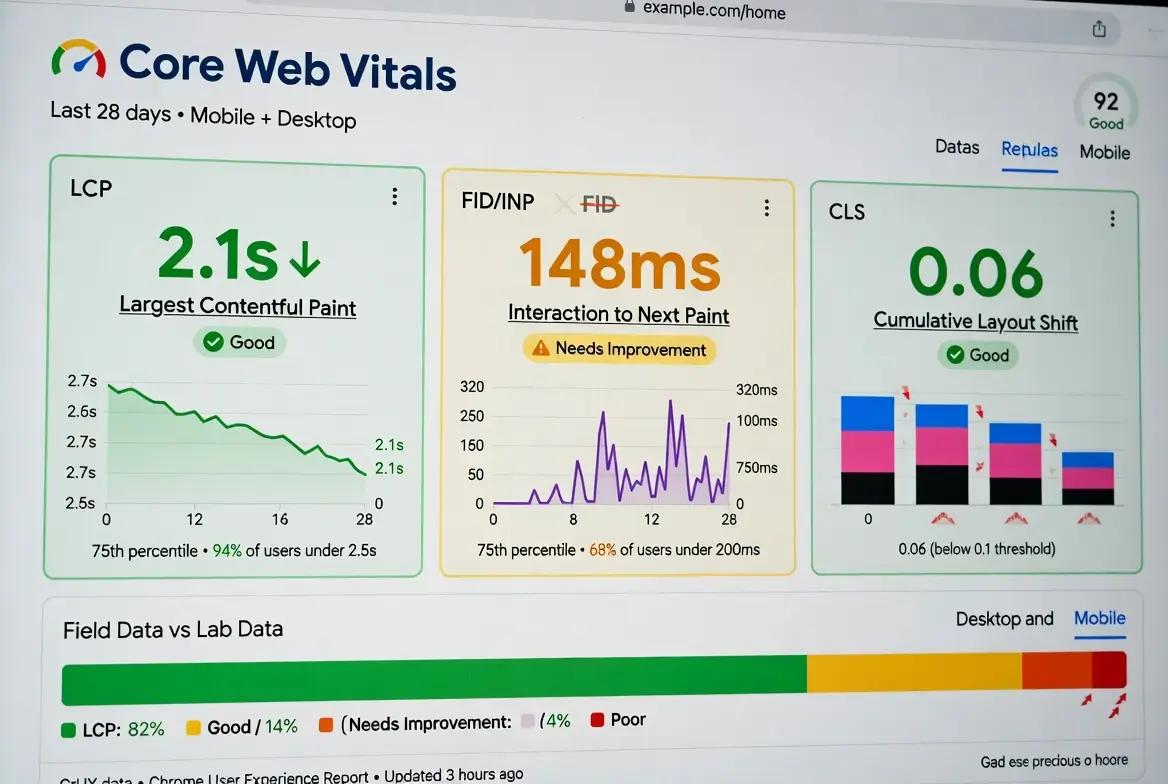
Core Web Vitals measure loading speed, responsiveness and visual stability. According to Google's web.dev documentation, a page is rated good if 75% of visits meet these thresholds:
| Metric | What it measures | "Good" threshold | Common cause on Webflow |
|---|---|---|---|
| LCP | Rendering of the largest visible element | 2.5 s or less | Heavy or lazy-loaded image at the top of the page |
| INP | Response time to interactions | 200 ms or less | Third-party scripts and click animations |
| CLS | Layout shifts | 0.1 or less | Entrance animations, fonts, embeds without dimensions |
Measure with PageSpeed Insights and the Core Web Vitals report in Search Console, both based on real visitor data. The fixes are detailed in our Core Web Vitals guide.
9. Forgetting 301 redirects during a migration
Changing a URL without a redirect returns a 404 error to visitors, to external links and to Google. The Google Search Central documentation on site moves recommends a permanent redirect from each old URL to its closest equivalent.
- Export every URL of the old site (crawl, sitemap, pages that receive traffic or links).
- Map each URL to its new page, one by one, without sending everything to the home page.
- Enter the rules in the Publishing tab of the Webflow site settings.
- On a multilingual site, also create the rules for the language subdirectories: Webflow redirects do not apply automatically to localized slugs.
- Test each rule after publishing and track errors in Search Console.
Rule formats are detailed in our guide to 301 redirects in Webflow.
10. Publishing without a QA phase
A form that sends nothing, a link to the webflow.io address or a page that renders badly in Safari is noticed by the very first visitors. A few hours of QA prevents most of it:
- Links: no broken links, no links to the staging subdomain.
- Forms: submission tested, notification received, clear confirmation message.
- Browsers: Chrome, Safari and Firefox, on desktop and on mobile.
- Performance: one PageSpeed Insights run on the main pages.
- Tracking: analytics tools active and a compliant cookie banner.
Summary of the 10 mistakes
| Mistake | SEO impact | Visitor impact | Difficulty of fixing it afterwards |
|---|---|---|---|
| Classes without a convention | Low | Low | High |
| Responsive design left until the end | High | High | Medium |
| Technical SEO neglected | High | Low | Low |
| Unused classes and styles | Low | Low | Medium |
| Unoptimized images | Medium | High | Low |
| Animations with no purpose | Medium | Medium | Medium |
| Blog built with static pages | Medium | Low | Medium |
| Core Web Vitals ignored | Medium | High | Medium |
| 301 redirects forgotten | Very high | High | Low before, high after |
| No QA | Medium | High | Low |
After launch, at Synqro, we run a quarterly review of the site to reprioritize fixes and content. If your Webflow site combines several of these mistakes, our Webflow agency can audit it and tell you what to fix first.
Frequently asked questions
CSS classes created without a naming convention. The site works at launch, but every change becomes risky. A convention like Client-First, applied from the start, avoids the problem.


