Article
Webflow background video: how to add and optimize it
Webflow6 min read

Guillaume SchluppConsultant SEO
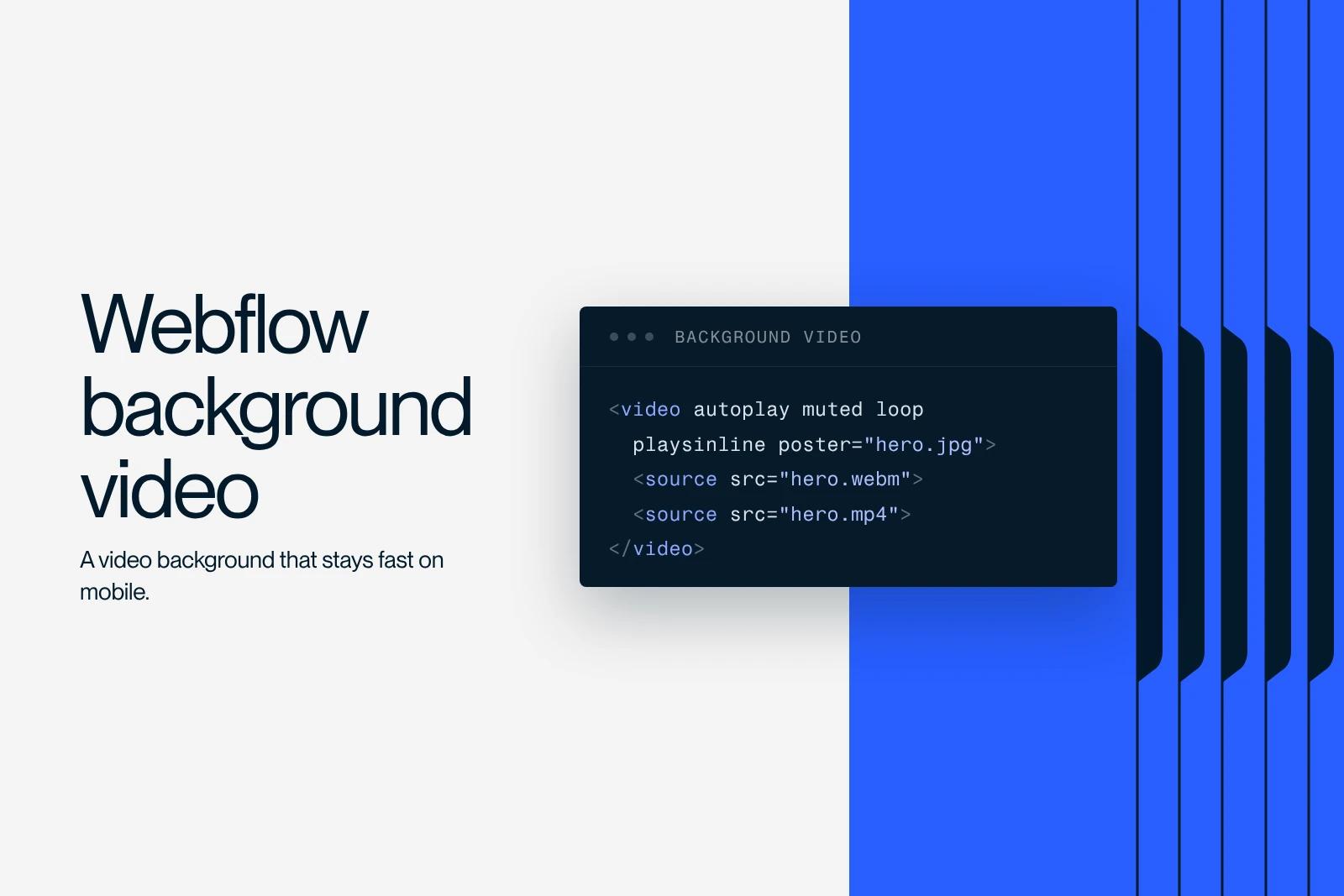
To add a background video in Webflow, drag the Background Video element into a section, upload a file under 30 MB (mp4, webm, mov or ogg) in its settings, then place your content inside it. Webflow converts the video to mp4 and webm, and turns on autoplay, looping and a play/pause button by default.
The real work happens before the upload: a short, silent, well-compressed loop loads fast and does not hurt the mobile experience.
This guide covers preparing the file, adding it in the Designer, the settings, text legibility and accessibility.
Explore this post with…
What is the Webflow Background Video element?
Background Video is a native Webflow element that plays a video behind a block. It works like a div: you can place headings, text and buttons inside it. The video plays muted, on a loop, with no playback bar, which sets it apart from the Video element or a YouTube embed.
| Element | Use | Sound and controls |
|---|---|---|
| Background Video | Section backdrop (hero, banner) | No sound, play/pause button only |
| Video or YouTube | A video meant to be watched (demo, testimonial) | Sound and full player |
| External hosting with custom code | Video over 30 MB, advanced settings | Depends on the chosen player |
Prepare the video before uploading it
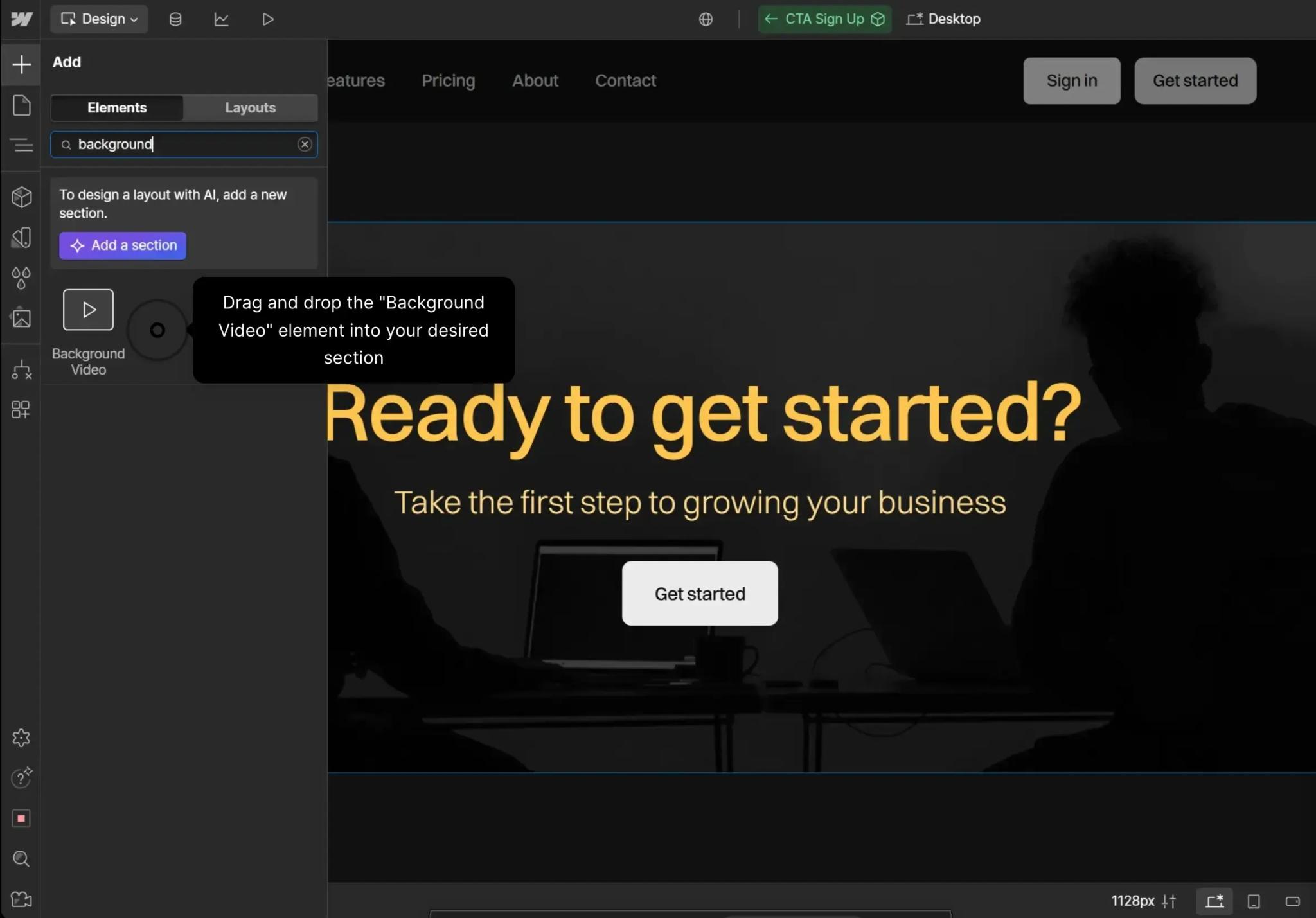
According to Webflow's help article on background styles, the element accepts webm, mp4, mov and ogg files under 30 MB. After upload, Webflow converts them to mp4 and webm. Avoid spaces and special characters in the file name (hyphens are fine).
30 MB is a limit, not a target. Here are the export settings we recommend:
- Length: a 10 to 20 second loop, with an ending that joins back to the start.
- Resolution: 1280 × 720 is often enough for a background, especially under a dark overlay. Keep 1920 × 1080 for very sharp shots.
- Format: mp4 in H.264, the most compatible.
- Audio: remove the audio track, it serves no purpose since the background is muted.
- File size: aim for a few megabytes. HandBrake (free) or FFmpeg let you lower the bitrate down to the point where quality visibly degrades.
- Content: calm shots, with no burned-in text and no flashes. The message should stay in the HTML, not in the video.
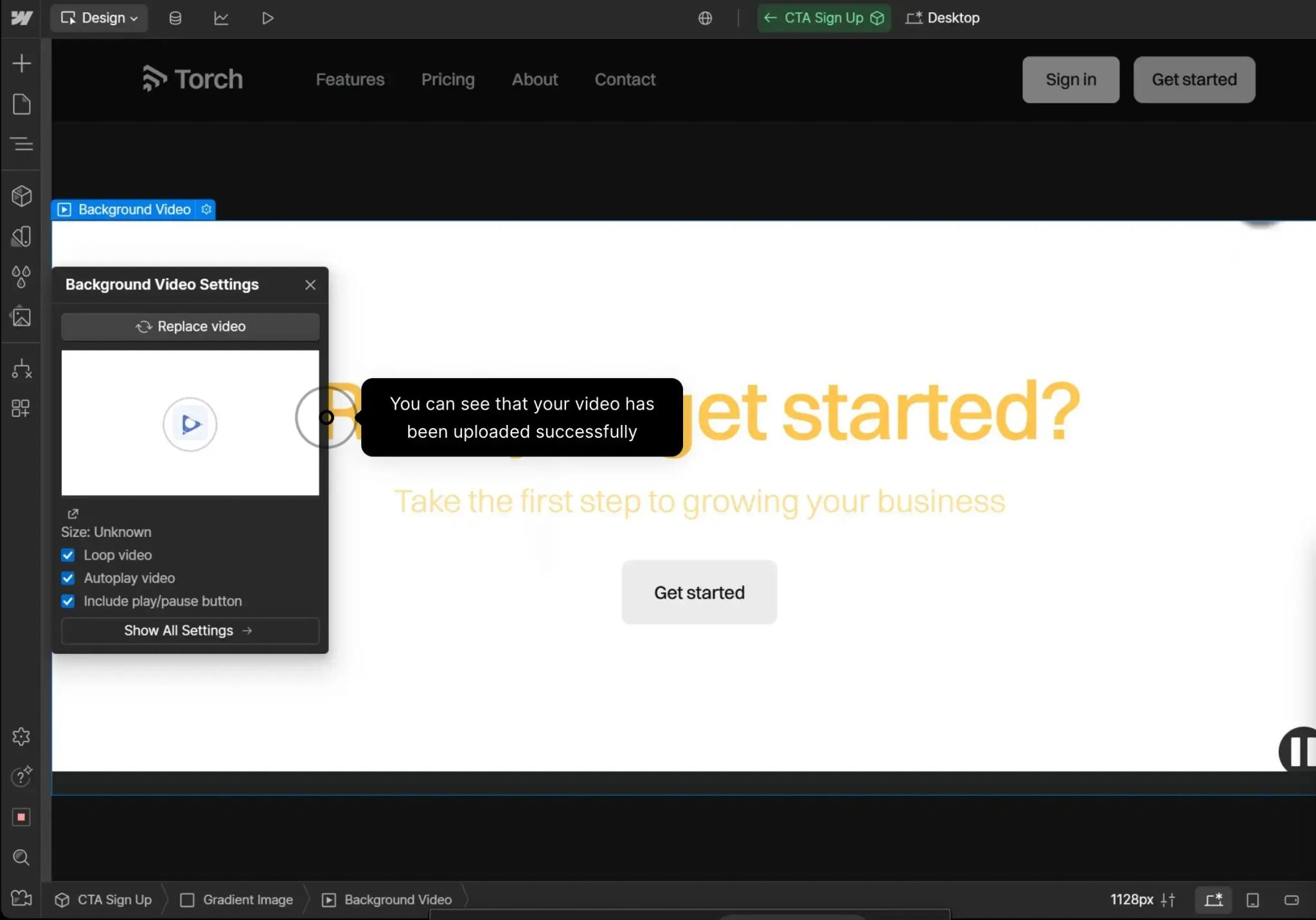
Add a background video in Webflow in 5 steps
- Open the Add panel (A key) and drag the Background Video element into the section you want.
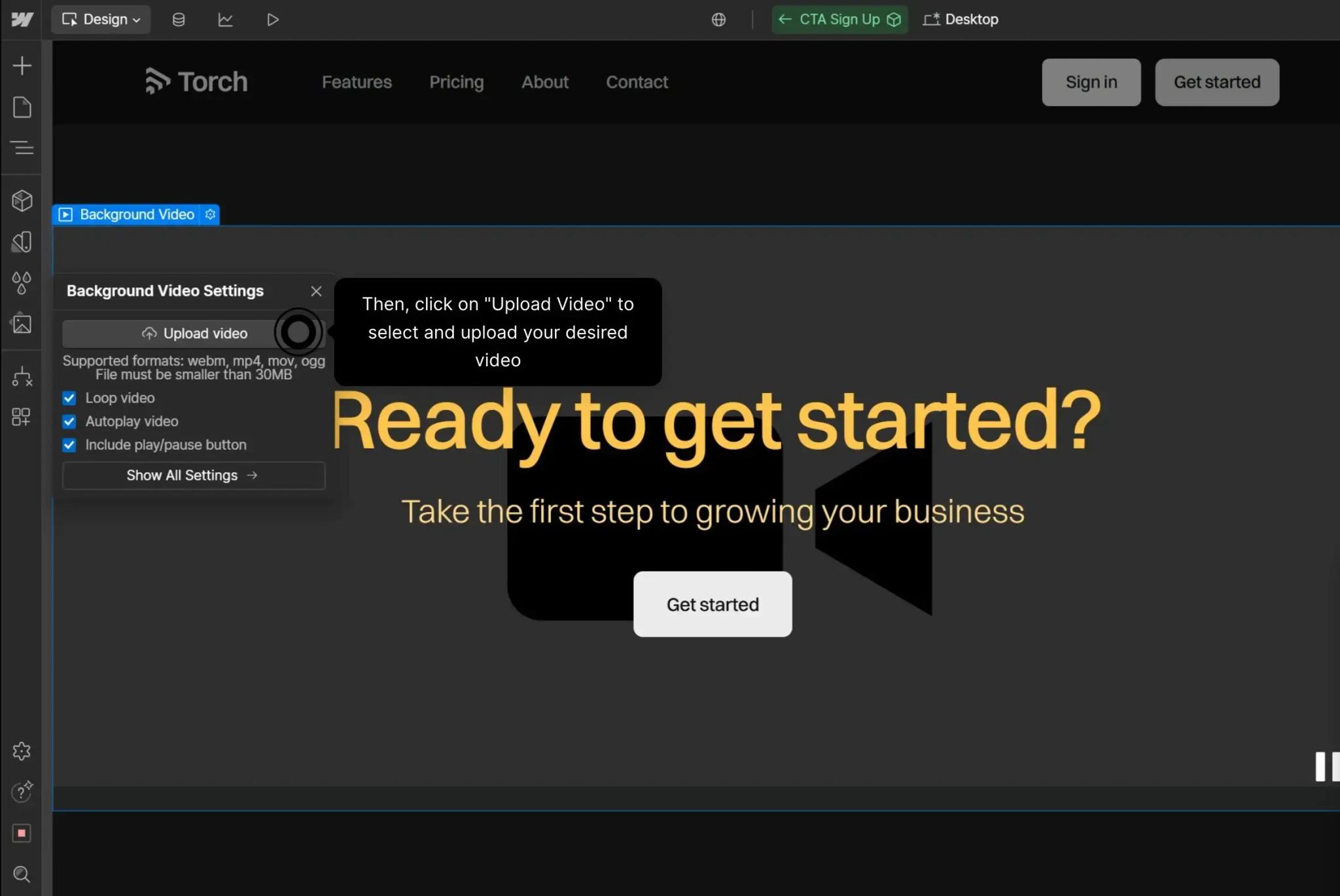
- Select it, then double-click or press Enter to open its settings, and upload your file.
- Give it a class and a size: 100% width, 100vh height for a full-screen hero, or a minimum height in rem for a banner.
- Place a container inside it with your heading, text and button, then set Flexbox to center them.
- Publish and test on the live site, on a computer and on a real phone.
The settings: Autoplay, Loop and the play/pause button
| Setting | Default | Effect |
|---|---|---|
| Autoplay video | On | Playback starts when the page loads |
| Loop video | On | The video repeats continuously |
| Include play/pause button | On (videos added since June 2022) | Shows a button to stop or restart the video |
Keep the play/pause button. According to Webflow's help article on the play/pause button, it is positioned absolute inside the video, has two states (Play and Pause) with replaceable icons, and a visible outline for keyboard users. Give it a higher z-index than your content so it stays clickable. If you change the icons, fill in their alt text and give the SVGs a size in px.
Make the text readable over the video
Add an "overlay" div as the first child of the Background Video: Absolute position, Full preset, black background color at 40 to 60% opacity, or a gradient toward the bottom. Then place the content in a container set to Relative position with a z-index of 1 so it sits in front of the overlay.
Check the contrast on the brightest frame of the loop, not on the first one. If absolute positioning and z-index give you trouble, see our guide to positions in Webflow.
Performance: keep the page fast
A video at the top of the page downloads on load and competes with other resources. Keep the heading and button in HTML so they display immediately, and measure the impact with PageSpeed Insights (see our guide to Core Web Vitals).
At Synqro, when we put a video in a hero, we limit it to one per page, place it under an overlay that allows heavier compression, and check the mobile score before and after adding it. If the site uses a lot of bandwidth, see also how to reduce a Webflow site's bandwidth.
On mobile, you can hide the Background Video at the relevant breakpoint (display: none) and show a lightweight background image instead. It is often the best compromise on slow connections.
Accessibility: reduced motion and WCAG 2.2.2
The WCAG success criterion 2.2.2 (Pause, Stop, Hide) requires that content that moves automatically for more than 5 seconds can be paused, stopped or hidden. That is exactly what the play/pause button is for.
Webflow also pauses the video for visitors who have turned on reduced motion in their system settings. If the button is disabled, those visitors cannot start it at all. For the rest, see our guide to web accessibility.
Why won't my background video play?
- The phone is in low power mode or low data mode: Webflow notes that autoplay can then be blocked on touch devices.
- The visitor has turned on reduced motion: the video starts paused, by design.
- Autoplay video was unchecked in the settings.
- The conversion has not finished right after upload: wait for processing to complete before publishing.
- For a video embedded with custom code, the muted and playsinline attributes are missing: MDN's guide to autoplay points out that browsers block autoplay with sound.
A background video either serves the message or serves no purpose: on a conversion page, test it against a still image. See our guide to building a landing page in Webflow, or hand the build to Synqro's Webflow team.
Frequently asked questions
The Background Video element accepts files under 30 MB. For performance, aim for a few megabytes instead, with a short loop and no audio track.


