Article
Export Webflow Code in 2026: Method, ZIP Contents and Limits
Webflow6 min read

James BrunettoCo-fondateur & CEO
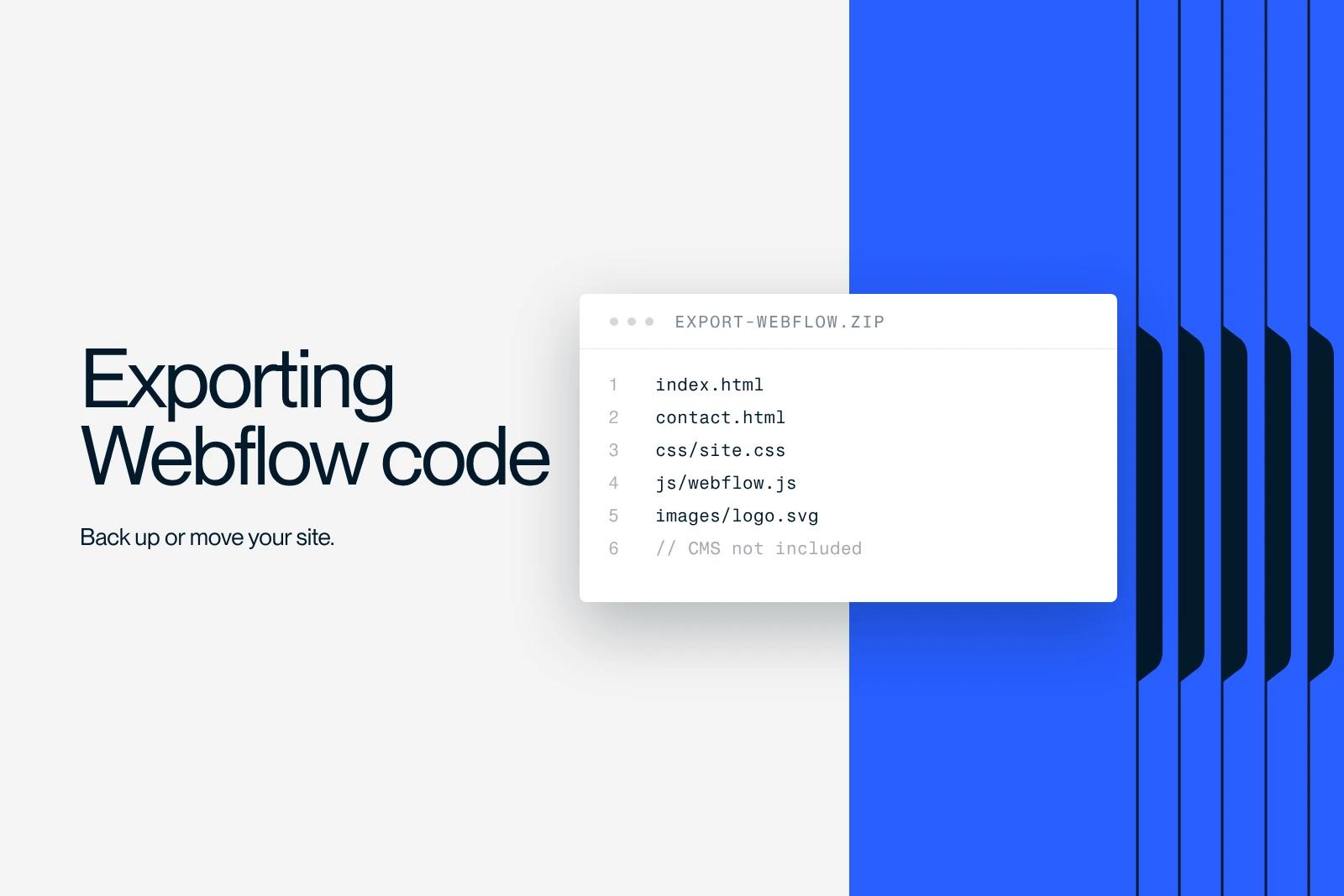
To export a Webflow site's code, open the site in the Designer, press Shift + E (or Main menu, then Code export), click Prepare ZIP and download the archive. You need a paid Workspace plan.
The ZIP contains the HTML of every page, the CSS stylesheets, the JavaScript for interactions and the images. It does not contain your CMS content, or anything that depends on Webflow's servers: forms, site search, Ecommerce, password-protected pages, secondary languages.
So export is for backing up a design, delivering a coded mockup or hosting a static brochure site, not for moving a full CMS site.
Explore this post with…
Webflow code export turns your site into static files you can host elsewhere. The steps and limits below follow the official Webflow help center article on code export, checked in October 2026.
Why export the code of a Webflow site?
- Backup: keep a copy of the design outside the platform, for example before a redesign.
- Handoff to a technical team: provide clean HTML and CSS that developers will plug into their own application.
- External hosting: publish a static brochure site on another host, because of internal constraints or data sovereignty.
- Ownership of the work: hand the client a standalone deliverable at the end of a project.
How to export Webflow code, step by step
- Make sure the site belongs to a paid Workspace (Core, Growth, Freelancer or Agency). A Site plan alone does not give access to export.
- Open the site in the Designer.
- Click the W logo at the top left (Main menu), then Code export. Shortcut: Shift + E.
- Optional: for minified HTML, press Cmd + O (Mac) or Ctrl + O (Windows) in the export window and check Minify HTML.
- Click Prepare ZIP, wait for it to be ready, then download the archive.
The Core Workspace costs $19 per month billed yearly. Plan details are in our article on Webflow pricing in 2026. If your site was built by a Webflow agency or a freelancer, check which Workspace it sits in: that Workspace, and its plan, is what gives access to code export.
What does the exported ZIP contain?
- css folder: the site's stylesheet, webflow.css (base layouts and components) and normalize.css.
- js folder: the scripts that run navbars, sliders, tabs, front-end form behavior and interactions. Do not delete them.
- images folder: the files from the Assets panel.
- HTML files: one per page, including Collection template pages, but empty.
What the export does not support
| Feature | After export | Replacement |
|---|---|---|
| CMS content | Empty lists and template pages | CSV export of Collections, then a static site generator or headless CMS |
| Forms | Submissions not processed, reCAPTCHA and file upload inactive | Third-party form service or server script |
| Site search | Inactive | Third-party search engine |
| Ecommerce | Inactive | Dedicated ecommerce platform |
| User accounts | Inactive | Third-party authentication solution |
| Password-protected pages | Open to everyone | Protection at the hosting level |
| Secondary languages (Localization) | Only the primary language is exported | Export and translate outside Webflow |
| Code components | Not exported | Retrieve the components' source code |
CMS Collections (including translated items), Ecommerce products and user accounts are exported separately as CSV from the CMS panel. Form submissions already received can also be exported.
Getting CMS content out: CSV or API
- CSV export: one Collection at a time, from the CMS panel. Simple, but images remain links to Webflow's CDN: download them before you close the site.
- Webflow Data API: a developer can read every Collection programmatically, using the Webflow API CMS documentation. It is the most reliable route for large volumes or to feed a headless CMS.
Hosting exported code elsewhere: the checklist
The exported site is static: any static file host will do. Before switching the domain, check these points:
- HTTPS: enable an SSL certificate on the new host.
- Forms: replace each form's action attribute with the URL of a processing service, and test submission.
- SEO: check the title, meta description and canonical tags of every page, then create or update sitemap.xml and robots.txt on the new host.
- URLs: files are named page.html. Configure the host to serve extensionless URLs, or add 301 redirects so you do not break URLs that are already indexed.
- Caching and compression: enable compression (gzip or Brotli) and long cache lifetimes for images, CSS and JavaScript.
- Analytics and cookies: make sure the analytics scripts and the consent banner are present on every exported page.
The redirect logic is the same as in our guide to 301 redirects in Webflow: one old URL, one equivalent new destination.
Code export and templates: what the license says
If your site is based on a template, the Webflow template licenses page allows you to host a modified version on another server, without attribution. The single-use license still applies: one template purchased, one final site.
Should you really leave Webflow hosting?
For a site with a blog, forms and several languages, exporting loses most of what the subscription pays for. If your goal is simply not to lose anything, built-in backups and CSV export are often enough: see our guide to backing up and restoring a Webflow site. Hosting options are compared in our article on hosting a Webflow site.
At Synqro, a Webflow Premium Partner that has worked with more than 150 companies since 2019, we recommend export as an occasional backup or as a front-end deliverable. Moving off Webflow entirely, with CMS and forms, takes a real migration project, with a redirect plan and an SEO check, as described in our 6-step Webflow migration guide.
Frequently asked questions
No. You need a paid Workspace plan (Core, Growth, Freelancer or Agency). The cheapest, Core, costs $19 per month billed yearly. A Site plan alone is not enough.


