Article
Webflow 301 redirects: setup, CSV import and wildcards
Webflow8 min read

Nathan LhommeCo-fondateur & COO
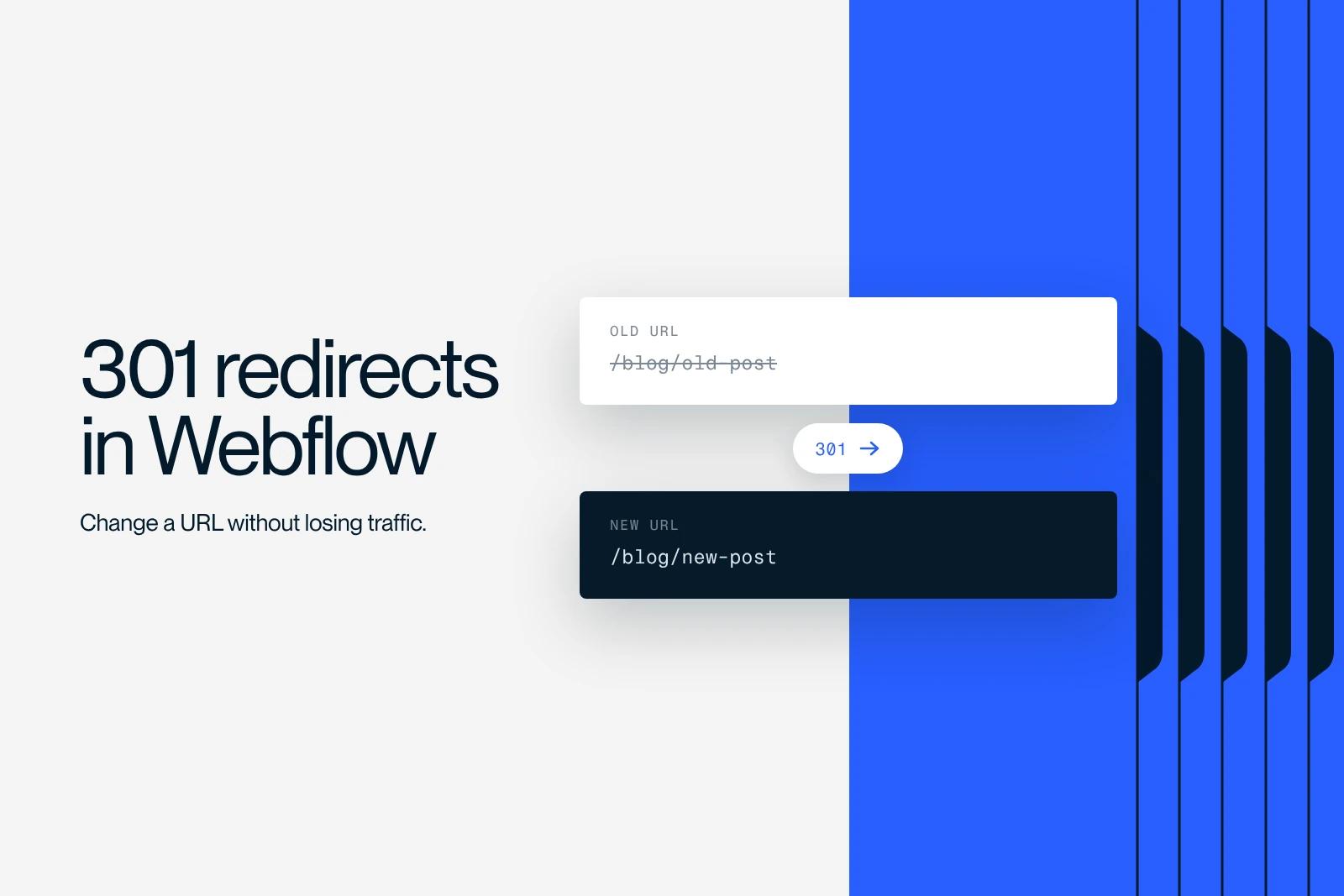
To set up a 301 redirect in Webflow, open Site settings, Publishing tab, 301 redirects section: enter the old path (Old path) and the new path (Redirect to path), click Add redirect path, then publish the site. Without publishing, the redirect does not apply.
A 301 tells Google and browsers that a page has moved permanently. Google then treats the new URL as the canonical URL, the one it shows in its results.
This guide covers step-by-step setup, CSV import, wildcards, changing domains, the mistakes that cost traffic and how to check that everything works.
Explore this post with…
What is a 301 redirect?
A 301 redirect is an HTTP response that signals a URL has moved permanently to another address. The visitor lands directly on the new page, and the search engine updates its index.
According to Google Search Central's documentation on redirects (updated in April 2026), a permanent server-side redirect is the most reliable method: Google treats the target page as canonical. A temporary redirect, on the other hand, generally keeps the old URL in the results.
| Type | Nature | What Google does with it | When to use it |
|---|---|---|---|
| 301 | Permanent | The target becomes the canonical URL | Slug change, merge, deletion with an equivalent, domain change |
| 308 | Permanent | Same treatment as a 301 | Technical cases where the HTTP method must be preserved |
| 302 / 307 | Temporary | The old URL generally stays indexed | Maintenance, temporary offer, short test |
| JavaScript redirect | Permanent if executed | Seen only if rendering succeeds | As a last resort |
In Webflow, rules added in the site settings return a real server-side 301 code. You do not have to write any code.
When should you set up a 301 redirect in Webflow?
Whenever a URL that has traffic, inbound links or rankings disappears or changes. The most common cases:
- You change the slug of a page or an article (see our guide to changing a Webflow article slug without losing SEO).
- You merge two pieces of content competing for the same query (keyword cannibalization).
- You delete a page that has a close equivalent on the site.
- You migrate from WordPress, Wix or another CMS, with a new URL structure (see the 6 steps of a Webflow migration without SEO loss).
- You change your domain name.
If a page has no equivalent, a 404 or 410 error is still the right response. Redirecting everything to the home page does not help users, and Google may treat those redirects as soft 404s.
How to set up a 301 redirect in Webflow, step by step
The procedure below follows Webflow's help article on redirects (updated in May 2026). You need a paid Site plan, or a Workspace on a paid plan.
- Open Site settings > Publishing > 301 redirects.
- In Old path, enter the old path, without the domain: /old-page.
- In Redirect to path, enter the destination: /new-page.
- Click Add redirect path.
- Publish the site. Adding or deleting a redirect only takes effect after publishing.
An often forgotten point: the old path must be freed up. A static page must be deleted, set to draft or have its slug changed. A CMS item must be archived, deleted, unpublished, set to draft or have its slug changed. As long as a page still responds at the old URL, the rule does nothing.
The shortcut: the checkbox when you change a slug
When you change the slug of a static page in its Page settings, Webflow offers the option "Permanently redirect the old URL to this new one". When checked, it creates the 301 automatically, which then appears in the redirect list. For CMS items, always check the list afterward and add the rule by hand if it is missing.
Bulk redirects: CSV import and wildcards
Prepare a redirect plan
Before any redesign or migration, list the existing URLs in a two-column spreadsheet: old path, new path. Start from a crawl of the current site and the Search Console pages export, so you do not miss any URL that receives impressions or links.
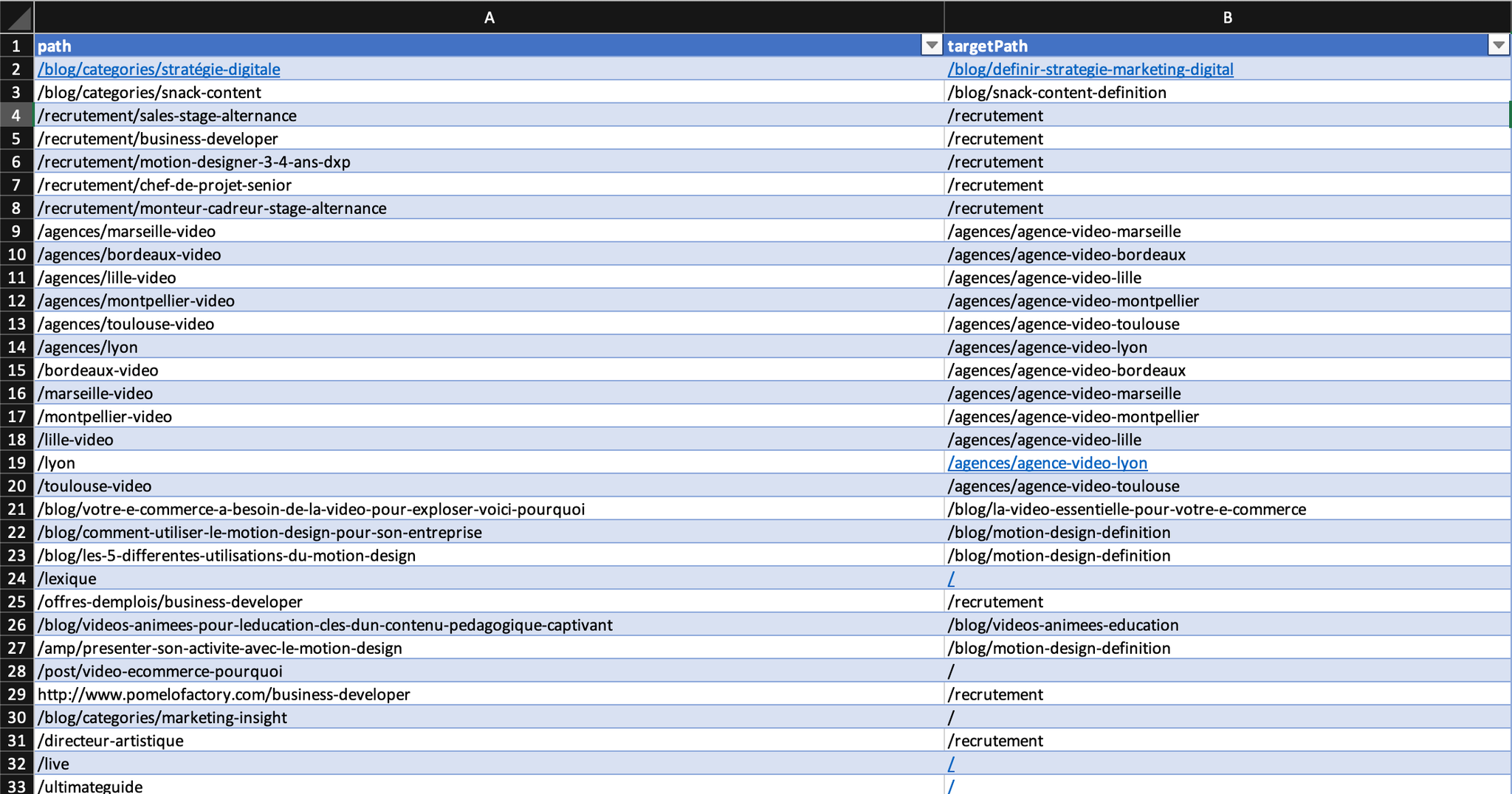
Import and export redirects as CSV
Webflow natively supports CSV import and export in the same 301 redirects section. The file has two columns (old path, new path), one row per redirect, and weighs 16 MB at most, according to Webflow's help page on import/export.
Warning: a new import overwrites all existing redirects. Export the current list, add your rows to that file, then reimport everything. Then publish the site.
Use wildcards and capture groups
A wildcard (.*) captures part of the URL, which you reuse in the destination with %1, %2 and so on. A single rule can replace hundreds of rows.
| Need | Old path | Redirect to path |
|---|---|---|
| A whole folder to a single page | /collections/(.*) | /collections |
| One folder to another, keeping the slugs | /oldfolder/(.*) | /new-folder/%1 |
| Two folder levels | /blogs/(.*)/(.*) | /articles/%1/%2 |
| URL parameters to clean paths | /%?category%=(.*)%&post%=(.*) | /blog/%1/%2 |
Three rules to know:
- Escaping: in the old path only, the characters % - & * ( ) = _ + ? must be preceded by %. Example: /old%-page. Do not escape them in the destination.
- Order: rules apply in the order they were added. Put specific rules before broad wildcards, otherwise the wildcard catches the request first.
- Volume: Webflow sets no strict limit but recommends staying under 1,000 rules. Wildcards help you stay below that threshold.

Multilingual sites: one rule per language
Redirects are relative to the domain root and do not apply to localized slugs. With Webflow Localization, /old-page and /es/old-page require two separate rules.
Changing your domain name in Webflow
If the paths stay the same, you do not need one rule per page:
- Connect both the old and the new domain to the project (Site settings > Publishing).
- Set the new domain as the default domain. The other connected domains then redirect to it with a 301.
- Publish.
- In Search Console, use the Change of Address tool on the old property, as recommended by Google's guide to site moves (updated in August 2026).
If the slugs change at the same time as the domain, also add standard 301 rules, using paths only. Google says a small or medium-sized site takes a few weeks to transfer, and recommends keeping redirects for as long as possible, generally at least one year.
Redirect mistakes that cost you traffic
- Chains: A to B, then B to C. Redirect straight to the final destination. If a chain is unavoidable, Google advises ideally staying at 3 hops maximum.
- Loops: A to B and B to A. The page becomes unreachable.
- A full URL in Old path: enter /design, not https://example.com/design.
- Forgetting to publish: the rule exists in the interface but not on the live site.
- Sending everything to the home page: the destination must answer the same intent as the old page.
- Leaving internal links pointing to the old URL: update them so they point straight to the new one (our internal linking audit method helps you find them).
- Removing redirects too early: external links and bookmarks keep pointing to the old URLs for years.
How to check that a 301 redirect works
- Browser: open the developer tools, Network tab, and load the old URL. The first row should show the 301 status and the Location header pointing to the new address.
- Terminal: the command curl -I followed by the old URL returns the code and the destination in one line.
- Crawler: a tool such as Screaming Frog, in list mode, checks the entire redirect plan at once and spots chains and loops.
- Search Console: URL Inspection on the new page confirms that it is indexed and selected as canonical.
How we handle redirects at Synqro
At Synqro, the redirect plan is part of every redesign we deliver on Webflow. We build it from the client's real data: a crawl of the old site and the pages that receive impressions in Search Console. We import it as CSV just before launch, then recrawl it after publishing to check every row. It is a short step, but it is the one that protects the traffic you have earned. If you are preparing a migration, our Webflow team can handle it with you.
Frequently asked questions
In Site settings, Publishing tab, 301 redirects section. That is also where you find CSV import, export and the option to delete all rules.


