Article
Webflow SEO Optimization: 11 Essential Settings
Webflow8 min read

James BrunettoCo-fondateur & CEO
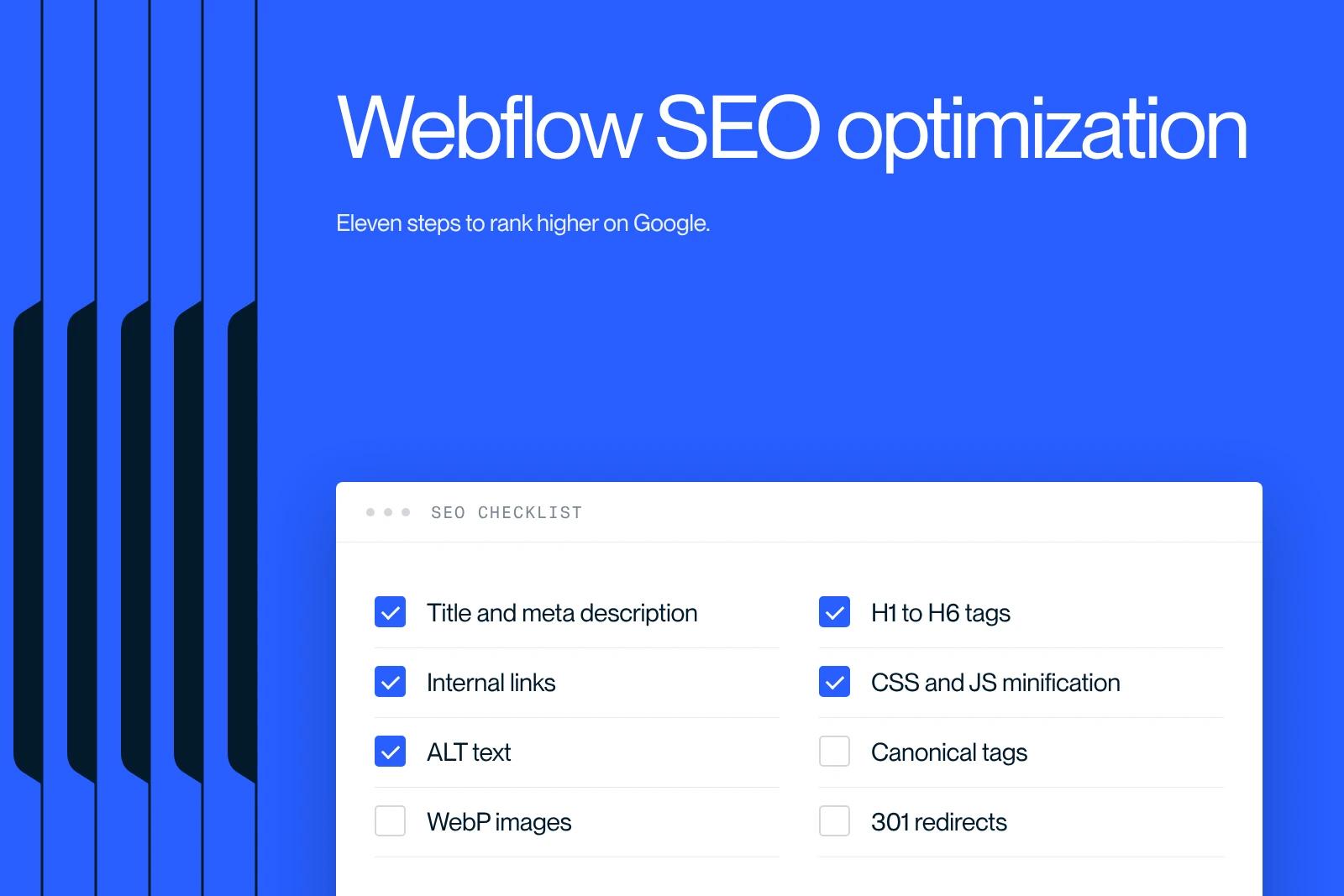
To optimize the SEO of a Webflow site, eleven settings cover the essentials: title tags and meta descriptions, heading hierarchy, internal links, code minification, style cleanup, Open Graph, alt attributes, canonical URLs, converting images to WebP or AVIF, 301 redirects and mobile rendering.
All of them are done in the Webflow interface, with no plugin and no code. Webflow already generates the sitemap, the SSL certificate and responsive images: your work is on the content and the settings.
Here is each setting, where to find it in Webflow and the mistake to avoid.
Explore this post with…
This checklist covers the settings to configure page by page and in the site settings. For strategy (keyword choice, content plan), see our Webflow SEO strategy. Menu paths were checked against the Webflow help center in October 2026.
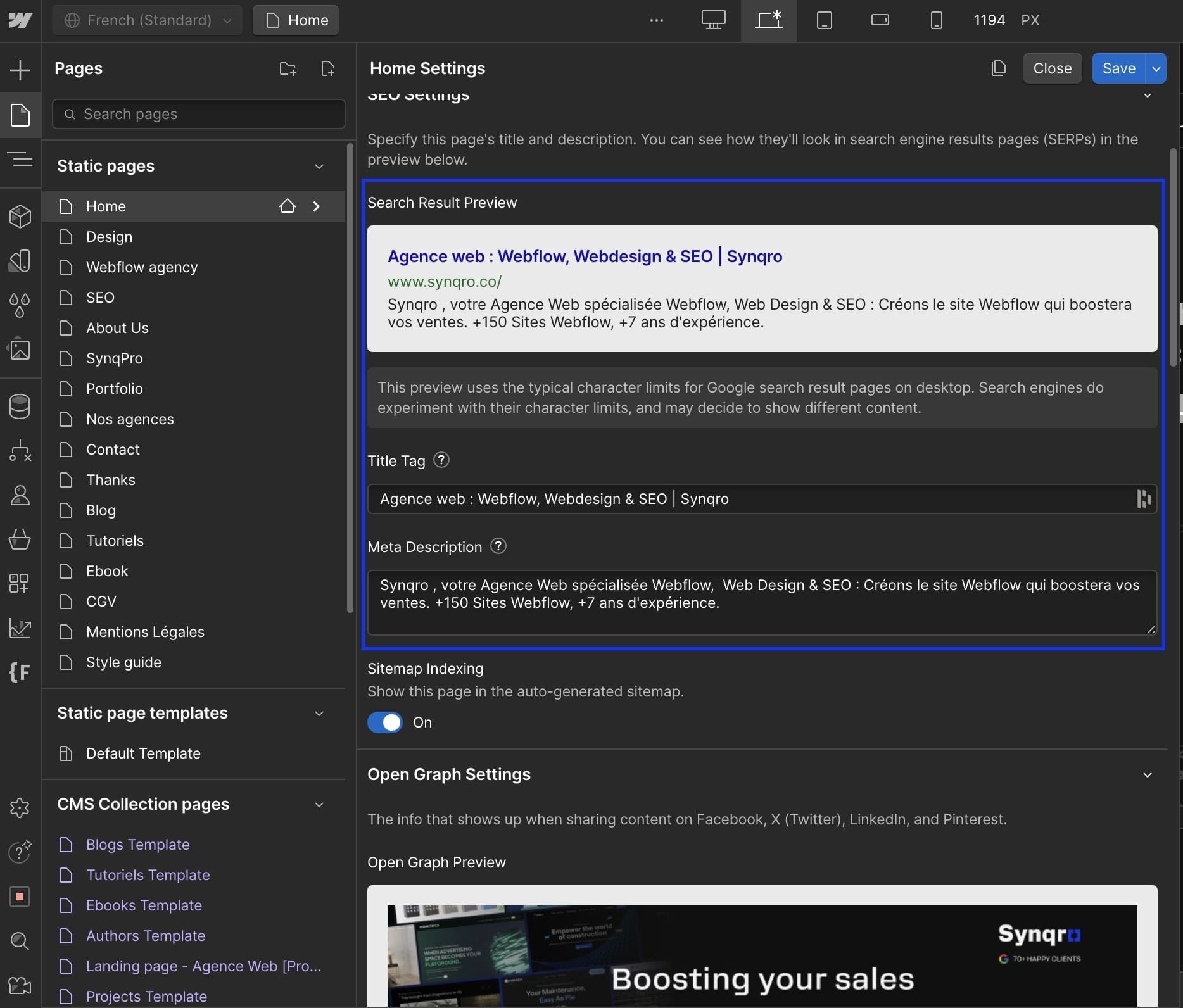
1. Fill in the title tag and meta description of every page
The title tag is the blue headline shown in Google, and the meta description is the text below it. Google can rewrite them, but a clear tag that includes the main query is still your best lever on click-through rate. Details in our guide to the title tag and meta description.
- In Webflow: Pages panel, the page's gear icon, SEO settings section. For CMS pages, use dynamic fields (for example the article name) rather than fixed text.
- Benchmarks: about 50 to 60 characters for the title, 140 to 155 for the description, and unique wording for each page.
2. Structure headings from H1 to H3
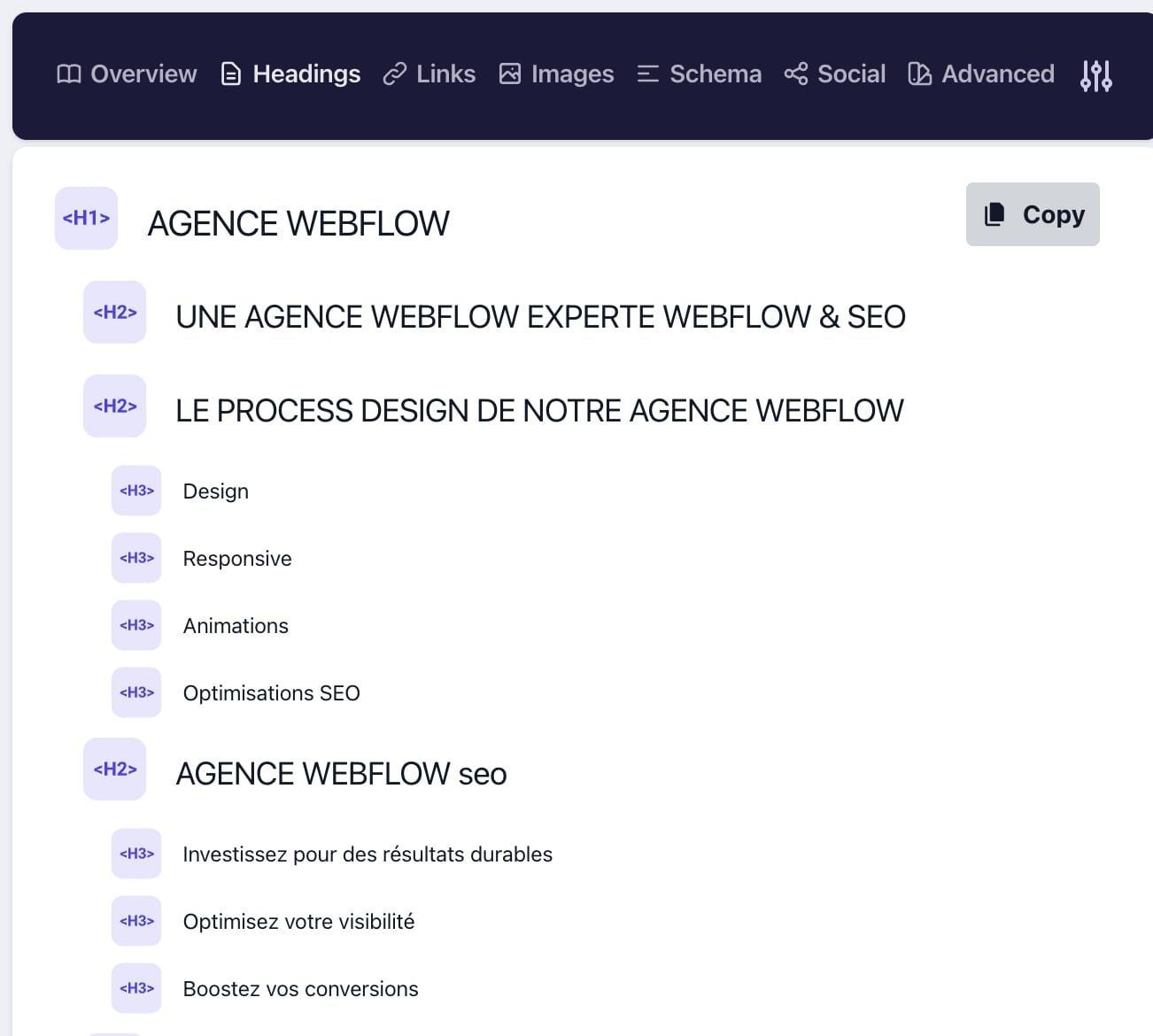
One H1 that states the topic of the page, H2s for the main sections, H3s for subsections. This hierarchy helps readers scan the page, screen readers navigate it and search engines understand its outline.
- In Webflow: select the Heading element and choose its level in the Settings panel. The classic mistake: picking H2 or H4 for the text size. Styling is handled with classes, not with the heading level.
3. Create descriptive internal links
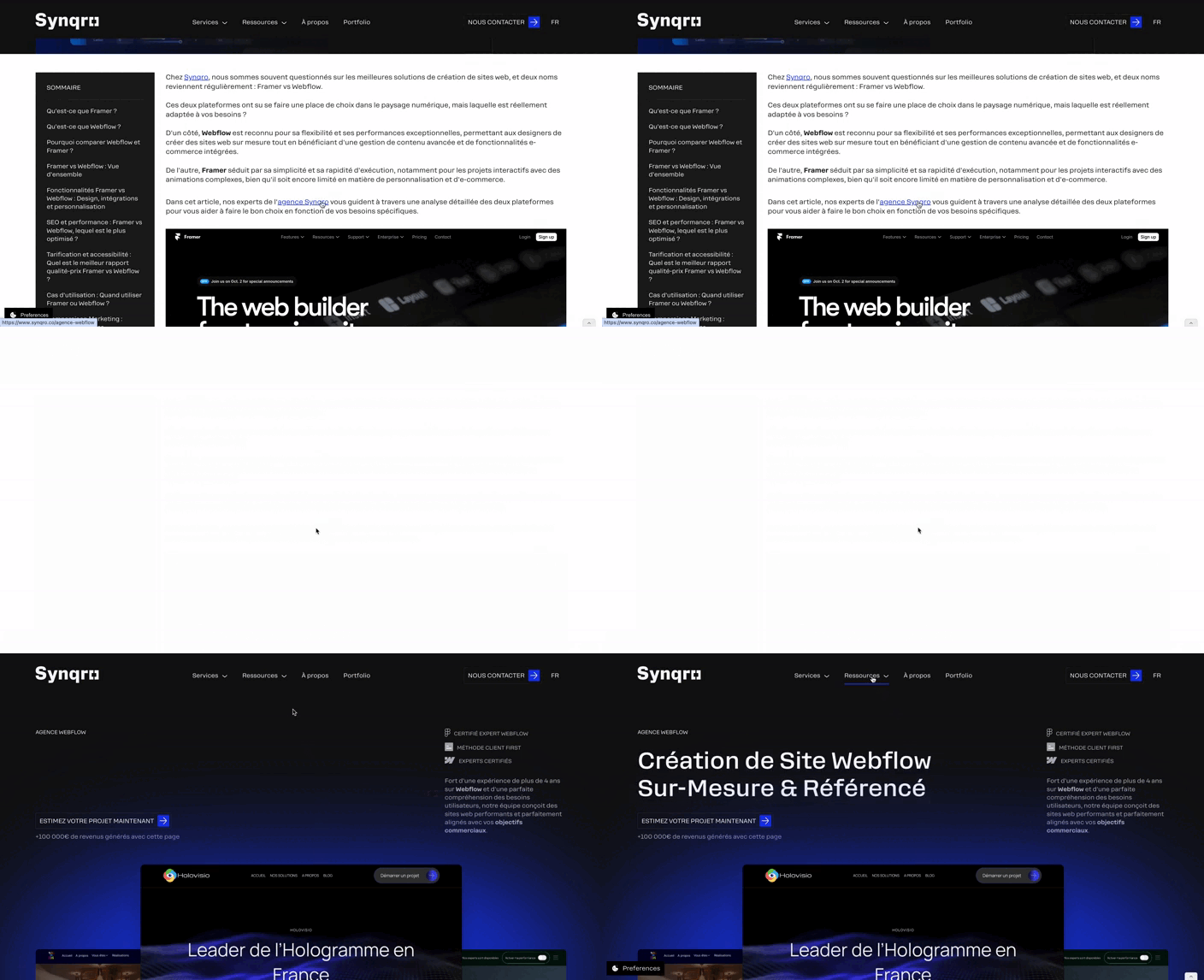
Internal links guide Google to your important pages and signal their topic through the anchor text. Link each article to the service it supports and to related articles, with an anchor that describes the target page, never "click here". Our guide to internal linking explains how to audit it.
- In Webflow: select the text, click the link icon and choose the destination page or CMS item. Linking to a page rather than a manually typed URL prevents broken links when a slug changes.
4. Turn on HTML, CSS and JavaScript minification
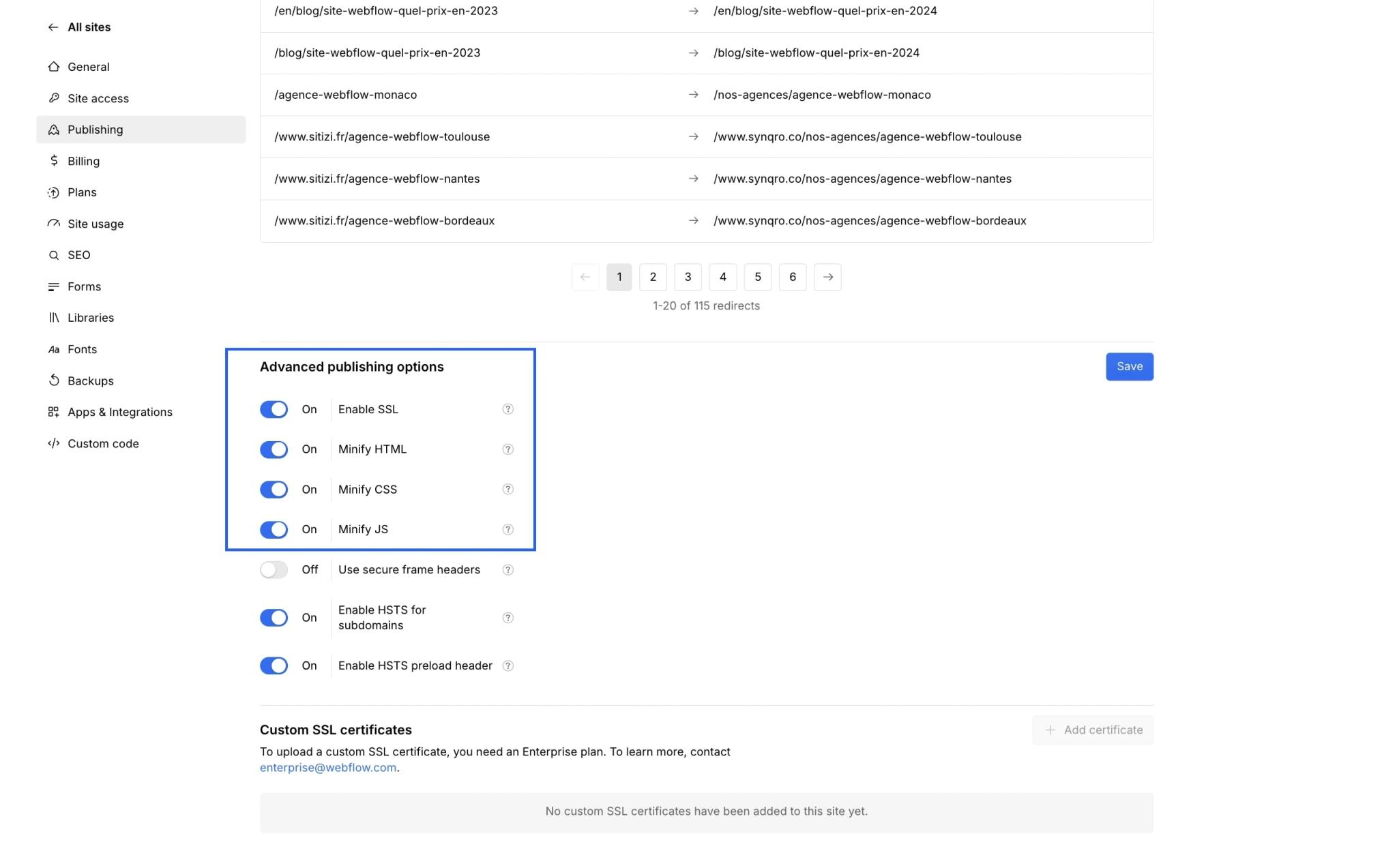
Minification removes unnecessary spaces and comments to make files lighter. According to the Webflow help article on advanced publishing options (June 2026), it is enabled separately for HTML, CSS and JS.
- In Webflow: Site settings > Publishing > Advanced publishing options. Check Minify HTML, Minify CSS and Minify JS, then publish. There is also an option to load JavaScript asynchronously, but it can break custom code: test it first.
5. Remove unused styles and interactions
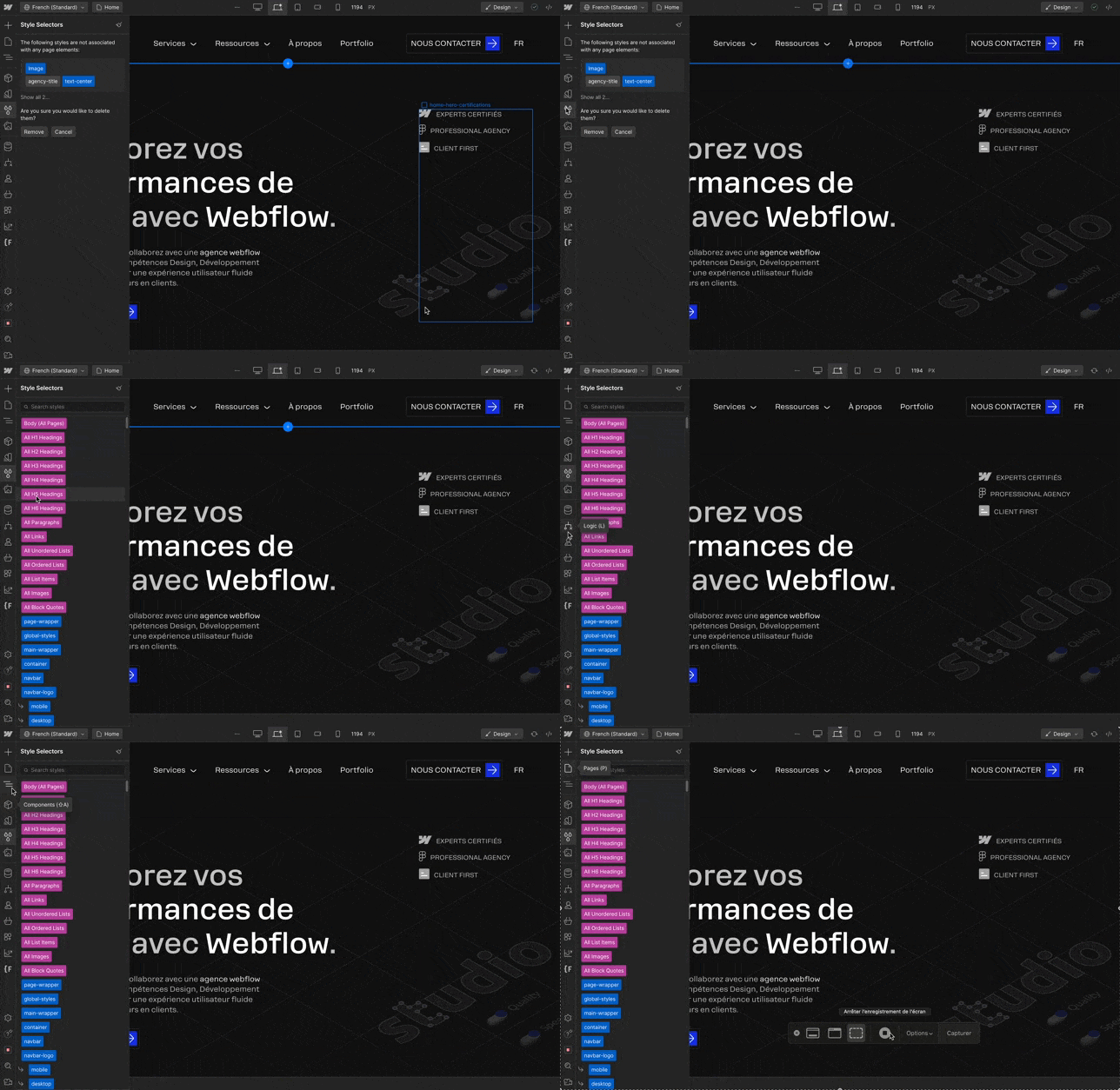
Every class you create stays in the stylesheet, even when no element uses it anymore. On a site that has been around for a while, this dead weight piles up.
- In Webflow: open the Style selectors panel (G key), click the broom icon, then Remove. Classes still in use are not deleted. Do the same cleanup in the Interactions panel for animations you no longer use.
6. Configure Open Graph tags
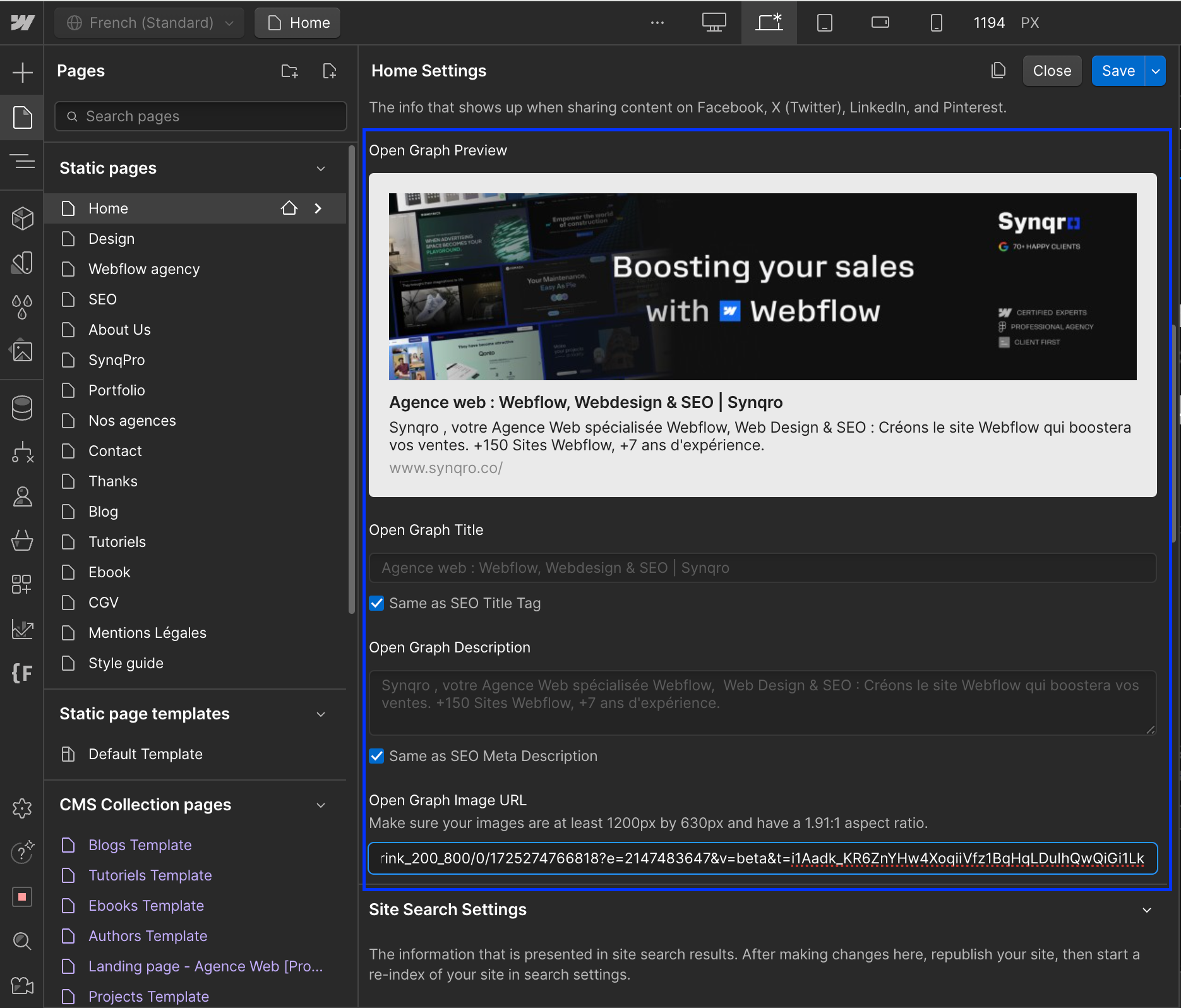
Open Graph tags set the title, description and image shown when a page is shared on LinkedIn, Slack or WhatsApp. They do not directly affect rankings, but a polished preview gets more clicks.
- In Webflow: Page settings, Open Graph settings section. You can reuse the SEO title and description or customize them. For the image, use WebP or JPEG: Webflow advises against AVIF, which social networks still support poorly.
7. Fill in image alt attributes
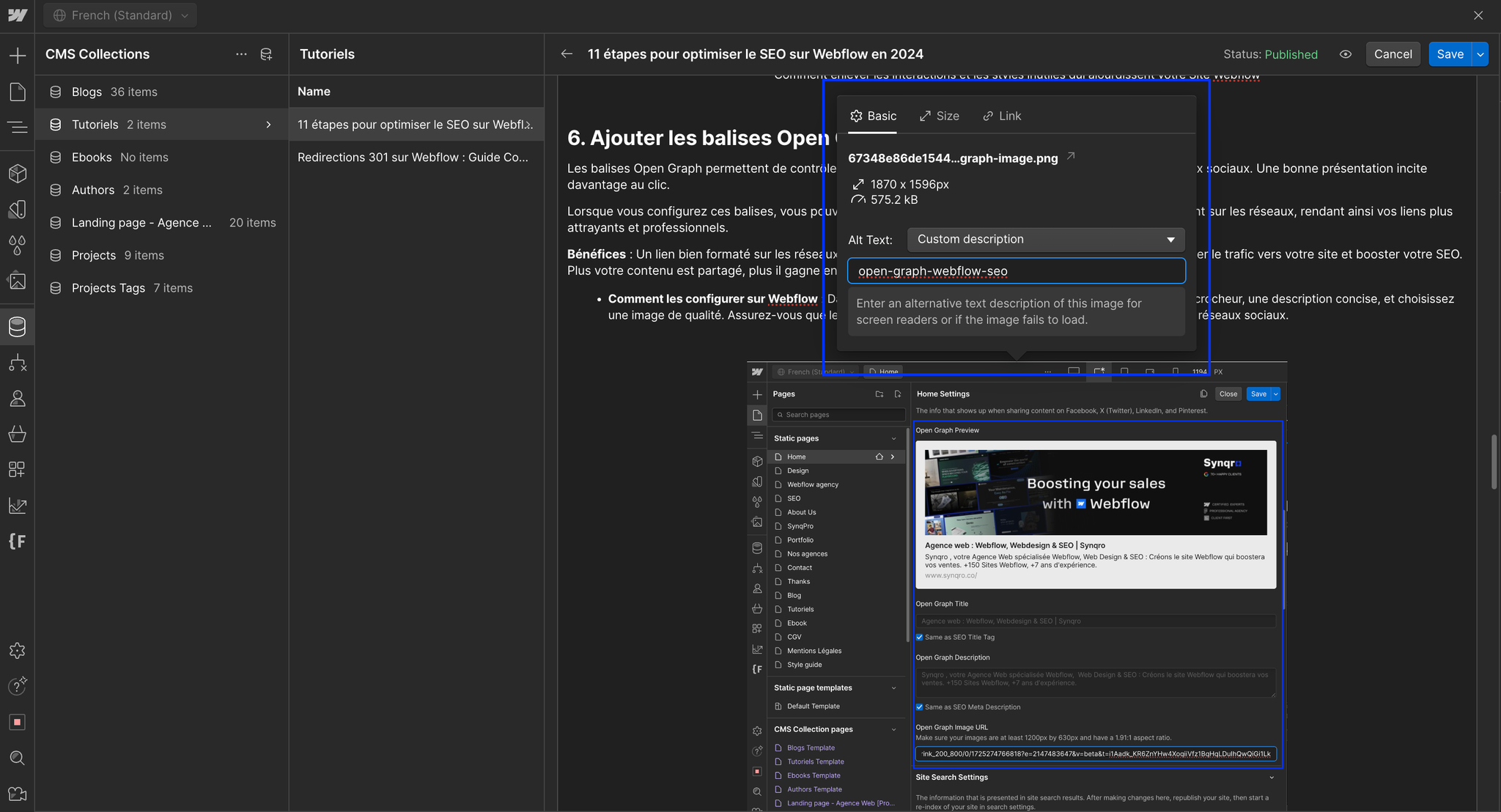
Google considers alt text the most important metadata of an image, and screen readers read it aloud to visually impaired people. Describe the image in one sentence, without a list of keywords. More details in our article on image SEO.
- In Webflow: set a default alt in the Assets panel, then adjust it in each image's settings if the context requires it. Check "Decorative" for purely decorative images. For CMS images, add an alt field to the collection.
8. Set canonical URLs
The canonical tag tells Google which URL is the reference version when several addresses show the same content (with or without www, with tracking parameters, etc.). Google treats it as a strong signal, not an order. More details in our article on the canonical URL.
- In Webflow: no custom code needed anymore. Fill in Site settings > SEO > Global canonical tag URL with your domain (https://www.example.com, with no trailing slash). For a specific page, the Page canonical URL field in the SEO settings overrides the global value, according to the Webflow help article on canonical tags (May 2026). If another tool, such as Google Tag Manager, already injects a canonical, do not add a second one.
9. Convert images to WebP or AVIF
WebP and AVIF files are much lighter than JPEG or PNG at comparable quality, which speeds up loading.
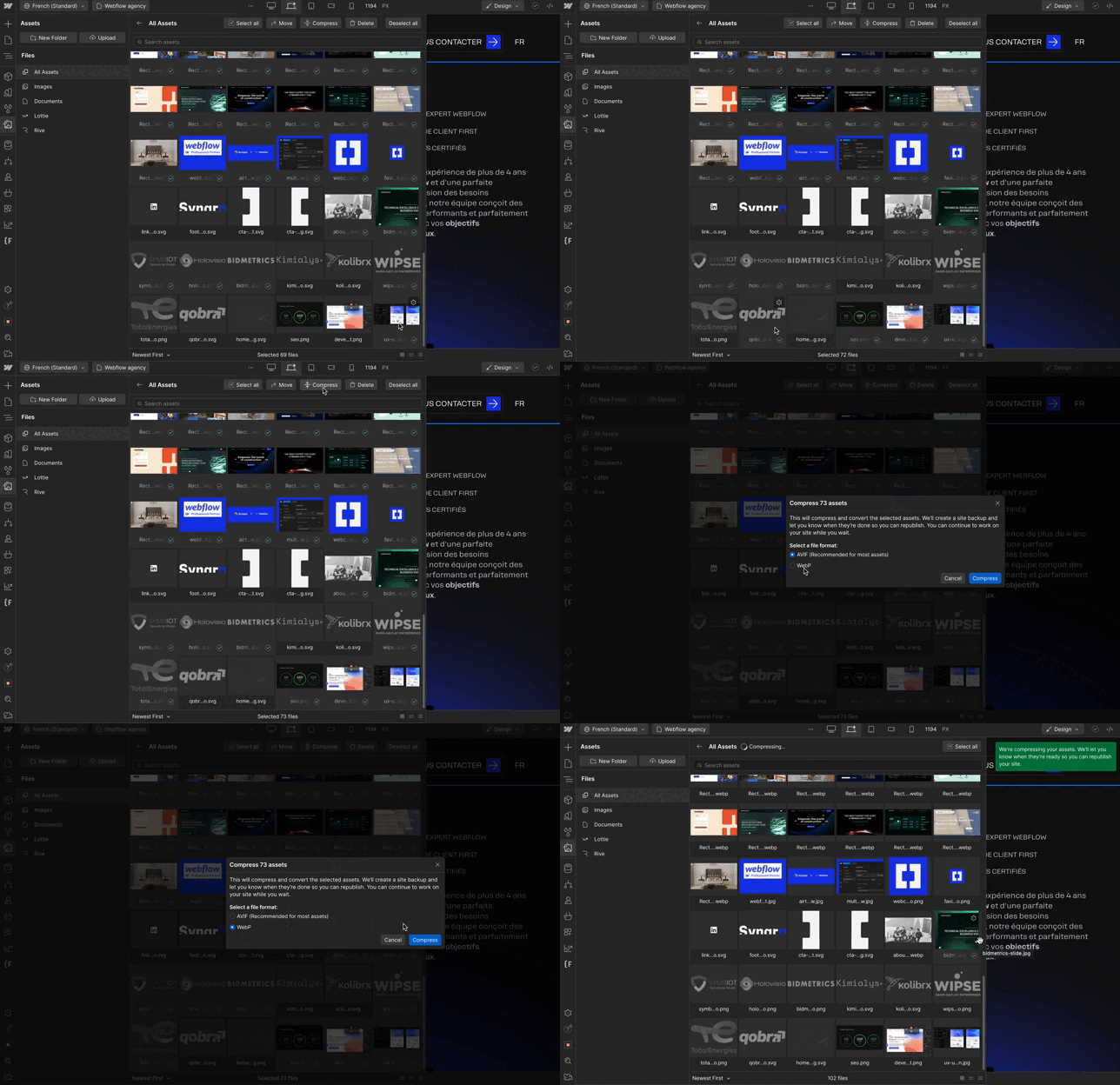
- In Webflow: in the Assets panel, select the images, choose WebP or AVIF and click Compress. For all CMS images, the Compress assets option is in the Collections panel. Be careful: according to the Webflow help center, the original is permanently replaced, so download it first. Then republish.
10. Set up 301 redirects
Every time a URL changes or disappears, redirect it to the equivalent page. Without a redirect, visitors and search engines hit a 404 error, and the signals built up by the old page are lost.
- In Webflow: Site settings > Publishing > 301 redirects. Enter the old path and the new path, click Add redirect path and publish. CSV import, wildcards and pitfalls to avoid are covered in our guide to 301 redirects in Webflow.
11. Take care of mobile rendering
Google indexes sites based on their mobile version: this is mobile-first indexing as described in the Google Search Central documentation. Content that is hidden or cut on mobile therefore counts for less. The old "mobile-friendly" label no longer appears in results: what matters is that the mobile version has the same content, the same headings and the same links as the desktop version.
- In Webflow: check every page on the tablet and mobile breakpoints in the Designer. Check text sizes, button spacing and elements hidden on mobile.
After these 11 settings: sitemap, Search Console and GEO
- Turn on the automatic sitemap in Site settings > SEO, then submit it in Google Search Console.
- Add JSON-LD structured data in Webflow for articles, FAQs and your organization.
- Start each page with a short, clear answer: that is what AI Overviews and AI assistants pick up.
How we apply this checklist at Synqro
At Synqro, a Webflow Premium Partner that has worked with more than 150 companies since 2019, these eleven points are part of the QA of every site before launch. SEO fields in CMS collections are planned from the design stage, so the client's team only has to fill them in. If you want a Webflow site built for SEO from day one, take a look at our Webflow services.
Frequently asked questions
Yes. Webflow produces clean code and gives native access to the essential settings: title, meta description, canonical, 301 redirects, sitemap, Open Graph, alt text and responsive images. Rankings then depend on content and authority, as with any CMS.


