Article
Webflow beginner's guide: basics, CMS, SEO and going live
Webflow9 min read

James BrunettoCo-fondateur & CEO
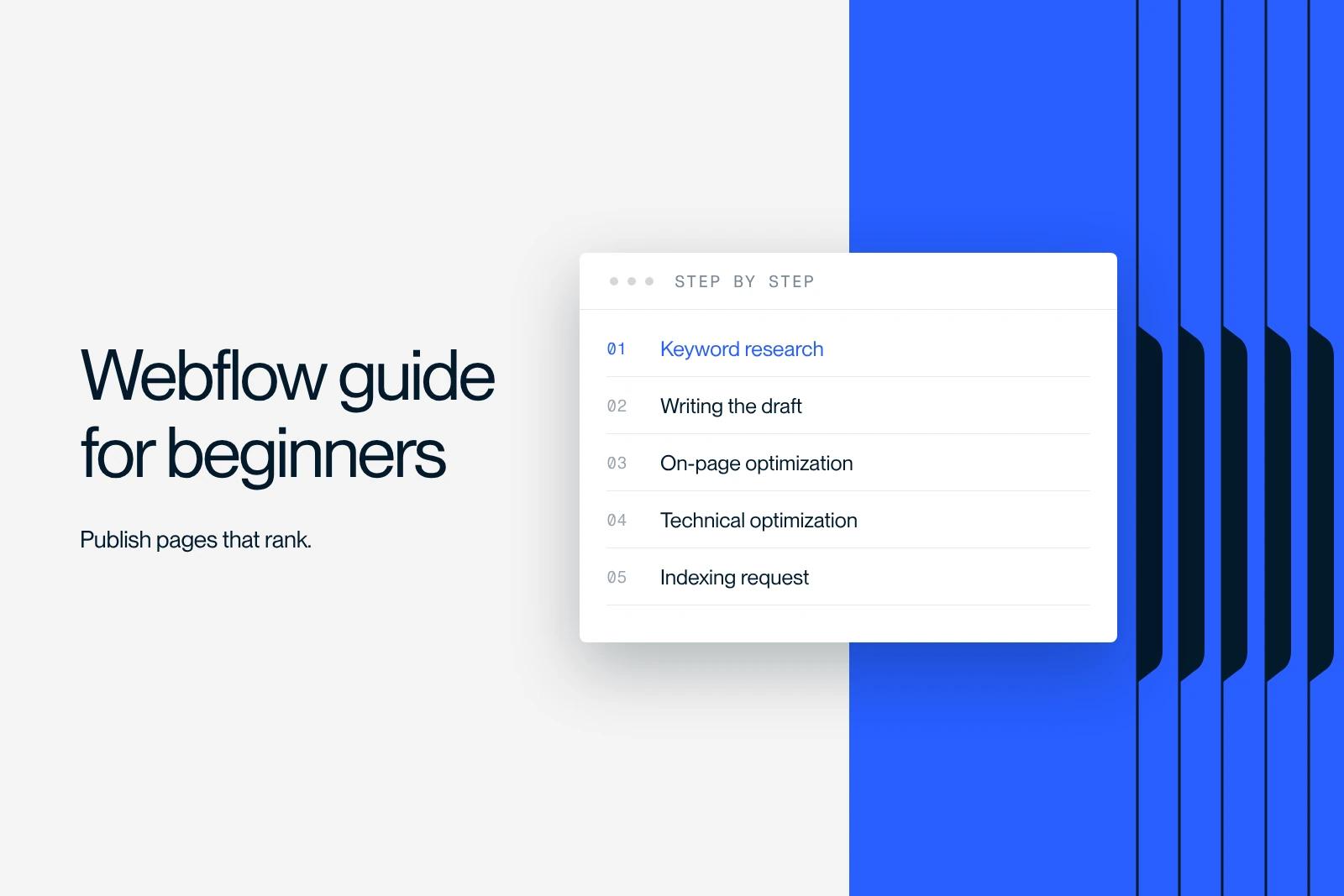
Webflow is a visual website builder: you build the page in the Designer, Webflow generates the HTML and CSS, hosts the site and manages content with its CMS. To get started, you need to master five building blocks: the interface, page structure, the CMS, SEO settings and going live.
This guide follows that order, with settings current as of October 2026: the Content editor role that replaces the old Editor, new DNS records and the image conversion tool. For the SEO writing method itself, see our SEO playbook for beginners.
Explore this post with…
Webflow for beginners: how does it work?
Webflow brings together three tools: a visual editor that works with real CSS properties, a CMS for repeating content (blog, projects, team) and built-in hosting. You do not write code, but you think the way you would in HTML and CSS: boxes, classes, margins, breakpoints.
To learn, the Starter site plan is free. According to the Webflow pricing page (checked on October 12, 2026), it only publishes to a webflow.io subdomain and is limited to 2 static pages and 50 CMS items. Connecting your own domain requires a paid site plan (Basic or Premium). The details are in our article on Webflow pricing.
Understanding the Webflow interface
The Designer
This is where everything is built: layout, styles, responsive design, interactions, connecting pages to the CMS. On the left, the elements panel and the Navigator (the page tree); on the right, the styles and settings of the selected element. Our complete guide to the Webflow Designer covers each panel in detail.
The CMS
The CMS stores repeating content in Collections. A Collection is a content type (articles, projects, team members) with its fields. Each item in the Collection generates its own page from a single template.
Site and page settings
Site settings cover publishing and the domain, global SEO, custom code, redirects and backups. Each page has its own settings: title, meta description, sharing image (Open Graph), page-specific code and password protection.
Who edits content: the Content editor role
Many tutorials still mention the Editor, the simplified interface for clients. According to Webflow's announcement about the legacy Editor, it has been unavailable since August 4, 2026. People who edit content now work in Webflow with the Content editor role: they change text, images and CMS items without touching the design. This role requires a seat (a client seat for agencies and freelancers, a limited seat for in-house teams).
Structuring your pages and classes
Always start from the same structure: a full-width Section, a Container that limits the content width, a wrapper that organizes the layout, then the elements (heading, text, buttons). This consistency makes the site readable for you, your team and search engines.
- One class = one role: section_hero, button, heading-large. Avoid generated classes like Div Block 73.
- Combo classes for variants: button is-secondary inherits from button and changes only what differs.
- Base styles on tags (All H1, All Paragraphs): set them at the start of the project, then change them carefully, because the change applies to the whole site.
- Responsive from large to small: styles from the base breakpoint cascade down to tablet, then mobile. Adjust each smaller breakpoint without breaking the previous one.
For a complete naming convention, the Client-First method is the most widely used in the Webflow ecosystem.
The Webflow CMS without getting lost
| Field type | Typical use |
|---|---|
| Plain text | Title, subtitle, meta description |
| Rich text | Body of an article |
| Image | Main visual, with its alt text |
| Reference | Link one item to another (an article to its author) |
| Multi-reference | Several links (a project to several categories) |
| Switch | Show or hide an element (featured article) |
Three mistakes come up often with beginners:
- Creating a Collection for every small variation instead of a category field.
- Adding dozens of fields "just in case" that nobody fills in.
- Changing the slug of a published article without a 301 redirect: see how to change a slug without losing SEO.
Images and videos: the settings that matter
- Image element rather than background image for content: Webflow generates responsive variants (srcset) for the Image element, not for CSS background images.
- WebP or AVIF: Webflow's image conversion tool converts your existing JPEGs and PNGs from the Assets panel. The conversion is permanent, so keep your originals.
- Loading: set the main image at the top of the page to Eager loading and leave the others on Lazy. Our article on lazy loading images explains why.
- Alt text: describe what a person would see ("Webflow interface showing the styles panel"), not a list of keywords.
- Logos and icons in SVG: sharp at every size and lightweight.
- Videos: host long videos with a dedicated service (YouTube, Vimeo) and keep Webflow background video for short, muted loops with a lightweight poster image.
Webflow SEO settings, step by step
Webflow handles the technical basics well (clean HTML, HTTPS, sitemap). The rest is set by hand. For the content side (choosing keywords, briefs, writing), follow our SEO playbook for beginners.
| Where in Webflow | What to set |
|---|---|
| Page settings | Title, meta description, Open Graph image, slug |
| CMS template settings | Title and meta tied to Collection fields, so each article has its own |
| Element panel | Heading tag (H1, H2, H3), image alt text |
| Site settings, SEO tab | Automatic sitemap, robots.txt, global canonical URL |
| Site settings, Publishing | 301 redirects |
| Page custom code | JSON-LD structured data |
301 redirects
Essential as soon as you change a URL or rebuild a site. According to Webflow's help article on redirects (updated in May 2026), they are in Site settings, Publishing, 301 redirects, and require a paid plan. Enter the old path as a relative URL (/old-page), the new path, then publish. To move a whole folder, capture the end of the URL with (.*) and reuse it with %1: /news/(.*) to /blog/%1. Rules apply in the order they were created, so place the most specific ones before the broadest. More cases in our guide to 301 redirects on Webflow.
Publishing and connecting your domain
Every site has a webflow.io staging address. Test everything there (links, forms, mobile) before publishing to your domain.
To connect a domain, Webflow's help article on manual connection says: Site settings, Publishing, Production, Add a custom domain. Then, at your registrar:
| Type | Name | Value |
|---|---|---|
| A | @ | 198.202.211.1 |
| CNAME | www | cdn.webflow.com |
| TXT | _webflow | Verification value shown in the settings |
Watch out for old tutorials: the records 75.2.70.75, 99.83.190.102 and proxy-ssl.webflow.com are deprecated. According to Webflow's help article on the DNS migration, you can no longer publish to a domain pointing to them since January 13, 2026. Always check the values shown in your settings. Propagation often takes a few hours, up to 48 hours, and the SSL certificate is enabled by default.
Backups: going back in time
Webflow creates a restore point every 50 autosaves, and you can create one manually before a big change. They are in Site settings, Backups, or in the Designer settings. Before restoring, read Webflow's help article on backups: a restore changes, for example, the publish dates of CMS items and requeues scheduled items. Step-by-step method in our article on how to back up and restore your Webflow site.
Tracking forms and conversions
Give each form a clear name (form_contact_footer, form_demo_hero). The simplest method to start with: in the form settings, set a redirect URL to a /thank-you page. Each visit to that page then corresponds to a submission.
- Install Google Tag Manager: paste its two snippets into the site's custom code (head and start of body), then publish.
- In GTM, add a Google tag with your GA4 ID (G-...), triggered on all pages.
- In GA4, create an event based on page_view when the URL contains /thank-you.
- Mark it as a key event, the name GA4 now uses for what used to be conversions (Google Analytics help).
Analytics and advertising trackers generally require the visitor's consent. Our Google Tag Manager guide covers consent mode, and our article on a GDPR-compliant Webflow site covers the cookie banner.
Checklist before every publish
- Page checked on desktop, tablet and mobile.
- A single H1, subheadings in order, title and meta description filled in.
- Images compressed, with alt text, main image set to Eager.
- Links and forms tested, /thank-you page in place.
- 301 redirect created if a URL has changed.
- Manual restore point before a major change.
Learning on your own or getting support
To progress on your own, the free Webflow University courses and our guide to learning Webflow for free are enough for a first site.
At Synqro, a Webflow Premium Partner agency since 2019, we build sites so the marketing team can publish on its own afterward: Collections planned from the start, reusable components, SEO settings tied to the CMS. A complete site takes 8 to 12 weeks and costs €3,000 to €20,000 excluding VAT, depending on the design, the brand work and SEO. Our Webflow agency page explains the method.
Frequently asked questions
You can learn and build for free with the Starter site plan, limited to a webflow.io subdomain, 2 static pages and 50 CMS items. To connect your own domain, you need a paid site plan.


